Chapter 10 — Simple Mode
Simple Mode (German Einsteiger-Modus, Cmd+1) is the guided workflow for everyone reconstructing a 3D Gaussian Splatting scene for the first time. Instead of showing a sidebar full of Inspector fields, the app guides you through four steps: first import images or a video and choose a Quality Preset, then processing runs (SfM + Training), afterwards the finished scene can be inspected in a 3D preview, and finally it is exported to the desired format. A slim progress bar at the top edge of the window always shows which step you are currently on.
Compared to Expert Mode (Cmd+2), which shows all control panels simultaneously, Simple Mode hides unused options, gives validation warnings for too few or poor images, and on each step only offers the buttons that make sense in the current state. You can switch between Simple and Expert Mode at any time (Cmd+1 / Cmd+2), the entire state — imported images, chosen preset, currently running training, finished point cloud — is preserved and is immediately available in the other mode.
Z1 — Import (choose images & preset)
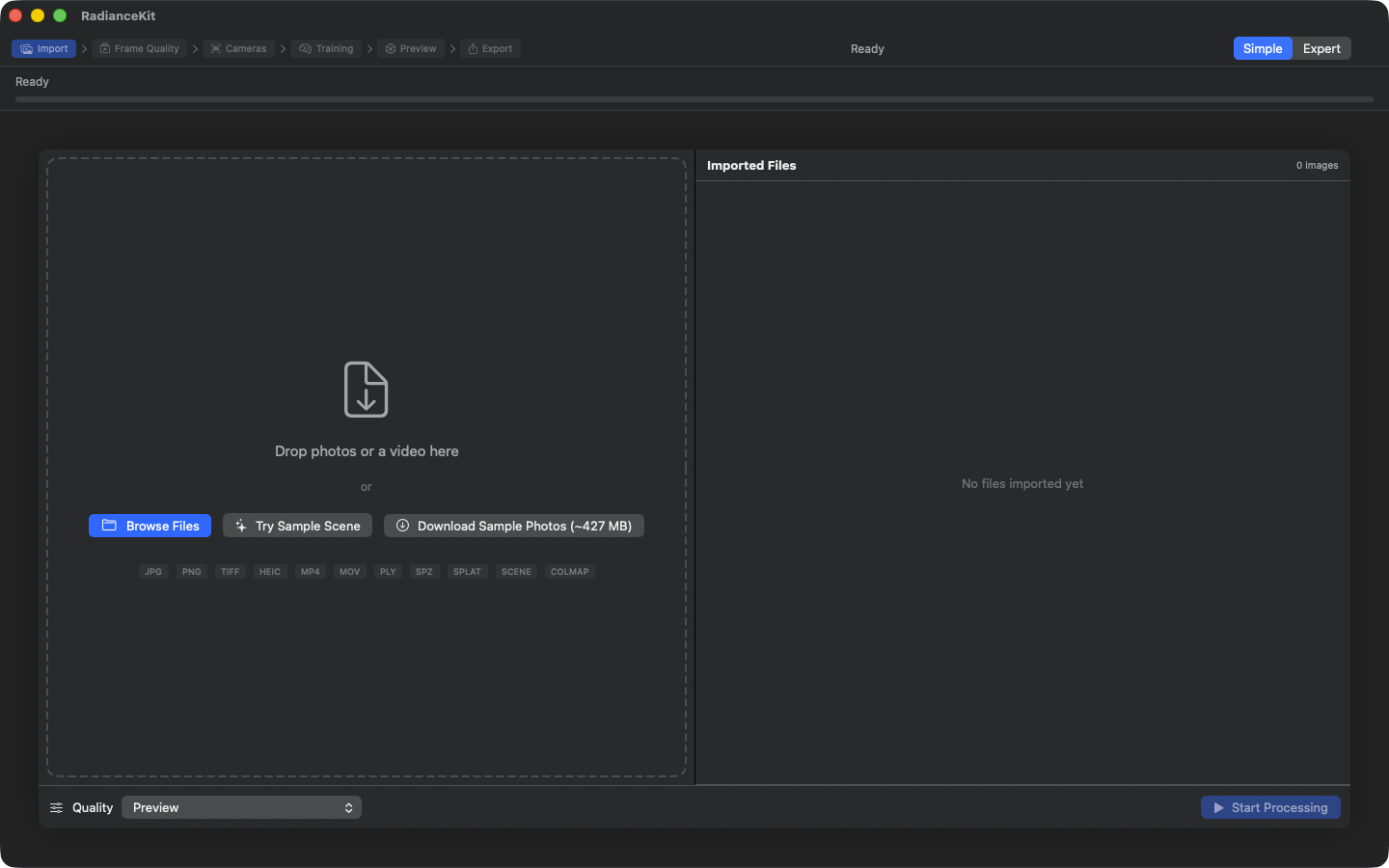
Crumb trail (Import active) shows the four-step workflow. Left drop zone with three CTAs: "Browse Files" (NSOpenPanel), "Try Sample Scene" (bundled demo), "Download Sample Photos (~427 MB)" (Mip-NeRF360 flowers subset). Format pills underneath list all accepted file types. On the right "Imported Files" with counter "0 images" and empty state "No files imported yet". Below, Quality picker (default: Preview) and "Start Processing" (disabled as long as no images are present).
The first step consists of giving the app image material. Via drag-and-drop into the large dashed field in the middle, via the "Browse Files" button, or by clicking on the bundled sample scene. On the right a list of all imported images appears with resolution and file size; below in the floating toolbar you choose the Quality Preset and start the pipeline with "Start Processing". Validation warnings (red at < 3 or < 10 images, orange at 10–19) indicate whether the app expects a sensible reconstruction or not.
C-01ProgressIndicator (step indicator)
WHERE
Top above the workflow, always visible.
TECHNICAL
Shows a horizontal progress bar across the entire pipeline (Frame Quality → SfM → Training) with stage allocation: Frame Quality occupies 0–5 % (Phase 3.11, very short), SfM occupies 0–30 % of the bar, Training 30–100 %. Next to it status text and phase-named percent display ("SfM 41 %", "Training 12 500/20 000"), so users do not read the apparent regression "41 % SfM → 25 % Training" as an error — the bar shows the overall pipeline progress, not the sub-stage. ETA calculation starts as soon as enough training speed is measured (typically after the first 100 iterations). The same display is also used in Expert Mode above the Inspector.
C-03DropZoneView (drag-and-drop area)
WHERE
Left side of the import step, large dashed rectangle with symbol. Displayed in Simple Mode with the label "Drop photos or a video here".
TECHNICAL
Drop area that briefly bounces the symbol and tints the background as soon as drag items hover over the field. Accepts JPG, PNG, TIFF, HEIC, MP4, MOV, PLY, SPZ, .splat, .radiancescene bundles, and directories. Drop routing by type: images are collected and passed in sorted order, videos trigger the frame-sampling path, splat files open the preview directly, scene bundles are read in. Directories are enumerated and all contained images are imported. Security-scoped bookmarks for sandbox-compliant access are correctly acquired and released. Unsupported extensions are displayed as a warning banner for 5 seconds.
C-05Browse Files Button
WHERE
Inside the drop zone, prominent button.
TECHNICAL
Button that opens the macOS file dialog with multiple selection and the file types JPG, PNG, TIFF, MP4, MOV, folders as well as the app-own scene format. Result URLs are security-scoped and are routed through the same import paths as drag-and-drop. When the user selects a folder, it is recursively enumerated for images.
C-06Try Sample Scene Button
WHERE
Inside the drop zone, only visible when the app bundle contains the sample scene and no images/splats have been imported yet.
TECHNICAL
Only appears when (a) a sample-scene.splat, .spz or .ply is present in the app bundle AND (b) no images/videos have been imported and no point cloud is present. On click loads the finished point cloud (preferring the smallest format — .splat ~3 MB, .spz ~1.4 MB, fallback .ply) and after 400 ms sets hardcoded camera values from the original metadata of the flower scene for an aesthetically pleasing entry perspective.
C-07Download Sample Photos Button
WHERE
Inside the drop zone, next to "Try Sample Scene"; same visibility conditions.
TECHNICAL
Triggers a download (repo github.com/bkindler/radiancekit-sample-photos) that loads approx. 427 MB of 960 full-resolution frames and feeds them into the app. During the download the button is disabled. The progress appears in the top progress bar as "Downloading X %" in its own stage, because this stage keeps its own 0–100 % scale and does not overlap the later SfM stage.
C-09Quality Presets Picker
WHERE
Floating bottom toolbar of the import overlay, to the left of the Start button.
TECHNICAL
Control with label "Quality" groups the available presets by category (Classic / MCMC / Custom). Built-in presets are grouped by category; the section headers are hardcoded. Custom presets only visible when some exist. Locked state: presets not in the free list (Quick + Preview) get a "🔒" suffix at the name when the user has not purchased; on selection the picker jumps back to Preview and automatically opens the purchase sheet. On selection the preset is applied, which replaces the entire training configuration.
C-10Start Processing Button
WHERE
Floating bottom toolbar of the import overlay, to the right of the preset picker.
TECHNICAL
Button that stays gray as long as neither images nor a video have been imported. On click starts the pipeline and switches the stage machine in the order Frame Quality → SfM → Training. The button itself has no further status; a running processing instead appears as a separate processing screen.
C-11Video Sampling Slider
WHERE
Right image list, visible only when a video (instead of images) has been imported.
TECHNICAL
Slider 0.5 fps – 30 fps in 0.5 steps. On change the frame density is updated and additionally the number of target frames (at least 10) is computed from density and video length. The slider sits outside the image list, because list items would block mouse events from sliders. Below the slider the computed target frames ("247 frames") and the video length ("1m23s video") are shown. Tooltip warns: "Doubling the density doubles the number of frames and increases SfM time by ~100%."
C-12Clear All Button
WHERE
Right image list, bottom right; visible only when images have been imported.
TECHNICAL
Red button. Click opens a confirmation dialog with title "Clear all imported files?" and message "N images will be removed.". Confirmation clears all imported images/videos, staging directories, the point cloud, training status, the SfM result, and all caches; the stage jumps back to Import. On Cancel everything is preserved. The dialog is configured as a non-destructive default path (destructive button marked red).
C-13File List ForEach (single image removal)
WHERE
Right image list, every entry.
TECHNICAL
List over the imported images with swipe-to-delete. Per image one row with icon, file name, resolution ("1920 × 1080") and file size (formatted KB/MB). Resolution comes from a metadata cache populated asynchronously from the image headers, so the UI does not block. The delete action offers macOS-typical swipe delete (trackpad swipe left on a row) as well as keyboard delete for the selected row. Note: the extended image-delete path with explicit minus button, backspace, and Cmd-Z for undo was added only in Expert Mode in the Project Navigator — in Simple Mode it stays with swipe delete.
C-15Validation Warnings (3-tier)
WHERE
Below the image list, above the Clear All button.
TECHNICAL
Three successive thresholds based on the number of imported images (only active when images present and no video): - < 3 images: red banner (red octagon), text "At least 3 images are required. Camera alignment cannot be computed from fewer images." - 3–9 images: red banner, text "With fewer than 10 images, SfM often fails and the trained scene tends to overfit […]. 15–20 images minimum recommended; 30+ for object captures." - 10–19 images: orange banner (warning triangle), text "Workable, but quality usually improves with 20+ images and good coverage around the scene."
From 20 images the banner disappears. Thresholds are hardcoded and based on empirical 560+ training experiments.
C-16COLMAP Workspace Detection
WHERE
On dropping a folder — not a visible button, but detection logic.
TECHNICAL
On dropping a directory it is checked whether it contains one of the three canonical workspace layouts: sparse/0/cameras.bin, sparse/cameras.bin or directly cameras.bin in the root. If so, the standard image enumeration is aborted and instead a modal alert is opened asking the user whether the existing reconstruction should be used or the images should be re-run through Apple Photogrammetry. Same path also for text-format workspaces (cameras.txt) and ETH3D exports. See Chapter 9 backend Q6 for details. Works in Simple Mode the same as in Expert Mode.
When to move to the next stage?
You can click Start Processing as soon as (a) at least one image or a video has been imported and (b) the validation banner is orange or gone. With a red banner the app does let you start, but you can with high probability cancel the processing again right away. Recommended: at least 20 images, sharp, with clear overlap between successive shots, all from approximately the same distance to the subject. Choose a preset before starting that fits your time budget — with 30 images and the Quick preset you are done in a few minutes, with Quality it rather takes 1–2 hours.
Z2 — Processing (SfM + Training)
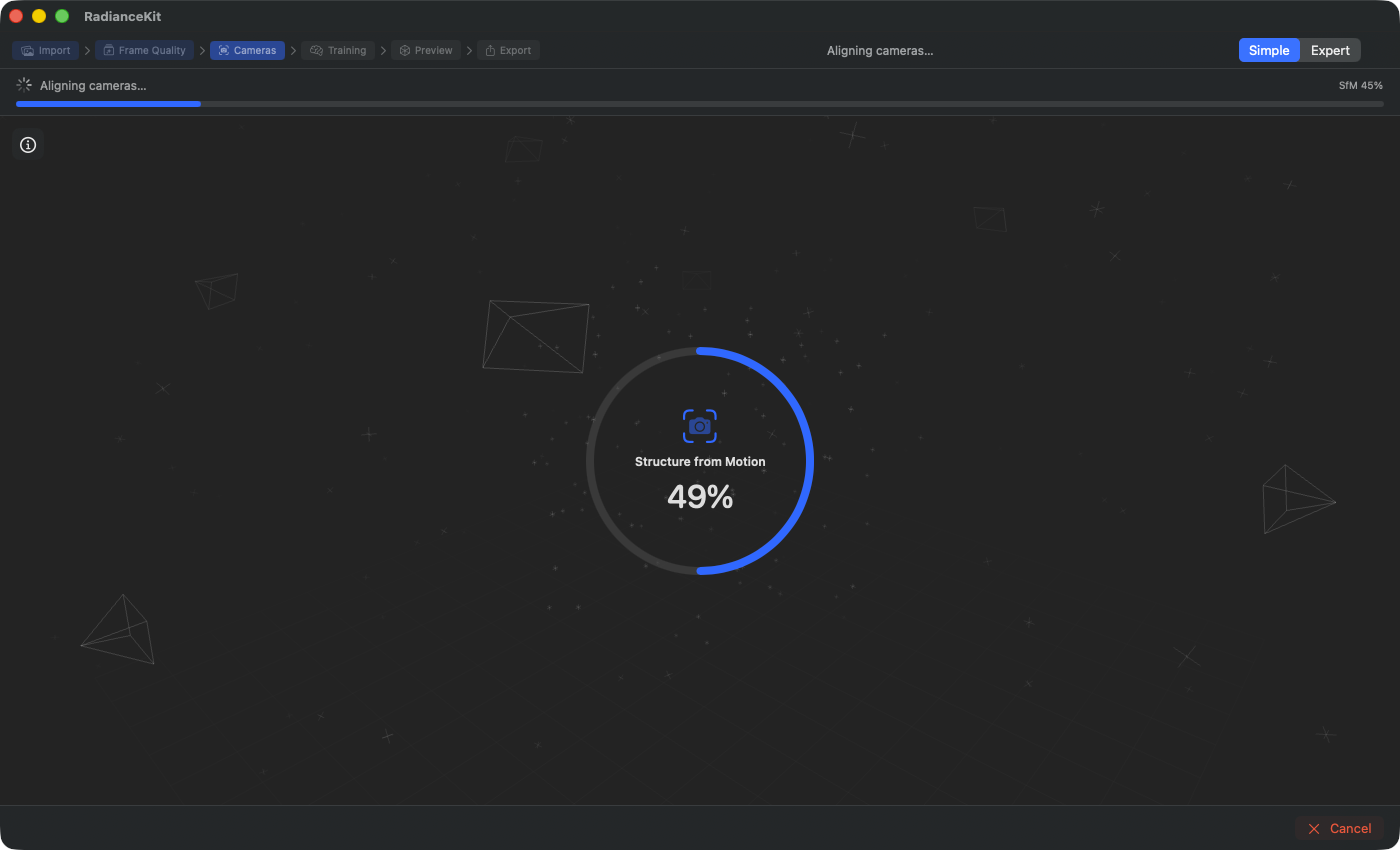
SfM phase (cameras are being aligned): Large progress circle shows sub-stage progress (here 41 % of the running Apple Photogrammetry session). Status text "Aligning cameras…" top left. Crumb trail marks "Cameras" as the active stage. Top status bar shows pipeline overall progress (25 %) — SfM occupies the first half of the bar. Floating wireframe cameras in the background hint that poses are being estimated.
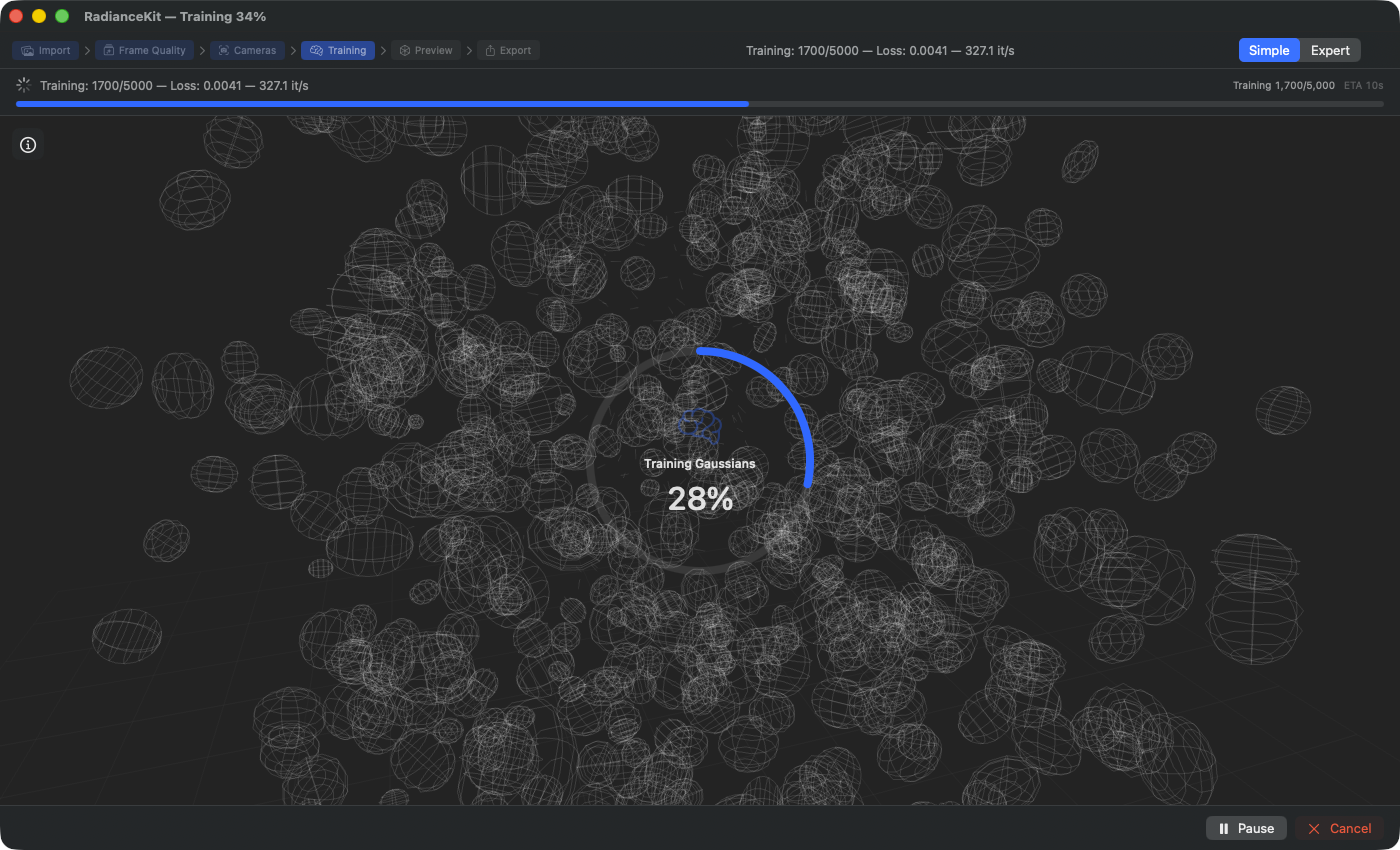
Training phase (Gaussians are being optimized): Sub-stage icon switches to "Training Gaussians", percent counts iterations of the chosen preset (here 400 / 5 000 for Preview preset = 8 % of the stage). Live metric line shows loss value (0.1642), iterations per second (138.7 it/s) and ETA (33 s). Pipeline overall progress climbs from 50 % to 100 % during this phase. Pause button (instead of cancel-only in SfM phase) allows resume later; Cancel discards the training result and returns to Z1.
As soon as the pipeline runs, the app hides the import overlay and shows a full-screen processing screen. In the middle a large progress circle runs (220 × 220 pixels) with stage icon, status text and percent number; in the background a subtle splat animation symbolically visualizes the running computation. Top left an info panel can be shown that displays live metrics from training and SfM. At the bottom there are Pause/Resume, Cancel, and in case of error a Retry button.
C-18SplatTrainingView (background animation)
WHERE
Full-screen background behind the progress circle, hidden on cancel or error.
TECHNICAL
Decorative animation that, depending on pipeline progress (0…1), renders an increasing number of small animated splat particles. The source is a computed progress value that maps SfM phases to 0–0.2 and training to 0.2–1.0 (Frame Quality to 0–0.05). This way the splats visibly "build up" while training runs. Purely decorative — the display does not show actual intermediate results of the current training (that would be live preview in Expert Mode). On cancel or failure it is hidden and only the status circle remains visible.
C-19Large progress circle
WHERE
Center of the processing screen, 220 × 220 pixels.
TECHNICAL
Two rings rendered on top of each other: outside a muted track ring, inside a filled progress ring with accent or red stroke (red on error). Inside the circle a stage icon (brain for training, camera for SfM, film for video frame extraction, sparkles for Frame Quality), stage title and the live animated percent number in 32-point rounded font. The icon pulsates gently as long as processing is active. The display interpolates on a 30 Hz timer smoothly towards the current actual progress — with a constant creep (0.0003/frame) plus a proportional share (4 % of the gap) and a soft ceiling that sets to 80 % of the next expected milestone (for SfM from a hardcoded milestone table). This way progress feels fluid, even if the actual SfM updates only arrive every few seconds.
C-22Info Button (show metrics)
WHERE
Top left on the processing screen, 32 × 32 pixels.
TECHNICAL
Simple button with material background. Toggles the info panel on or off. Icon switches between info-circle outline and info-circle filled when active. Smooth fade-in animation. Tooltip "Show detailed processing metrics".
C-23Info Panel (live metrics)
WHERE
Bottom left on the processing screen, visible only when showProcessingInfo == true.
TECHNICAL
Two-column panel with ultra-thin material background. Left column: stage-specific info lines — for SfM status text and percent; for training iteration, combined loss, L1 loss, D-SSIM loss, Gaussian count (colored orange), speed (it/s), elapsed time, computed ETA, SH degree and learning rate. Right column: status text, time info string, inline loss chart (see C-28) and a discoverability nudge (see C-32). All values are read from training status, which is updated on every training tick.
C-25Pause/Resume Button
WHERE
Bottom navigation bar, visible only during the training stage (NOT during SfM) and as long as processing is running.
TECHNICAL
Bordered button. Calls Pause or Resume depending on status. Label switches between "Pause" (with pause icon) and "Resume" (play icon). During the SfM step the button is not shown, because Apple Photogrammetry has no pause semantics. The pause state fully preserves iteration, Gaussian status and optimizer momentum — Resume continues where it was previously stopped.
C-26Cancel Button
WHERE
Bottom navigation bar, visible while processing is running (SfM or Training).
TECHNICAL
Red bordered button. Opens a confirmation dialog with title "Stop and discard progress?", buttons "Discard Progress" (destructive) and "Keep Running" (cancel). On confirmation the cancel flag is set, the training task ended, the SfM subprocess ended if necessary, and a summary line with cancel status is written to the JSONL log. In contrast to Pause, training buffers and status are discarded.
C-27Retry Button
WHERE
Bottom navigation bar, visible when the pipeline has failed (SfM status starts with "SfM failed" or training is in error state).
TECHNICAL
Accent button. Restarts the entire pipeline. Before starting it is checked whether imported images/videos are still present. Previous error logs are kept in the JSONL directory; a new run writes a new log file with the current timestamp.
C-28Inline Loss Chart
WHERE
In the info panel, right column, visible only during training with non-empty history.
TECHNICAL
Compact drawing area (40 pixels high), draws the loss history as a 1-pixel line in accent color. Data is filtered to finite values (NaN protection for unstable trainings). Min/Max are computed across the entire history — the chart thus auto-zooms to the value range. The last loss value sits at the top right above the chart. The history itself is built up in the app state at every training tick (typically every 100 iterations).
C-32Discoverability Nudge (Expert Mode hint)
WHERE
In the info panel, right column at the bottom, visible only during training AND in Simple Mode.
TECHNICAL
Small line with eye icon and caption text "Switch to Expert Mode (⌘2) for live splat preview", in a restrained tone and 10-point font. No interactive element, just a hint. Does not react to click — the user has to actually press Cmd+2 or click the menu Mode → Expert Mode.
When to move to the next stage?
The app switches automatically to Z3 (Preview) as soon as training is successfully completed — you don't have to click. The bottom navigation bar then switches from Pause/Cancel to a Back button (back to Import) and an Export button (forward to Export). In error cases (red error message, stage icon is X) Retry appears instead, and you have to decide whether to start again or to go back to Import with Back to change image material.
Z3 — Preview (rotate 3D model)
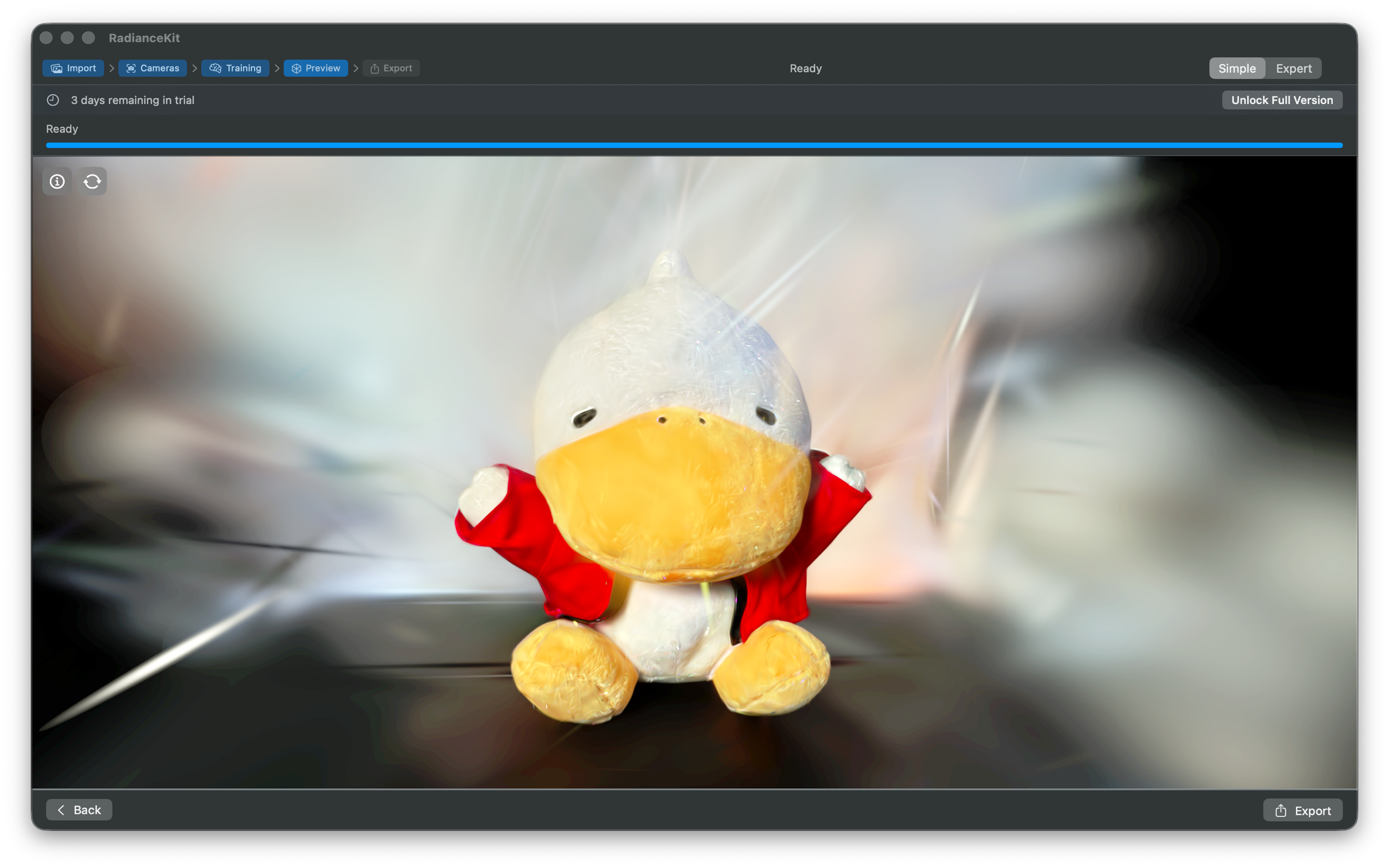
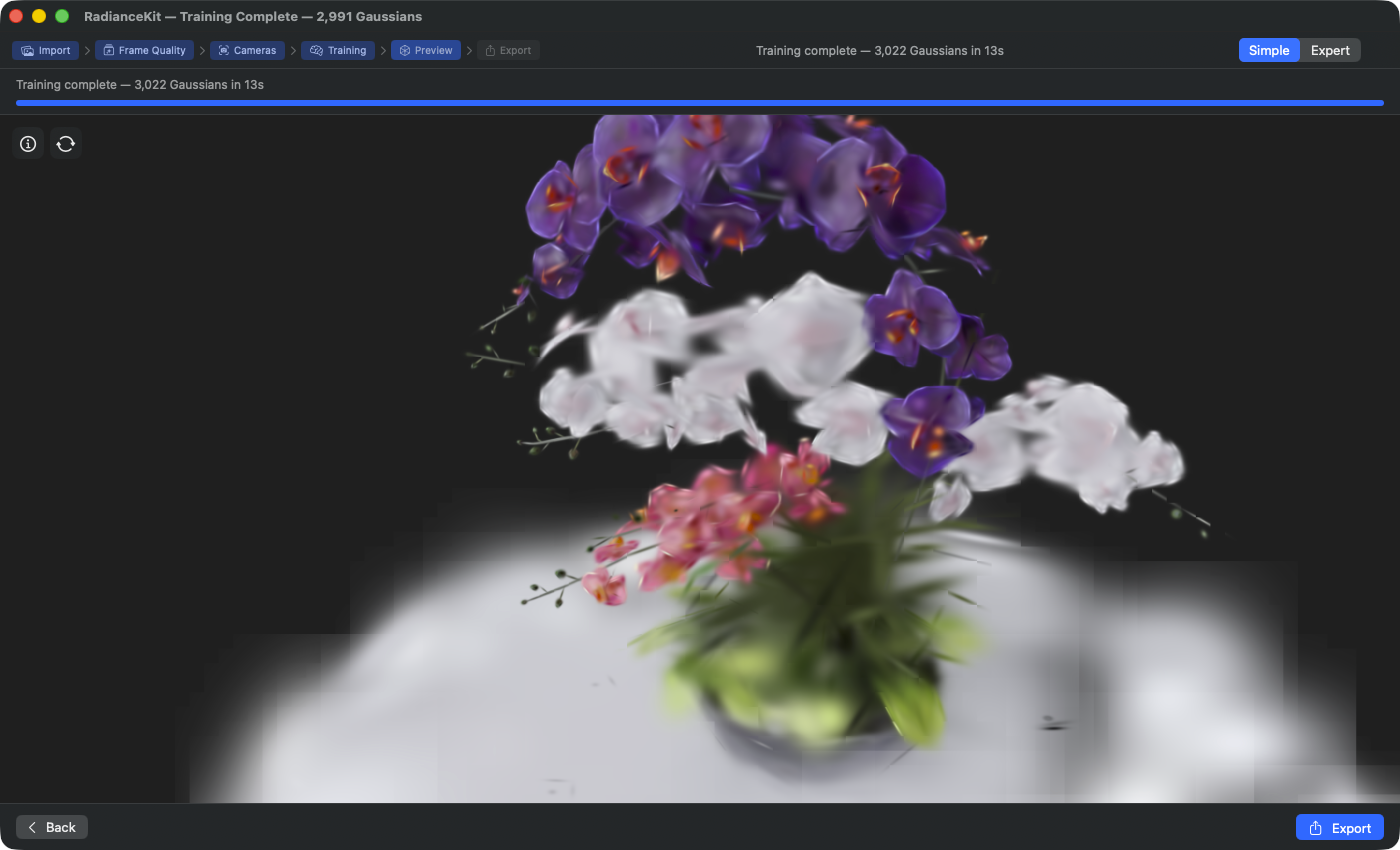
Crumb trail marks "Preview" as active stage. Full-screen 3D viewport renders the finished trained bouquet scene (synthetic Blender test set by Bjoern, 60-frame subset from 960 hemispherical cams). Header status bar: "Training complete — 3 022 Gaussians in 13 s" — gives final Gaussian count and training time. Drag in the viewport rotates the camera (yaw/pitch); scroll wheel zooms along the view direction. "Back" button (bottom left) returns to Z2 for resume or re-run; "Export" button (bottom right, primary) navigates onward to Z4.
After completion of training, the app automatically lands in the preview. Here you see your finished Gaussian Splatting model in a fullscreen Metal view and can rotate, zoom, and pan it with mouse and trackpad. On top of the viewport sits a small overlay with camera controls and info — auto-rotation, training statistics, reset button. Before the next step (Export) it is advisable to inspect the model from different angles to make sure the reconstruction is clean.
C-36SplatViewportView (3D main view)
WHERE
Fullscreen background of the preview step.
TECHNICAL
Metal-based 3D viewport that renders the finished point cloud. The renderer is the vendored MetalSplatter fork with RadianceKit fixes for popping/flickering. Tile-based rendering pipeline with order-independent transparency. If the renderer cannot be initialized (e.g., because Metal is not available on the system), a black background with "Metal not available" text appears instead. The view ignores the safe area, so the model reaches to the window edge.
C-37CameraControlsOverlay (controls overlay)
WHERE
Above the viewport, floating.
TECHNICAL
Compact UI overlay with buttons for auto-rotation (turntable), reset camera, background choice (gray/black/white), save screenshot, toggle info panel. Binds to the camera parameters (distance, azimuth, elevation, target, FOV) and controls the auto-turntable. During training (when the user in Expert Mode wants to see the viewport co-running), the overlay additionally shows a compact training status line.
C-38Export Button (navigation bar)
WHERE
Bottom navigation bar in Z3.
TECHNICAL
Accent button with label "Export" and share icon. Click triggers the switch to Z4. Before that the parent view checks whether the full version is unlocked — if not, instead of the export stage the lock view is shown (see U-06).
When to move to the next stage?
Before you export, rotate the model once completely around and check: Are all areas you covered in your input images present? Are there floating "floaters" (Gaussian splat clouds floating freely in the air)? Does the background/sky look clean or smeared? Severe problems can only be fixed by re-training — either with more images, a different preset, or in Expert Mode with floater reduction settings.
Z4 — Export (choose format & save)
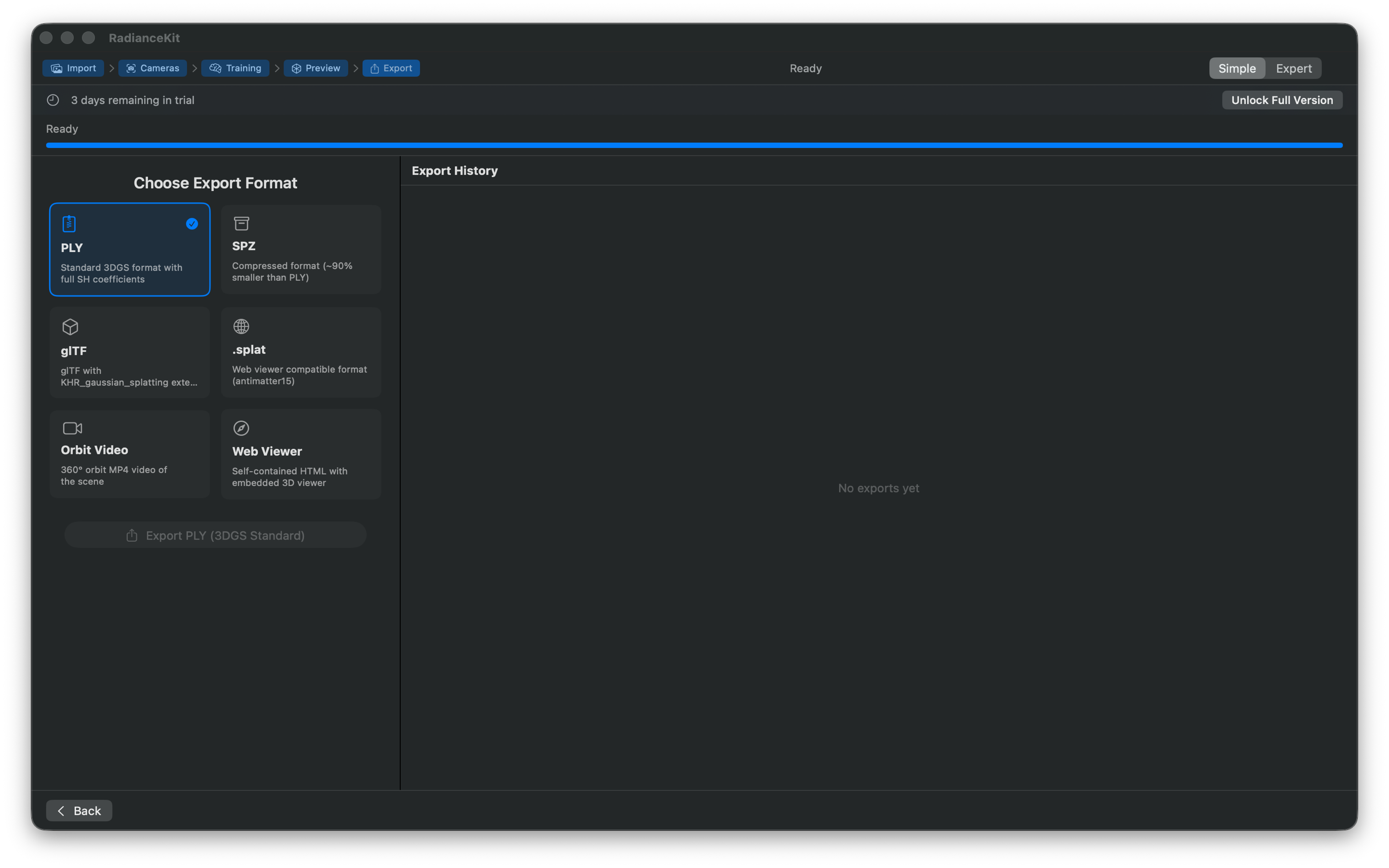
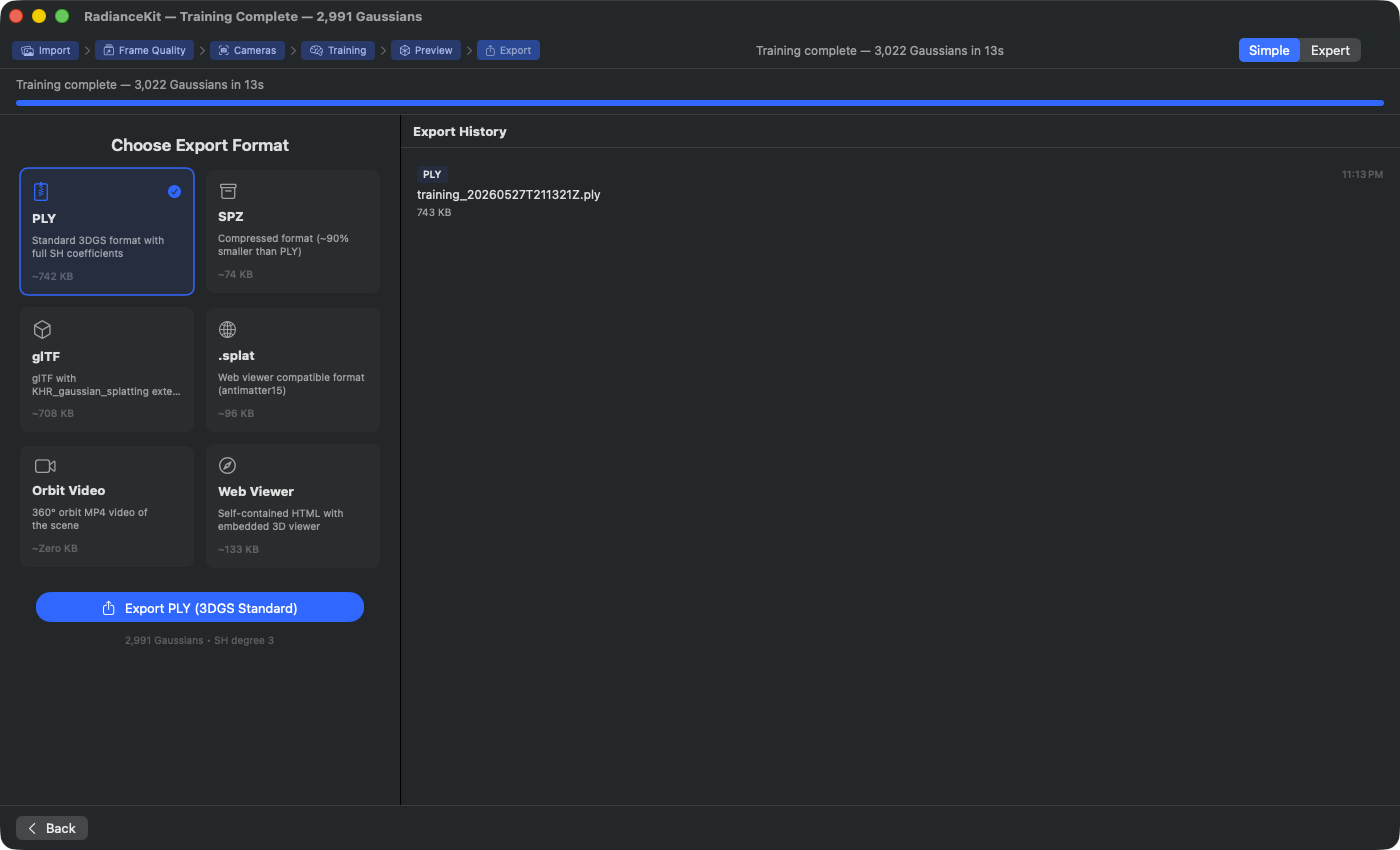
Crumb trail marks "Export" as active stage. Left card grid "Choose Export Format" with all six options: PLY (standard 3DGS, 742 KB, with full SH coefficients — preselected here with blue check mark), SPZ (compressed 3DGS format, ~90 % smaller than PLY, 74 KB), glTF (with KHR_gaussian_splatting extension, 708 KB), .splat (web-viewer compatible via antimatter15, 96 KB), Orbit Video (360° MP4 of the scene, live size computation), Web Viewer (standalone HTML with embedded 3D viewer, 133 KB). Size figures are computed live from the current Gaussian count and format overhead. On the right "Export History" lists already-completed exports with format pill, file name and timestamp — click reveals in Finder. Primary CTA bottom left: "Export PLY (3DGS Standard)" with Gaussian subtitle "2,991 Gaussians · SH degree 3".
In the last step you choose from 6 export formats (PLY, SPZ, glTF, .splat, orbit video, web viewer) via a 2-column card grid, click Export and choose the save location in the macOS dialog. On the right a history of all previous exports runs — on card selection the estimated file size is shown immediately under each card, so you e.g. prefer SPZ if you want to go on the web (small), and PLY if you want to import into another software (SuperSplat, Postshot, Blender via plugin) (large and complete).
C-392-Column Format Grid
WHERE
Left main side of the export step.
TECHNICAL
Card grid with two flexible columns and 12 points spacing. Iterates over the formats offered in Simple Mode — a filtered subset of the full format list that contains only the 6 most important formats: PLY, SPZ, glTF, .splat, orbit video, web viewer. Compressed PLY and SOG are offered ONLY in Expert Mode.
C-40Format Card Button
WHERE
Each card in the grid.
TECHNICAL
Simple button with card layout: icon (e.g., document zipper for PLY, archive box for SPZ, video icon for orbit video) on top, format name as headline, description caption (truncated to 2 lines), below that the estimated file size (computed live from format, Gaussian count and SH degree and formatted as KB/MB). On click the format is selected. The selected card gets an accent background, accent border and a check mark icon top right. Tooltip is the format description.
C-41Video Duration Slider
WHERE
Under the format grid, visible only when a video format is chosen (orbit video or social video).
TECHNICAL
Slider 3–30 seconds in 1-second steps, binds to the video length in app state. Maximum width 300 pixels. Only shown when a video format is selected. For non-video formats the slider is completely removed from the view — no dead space.
C-42Export Button
WHERE
Under the format grid (and under the duration slider, if video chosen).
TECHNICAL
Large accent button. Label: "Export {format-name}", share icon. On click the macOS save dialog opens with a format-fitting extension and default filename "scene.{ext}"; on confirmation the export is written to the chosen URL. Disabled when no training result is present or an export is already running.
C-43Export Progress Bar
WHERE
Under the export button, visible only while an export is running.
TECHNICAL
Progress display with max width 300 pixels, under it caption "Exporting… N %". The value runs from 0 to 1 and is updated during writing — with PLY in chunks of 10 000 Gaussians, with SPZ once after quantization, with orbit video in frame intervals.
C-44Export Error Display
WHERE
Under the progress bar, visible only when an error occurred during the last export.
TECHNICAL
Red line with warning icon and error text. Red 8 % background opacity, rounded corners. Max width 400 pixels. Common error causes: SOG expects cwebp in the system PATH (not App Store compliant); write error with full disk space; sandbox error with save targets outside the allowed area.
C-46Export History List
WHERE
Right side of the export step.
TECHNICAL
List over the export history (persistent as JSON in the UserDefaults, maintained after every successful export). Each row shows format badge (small, accent-colored), timestamp (HH:mm), file name (truncated to 1 line) and formatted file size. Click on a row opens Finder with the selected file. Empty state: "No exports yet".
C-48History Context Menu (right-click)
WHERE
Right-click on a history row.
TECHNICAL
Context menu on every list entry with two actions: "Reveal in Finder" (opens Finder with selected file, like the single click) and "Copy Path" (places the full file path as text in the clipboard). The latter is useful for drag-and-drop into other apps or for handover to the command line.
When is the workflow complete?
After a successful export you have your 3D model as a file on disk and the history shows a new entry. There is no "Done" button — you can append any number of exports in different formats without retraining. If you want to go back to the preview (e.g., to check a camera perspective again), use the Back button in the bottom navigation bar. If you want to start a completely new scene, go via Back to Z1 and use Clear All there, or File → New Project (Cmd+⇧+N).
Switching to Expert Mode
Press Cmd+2 anytime or choose Mode → Expert Mode (M8). The entire state is preserved: imported images, chosen preset, running or finished training, finished point cloud, export history, even the current stage. In Expert Mode, instead of the four-step stage, the full Inspector sidebar is shown with all ~150 control fields. In particular: the Project Navigator (see Chapter 2) offers the extended image operations (minus button, backspace delete, Cmd-Z undo, Quick Look preview), the live preview in the viewport during training, as well as all loss, MCMC, densification, and Mip-Splatting parameters. Cmd+1 switches back to Simple Mode — this also loses no state.
Frequently Asked Questions
Why does my Start Processing button stay gray?
You have not yet imported any images or a video. Drag at least one file into the drop zone or use "Browse Files". As soon as the image list on the right contains at least one entry, the button becomes active. (With only 1–2 images it does start, but SfM aborts directly with an error — see the red validation banner.)
Why is my Export button locked?
In Simple Mode there are two levels: (a) If the training pipeline is not yet finished and you have none, the button is disabled — you have to finish Z2 first. (b) If you have not yet purchased the full version (PurchaseManager.hasAccess == false), you see, instead of the export stage, a lock view with lock icon and "Unlock Full Version" button, which opens the purchase sheet. Quick and Preview presets allow training for free, but export is premium.
Why can't I choose a preset?
You can choose it — but if you tap a premium preset (Balanced, Quality, MCMC variants) without a purchased full version, the picker automatically jumps back to Preview and the purchase sheet opens. Quick and Preview are the only freely usable presets.
Why is my drop zone empty and dashed-gray, even though I am dragging images in?
Probably a UTI type mismatch. The app accepts JPG, PNG, TIFF, HEIC, MP4, MOV plus the app-own splat formats. Other image formats (BMP, GIF, WebP, RAW formats) are NOT recognized. If you are sure your image type should be included, check the file name extension — the app goes primarily by extension, not by file content.
Why does SfM take so long, even though I only have 30 images?
Apple Photogrammetry does not scale linearly — with some image constellations (indoor spaces with complex textures, motion blur, poor light) it takes significantly longer than the image count suggests. If SfM still hangs after 10+ minutes with 30 images, abort and try again with better material, or switch to Expert Mode and try COLMAP/Native SfM (Cmd+2 → Inspector → Camera Alignment).
Where do I find my training logs?
Help → Open Training Logs (Cmd+⇧+L). That opens ~/Documents/RadianceKit/Logs/. Every training session writes its own JSONL file with timestamp in the file name — the first line is the configuration, then follows a progress line every 100 iterations, the last line is the summary with final loss and success flag.