RadianceKit Manual
Chapter 1 — Menu Bar
The menu bar of RadianceKit organizes all functions that are not directly located in the main window or in the Inspector. These are primarily actions that affect the entire scene (Open, Save, New Project), control training (Start, Pause, Resume), operate the viewport (auto-rotation, screenshot, background color) and trigger exports to various 3D and media formats. In addition, there are jump points to all helper windows (User Guide, Pareto Dashboard, Holdout Analysis, BayesOpt Console).
Keyboard shortcuts are shown to the right of each menu entry. Conventions: ⌘ means the Command key (Apple key), ⇧ is Shift, ⌥ is Option (Alt), and ⌃ is Control. Example: ⇧⌘T stands for Shift+Command+T. An overview of all menu shortcuts documented here appears at the end of this chapter. The window Help → Keyboard Shortcuts (⌘/) is something different: it lists the keys that work directly in the 3D viewport (navigation, views, capture, editor, and training) — the menu shortcuts, apart from ⌘E, are not listed there.
The following 44 entries are fully documented, grouped by their associated top-level menu. The numbers follow the order of this listing, not the menu order — "Save Scene As…" is therefore numbered M44, but appears in the File menu directly after M2, and "Reset Inspector Layout" (M43) sits at the end of the Viewport menu. In addition, there is the Edit menu with "Undo" and "Redo", which follows its own rules and is therefore described separately at the end of the chapter.
File Menu
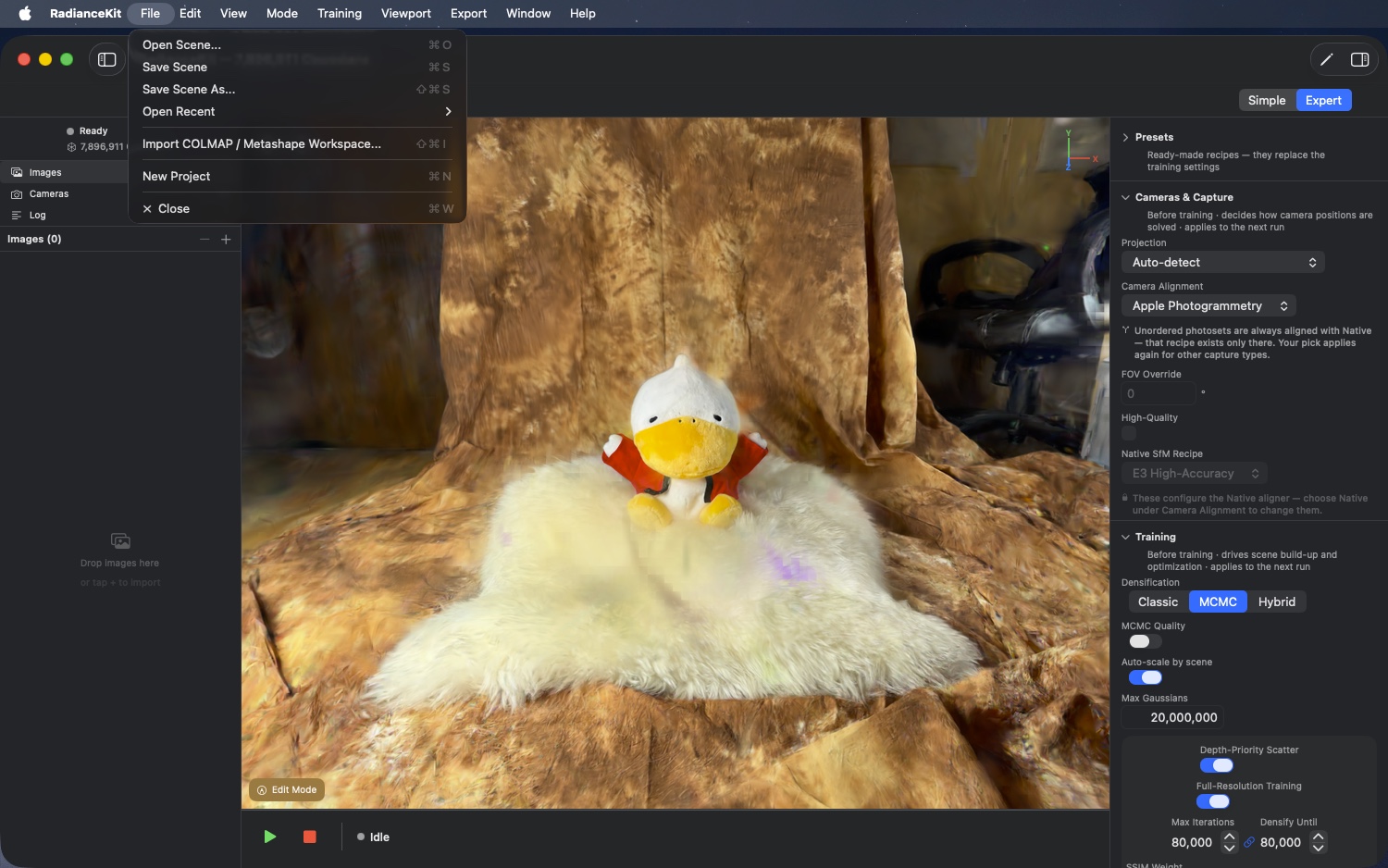
The File menu replaces Apple's standard "New Window" entry with project-specific actions. It has six lines: open scene, save scene, save scene as, the "Open Recent" submenu, the workspace import, and the hard reset to an empty state. Scenes can also be opened by double-clicking in the Finder — see M1.
M1File > Open Scene…
WHERE
Menu bar → File → Open Scene… (⌘O).
TECHNICAL
Opens a file dialog for the RadianceScene bundle format, .ply, .splat, and .spz. Single-selection, can display both files and directories (for the bundle format). After a successful selection, the path is entered into the Recent list and the scene is loaded asynchronously — the previous one is replaced and the training pipeline is initialised with the loaded state. PLY/SPZ/Splat files are read via the respective format loaders; the .radiancescene bundle is a directory containing the point cloud (scene.ply), the scene data (metadata.json), and optionally the embedded SfM workspace.
The same loading path is also triggered from outside: the app registers the document type .radiancescene with the system and answers open requests. Double-clicking in the Finder, "Open With", and open <file> on the command line therefore all end up in the same loading process. Previously, only the type was declared — which is why the files always had the correct icon — but no handler was present; a double-click simply did nothing. If multiple files are handed over at once, the app opens the first and logs the rest as skipped; there is deliberately only one scene per window. If the request arrives before the app has finished starting (launch via double-click), it is cached and processed afterwards.
M2File > Save Scene / Save Scene…
WHERE
Menu bar → File → Save Scene (⌘S).
TECHNICAL
The title depends on state: as long as the scene has no file, the entry reads "Save Scene…" with an ellipsis, announcing the dialog; once it has one, it reads "Save Scene" without the ellipsis and saves without confirmation. The scene has a file in two cases: after successfully loading a .radiancescene bundle, and after a successful save. When loading a bare PLY, SPZ, or Splat file, no file is deliberately assigned — so ⌘S still asks for a destination there and won't write a bundle over the input file. The entry is disabled as long as no Gaussians exist yet.
Saving creates a directory package containing the point cloud (scene.ply), the scene data (metadata.json), and — if an SfM result exists — the embedded workspace; the latter allows later continue-training without a renewed mapper run. Because ⌘S writes into the existing file, the process operates transactionally: each part is first written under a working name within the package; only at the end are the old parts moved aside and the new ones renamed into place together. If anything fails during this, the previous state is fully rolled back, and a rollback failure is explicitly logged. A second save triggered while one is already running is rejected rather than run in parallel.
M44File > Save Scene As…
WHERE
Menu bar → File → Save Scene As… (⇧⌘S).
TECHNICAL
Always brings up the save dialog, regardless of whether the scene already has a file — it's the deliberate way back to the dialog that ⌘S (M2) no longer shows. Both entries share the same routine: content type RadianceScene bundle, using the name of the current scene, otherwise scene.radiancescene. After saving, the scene points to the new destination, so further ⌘S presses write there. Disabled as long as no Gaussians exist yet.
A special case is saving over a foreign, already existing package. Its embedded SfM workspace belongs to a different scene and must not survive, otherwise later continue-training would compute with someone else's camera poses. The app detects this case by noticing that destination and current file don't match, and treats the foreign workspace like all other parts: it is moved aside during the renaming process rather than deleted, so that a failure further up leaves the target package exactly as it was.
M3File > Open Recent > [Scene Names]
WHERE
Menu bar → File → Open Recent → (list).
TECHNICAL
Dynamic submenu generated from a list of recently opened paths (stored in settings). Each list entry is named after the file name and loaded on click. If the list is empty, the disabled label "No Recent Scenes" appears instead. The list holds the ten most recently opened scenes; the oldest drops out as soon as an eleventh is added. Opening a scene from within this list also moves it back to the first position.
M4File > Open Recent > Clear Recent
WHERE
Menu bar → File → Open Recent → Clear Recent.
TECHNICAL
Clears the Recent list in the settings. Takes effect immediately, without a confirmation dialog. The entry only appears in the submenu if there actually are entries in the Recent list (it sits below a divider after the paths).
M5File > Import COLMAP / Metashape Workspace…
WHERE
Menu bar → File → Import COLMAP / Metashape Workspace… (⇧⌘I).
TECHNICAL
Opens a folder picker. Expects a folder with the COLMAP workspace layout (e.g. sparse/0/cameras.{bin,txt} plus images/). After selection, a pre-check of the workspace is performed — this detects the three layouts (sparse/0/, sparse/, root) and whether the reconstruction is present in binary form (cameras.bin) or as ETH3D text (cameras.txt). On success, the workspace is imported; otherwise, only a warning appears in the app log. See also Chapter 9 "SfM Backends", Q6 for the full pipeline logic.
M6File > New Project
WHERE
Menu bar → File → New Project (⌘N).
TECHNICAL
Checks whether unsaved work exists. If so, a confirmation dialog appears before anything is lost. If there's nothing to save, the reset runs directly — it clears imported images, the SfM result, the Gaussian cloud, training state, and all dependent UI indicators. Note: a preset library created by the user is preserved because it lives in the app settings and not in the project state.
Mode Menu
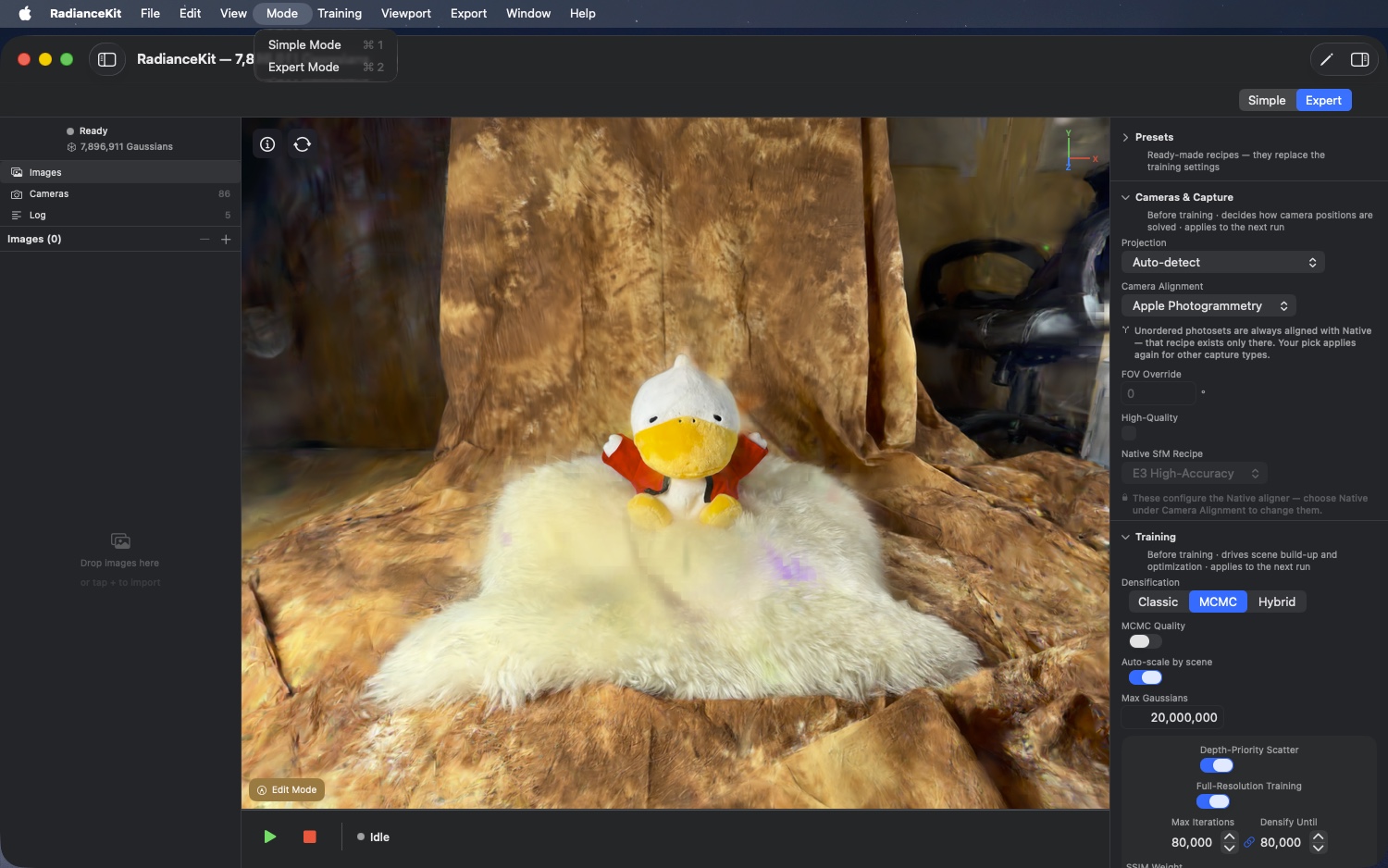
Two simple switches between the guided Simple Mode (wizard-style, 4 steps) and the full Expert Mode (classic Inspector layout with all controls).
M7Mode > Simple Mode
WHERE
Menu bar → Mode → Simple Mode (⌘1).
TECHNICAL
Switches the app state to Simple Mode. The main area of the app then shows the guided workflow instead of the Expert layout. The mode state is saved in the settings (see S1 "Default Mode" in chapter 3 Settings).
M8Mode > Expert Mode
WHERE
Menu bar → Mode → Expert Mode (⌘2).
TECHNICAL
Switches the app state to Expert Mode. This brings up the full Inspector layout with its task-grouped sections (Presets, Cameras & Capture, Training, Progress, Look, Export); each section carries a line under its title that says when its values take effect. In Expert Mode, all training parameters and the choice of camera calculation method are accessible. The mapper picker and the field for the COLMAP binary path appear exclusively in developer/DMG builds — the sandboxed App Store version must not launch an external COLMAP program (Apple Review Guideline 2.5.2) and also does not offer COLMAP as a backend there (see chapter 9). Import and export of COLMAP workspaces (M5, M34) are not affected by this — that's pure file parsing in Swift and works in every build.
Training Menu
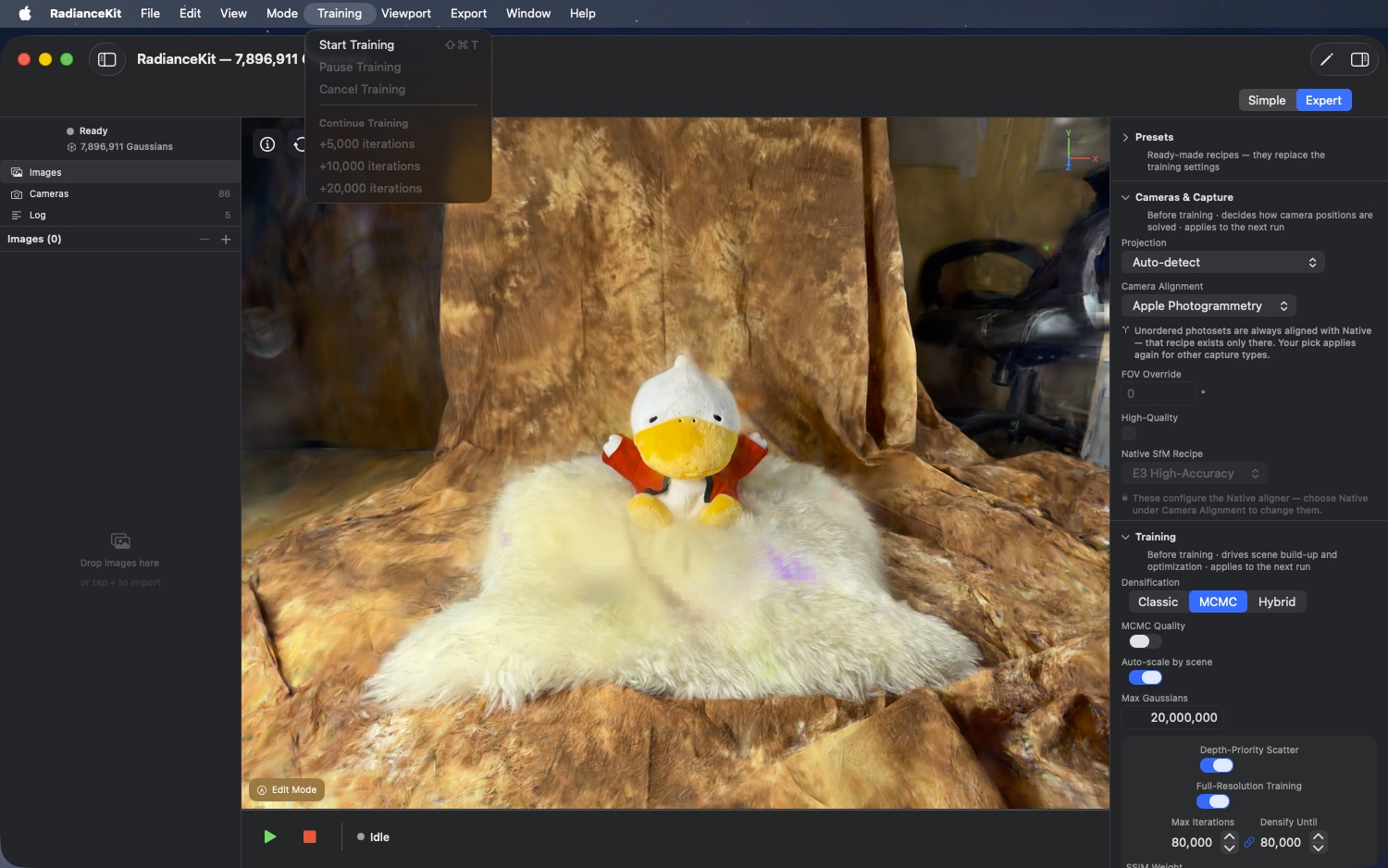
Six entries in two groups: at the top Start, Pause and Cancel, below that the "Continue Training" group with three fixed extensions. All three Continue entries are IAP-gated (not clickable in the Free Trial version).
M9Training > Start Training
WHERE
Menu bar → Training → Start Training (⇧⌘T).
TECHNICAL
Starts the training pipeline asynchronously. Requires that an SfM result be present and that no other pipeline is currently running. Both conditions block the entry if not met. On start, the current configuration values are read, a new JSONL log is created under ~/Documents/RadianceKit/Logs/training_YYYY-MM-DD_HHmmss.jsonl, and depending on the strategy choice, either the classic or the MCMC path is run. The training state changes from "idle" to "training".
M10Training > Pause Training
WHERE
Menu bar → Training → Pause Training.
TECHNICAL
Pauses the running training. Only enabled when the training state is "training". Pausing stops the iteration loop at the next safety sync point, retains the full GPU state (Gaussian buffers, optimizer moments, scheduler position) and switches to "paused". Resuming is not done via this menu: as soon as training is paused, the entry turns grey. Resuming is done via the pause/resume button in the main window, which switches to "Resume" when training is paused — in both modes. Paused training does not survive an app quit; in that case, save the scene instead and later extend it via a Continue Training entry (M12–M14).
M11Training > Cancel Training
WHERE
Menu bar → Training → Cancel Training.
TECHNICAL
Cancels the running training. Active when the training state is not "idle". Sets the cancel flag in the training engine, which cleanly terminates the iteration loop at the next sync point, writes the final summary entry to the JSONL log, and resets the state to "idle". The cloud trained so far is retained (can be saved or exported), but is marked as "cancelled".
M12Training > Continue Training > +5 000 iterations
WHERE
Menu bar → Training → Continue Training → +5,000 iterations.
TECHNICAL
Continues the training for 5,000 iterations. Active when a completed training can be resumed and the full version is unlocked. Resumability applies when a completed training exists, the full optimizer state is still in memory, no other pipeline is currently running — and the scene has not been modified in the editor since the training. This is exactly the most common reason for greyed-out Continue entries: a deletion or a crop in Edit Mode only affects the displayed point cloud, not the training buffers; a resume would bring back what was deleted and is therefore blocked. On Continue, the Adam moments and the LR scheduler are carried forward, so the resume connects seamlessly to the previous run instead of starting over. The resume does not densify the scene further — it only refines what's already there. The JSONL log gets a new config entry with the incremental setup. Only available in the full version.
M13Training > Continue Training > +10 000 iterations
WHERE
Menu bar → Training → Continue Training → +10,000 iterations.
TECHNICAL
Identical to M12, but with 10,000 additional iterations. Same prerequisites, same LR scheduler path. Recommended when the initial training was run with a mid-tier Preset and you want to see a significant quality improvement without restarting the run completely.
M14Training > Continue Training > +20 000 iterations
WHERE
Menu bar → Training → Continue Training → +20,000 iterations.
TECHNICAL
Identical to M12 / M13, but with 20,000 additional iterations. The largest predefined Continue increment. For MCMC training, this is often what makes the difference between "good enough" and "benchmark-ready"; for Classic beyond 35–40K, experience shows there's usually little left to gain.
Viewport-Menü
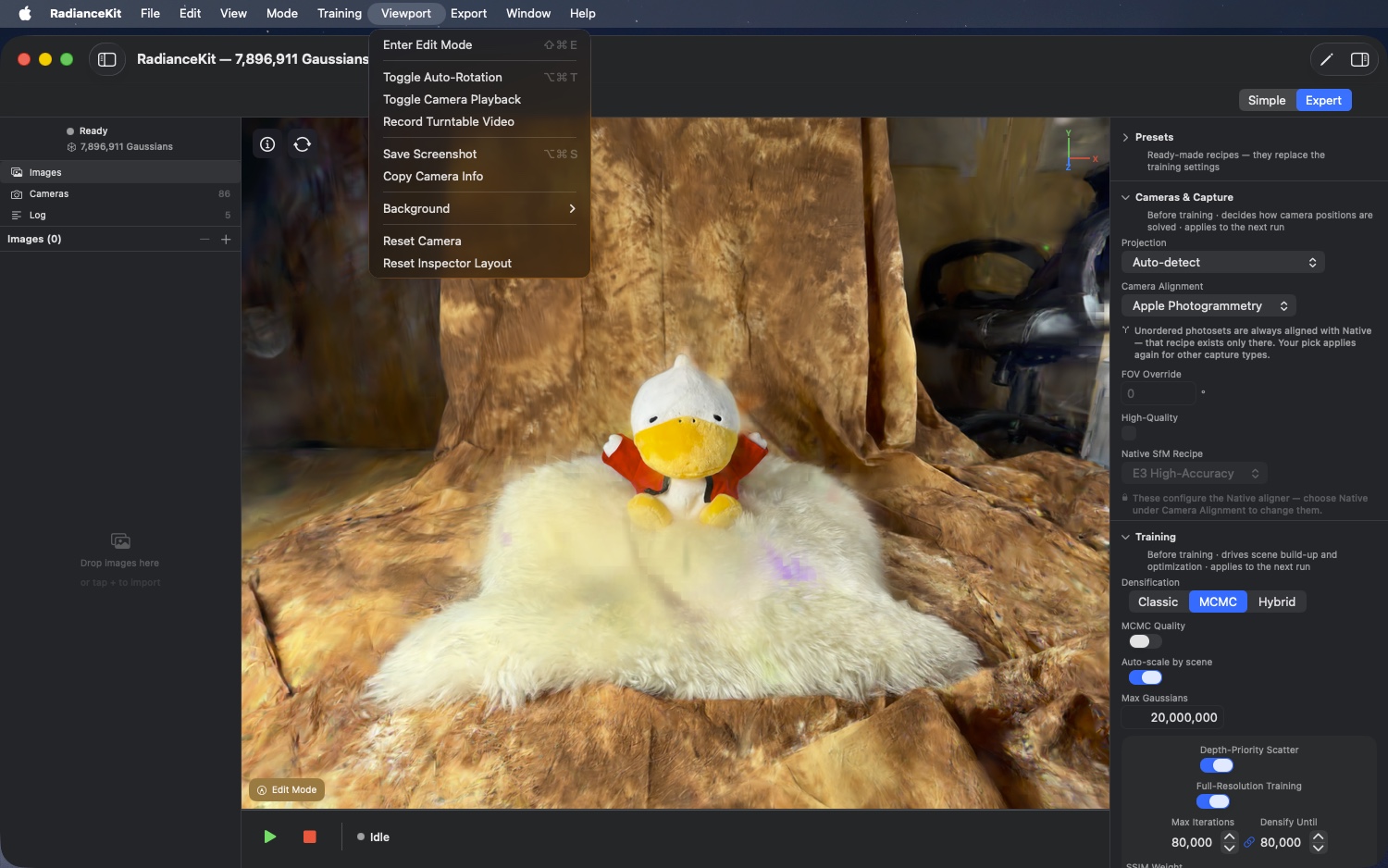
Controls the 3D viewport: Edit Mode for Gaussian selection and cleanup, camera controls (auto-rotation, playback, recording), screenshot and camera info, the background submenu, and finally two reset entries — "Reset Camera" for the view and "Reset Inspector Layout" (M43) for the Inspector sections.
M15Viewport > Enter/Exit Edit Mode
WHERE
Menu bar → Viewport → Enter Edit Mode (or "Exit Edit Mode", depending on the state). ⇧⌘E.
TECHNICAL
The entry title is dynamic and shows either "Exit Edit Mode" or "Enter Edit Mode" depending on the state. Pressing it toggles Edit Mode on the viewport renderer. When leaving Edit Mode, the current selection is also reset. Edit Mode reveals the toolbar at the bottom edge of the viewport — brush, slab, cylinder, floor, heal, and the undo arrows. Everything about that is in Chapter 11 — Editor. Disabled as long as there is no fully loaded scene in the viewport — i.e., neither a completed training run nor a scene opened from disk. A running live preview during training is not sufficient for this.
M16Viewport > Toggle Auto-Rotation
WHERE
Menu bar → Viewport → Toggle Auto-Rotation (⌥⌘T).
TECHNICAL
Toggles the continuous rotation of the viewport camera around a vertical axis through the scene center on or off. The axis and speed come from the camera control configuration. Auto-rotation is a pure viewport effect and affects neither training nor recording — if you use the turntable video recorder (M18) in parallel, the auto-rotation supplies exactly the path that the recorder captures.
M17Viewport > Toggle Camera Playback
WHERE
Menu bar → Viewport → Toggle Camera Playback.
TECHNICAL
Toggles camera path playback. If a recorded camera path exists (e.g. from a previous recording or because a transforms.json was loaded), the path plays back — the viewport camera then no longer moves in response to mouse/trackpad input, but reproduces the trajectory frame by frame. Pressing it again pauses the playback.
M18Viewport > Record Turntable Video
WHERE
Menu bar → Viewport → Record Turntable Video.
TECHNICAL
Toggles viewport recording. Pressing it the first time starts a frame recording to a temporary path; pressing it a second time stops the recording, encodes it, and writes it to an MP4 path (the path is requested via a save dialog). Unlike Export → Media → Orbit Video (M31), which produces a fixed 360° path over an adjustable duration, the turntable recorder captures live whatever you see in the viewport — so you can also record a manual camera move.
M19Viewport > Save Screenshot
WHERE
Menu bar → Viewport → Save Screenshot (⌥⌘S).
TECHNICAL
Captures a single viewport frame at full render resolution (i.e. not the window's pixel layout, but the full render target content) as a PNG file. The capture is taken directly from the training output buffer; there is no save dialog — the file lands as RadianceKit-<timestamp>.png on the desktop. The background color (M21–M23) is baked in. The path from the render target to the window (bilinear or Lanczos downsampling of a supersampled render for edge smoothing — the overlay line "Sampling") only affects the on-screen display and has no effect on the screenshot. Upscaling never takes place anywhere.
The shortcut is ⌥⌘S and no longer ⇧⌘S: since "Save Scene As…" (M44) took over the usual spot ⇧⌘S for that purpose, the system would have discarded the duplicate shortcut — this entry would then have appeared in the menu without any shortcut at all.
M20Viewport > Copy Camera Info
WHERE
Menu bar → Viewport → Copy Camera Info.
TECHNICAL
Reads the current viewport camera pose (position, look-at point, up vector) and the FOV values from the camera control, and writes them as multi-line text to the clipboard. The format is human-readable (label = value per line), not JSON. Handy for reproducing a specific view for debugging purposes or sharing it with support.
M21Viewport > Background > Dark Gray
WHERE
Menu bar → Viewport → Background → Dark Gray.
TECHNICAL
Sets the viewport background color to a dark gray (RGB 0.1/0.1/0.1). The renderer uses this color as the background against which the Gaussians are composited. The choice is saved and applied again on the next launch. The menu, the "Background" picker in Settings (S3), and the B key in the viewport all write the same value through a single write path — they can no longer drift apart.
M22Viewport > Background > Black
WHERE
Menu bar → Viewport → Background → Black.
TECHNICAL
Sets the viewport background color to pure black (RGB 0/0/0). Helps if the scene has many bright floaters and you want to identify them, or for marketing material with a dark look and feel.
M23Viewport > Background > White
WHERE
Menu bar → Viewport → Background → White.
TECHNICAL
Sets the viewport background color to pure white (RGB 1/1/1). Useful if the scene has predominantly dark content and you want to see dark floaters (typical outdoor background noise).
M24Viewport > Reset Camera
WHERE
Menu bar → Viewport → Reset Camera.
TECHNICAL
Resets the viewport camera, leaves the training camera view, and stops auto-rotation. This puts the camera back at its initial position (typically: in front of the scene, looking slightly from above), auto-rotation is off, and if the renderer was currently displaying the training camera (one of the SfM poses), it returns to the free camera.
M43Viewport > Reset Inspector Layout
WHERE
Menu bar → Viewport → Reset Inspector Layout.
TECHNICAL
Resets the expanded/collapsed state of the Inspector sections and the progress subgroups to the shipped default and writes it to Settings immediately — even if the reset is triggered during startup. Affects only the Expert Mode layout: scene, training state, and configuration remain untouched. No confirmation and no undo.
Export Menu
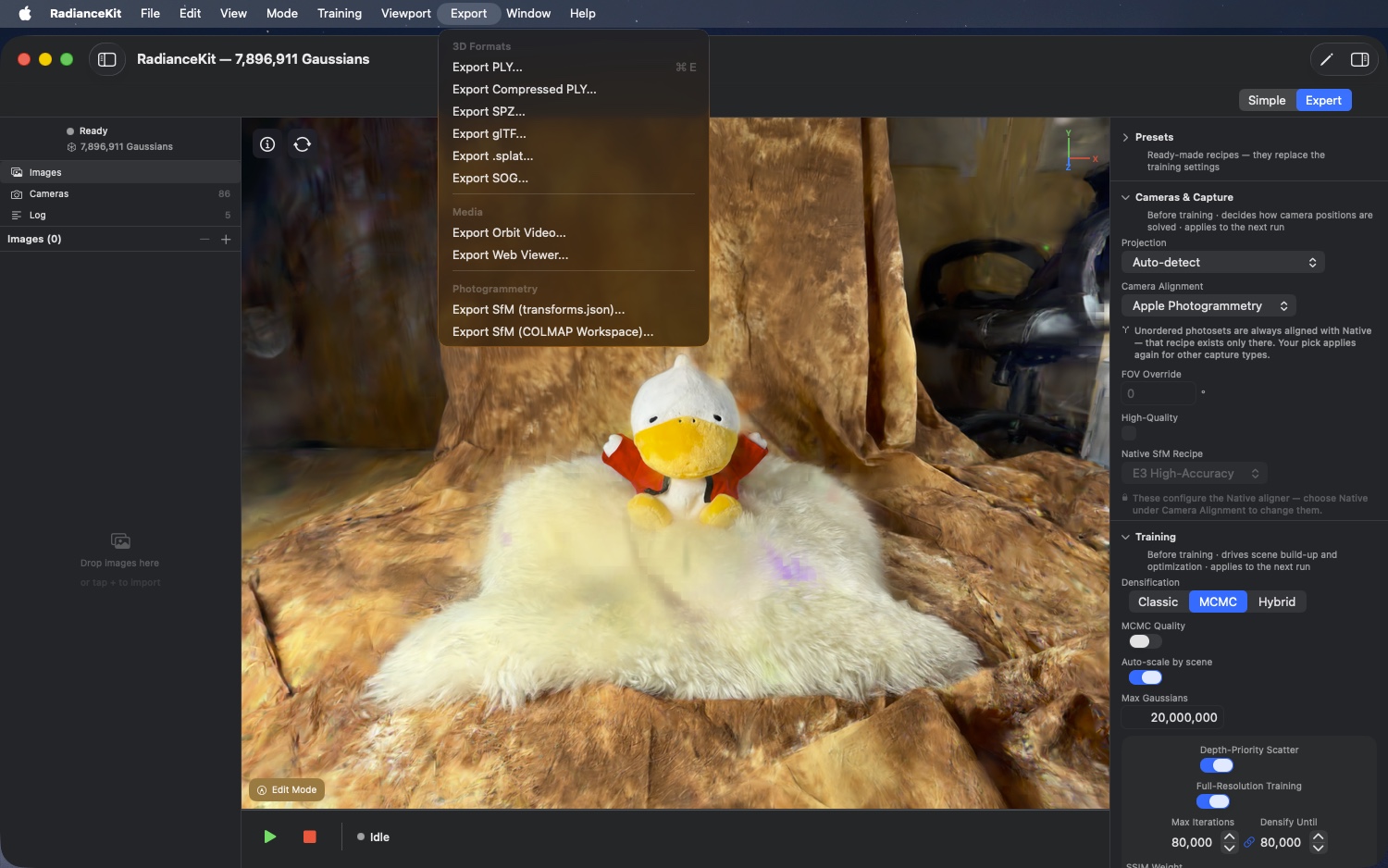
Eight export targets plus two photogrammetry exports, grouped into three groups: six 3D formats (PLY, Compressed PLY, SPZ, glTF, .splat, SOG), two media targets (Orbit Video, Web Viewer) and two photogrammetry exports. The first eight are built via a shared helper routine that each opens a save dialog and registers the export with the format catalog. The photogrammetry entries have individual logic. All ten entries are only available in the full version. The eight formats in the "3D Formats" and "Media" groups additionally remain grayed out as long as no scene is present or another export is currently running; the two photogrammetry entries require an existing SfM result.
M25Export > 3D Formats > Export PLY…
WHERE
Menu bar → Export → 3D Formats → Export PLY… (⌘E).
TECHNICAL
Opens a save dialog with the default file name gaussians.ply. On confirmation, the current Gaussian cloud is written in the standardized ASCII/binary PLY format — compatible with SuperSplat, PolyCam, PlayCanvas and all common 3DGS viewers. Full SH coefficients, full precision (Float32 per field). File size is often several hundred MB at ≥ 500K Gaussians.
M26Export > 3D Formats > Export Compressed PLY…
WHERE
Menu bar → Export → 3D Formats → Export Compressed PLY….
TECHNICAL
Writes the Gaussian cloud in Compressed-PLY format with custom quantization of the position, scale, rotation and SH fields. 5–10× smaller files than the uncompressed PLY (M25) with minimal visual loss. Compatible with SuperSplat (which reads the Compressed-PLY standard) and PlayCanvas. Default file name gaussians_compressed.ply.
M27Export > 3D Formats > Export SPZ…
WHERE
Menu bar → Export → 3D Formats → Export SPZ….
TECHNICAL
Writes the Gaussian cloud in SPZ format — the compressed splat format published by Niantic with aggressive quantization (~90% smaller than uncompressed PLY). Optimized mainly for web viewers and mobile apps. Compatible with Niantic Splatt3R, gsplat.js and the Niantic browser viewer.
M28Export > 3D Formats > Export glTF…
WHERE
Menu bar → Export → 3D Formats → Export glTF….
TECHNICAL
Writes a .glb file (binary glTF) with the KHR_gaussian_splatting extension. Standards-compliant, suitable for pipelines that use glTF engines such as Babylon.js or Three.js and implement the KHR_gaussian_splatting extension.
M29Export > 3D Formats > Export .splat…
WHERE
Menu bar → Export → 3D Formats → Export .splat….
TECHNICAL
Writes the Antimatter15 .splat format — fixed-size 32 bytes per Gaussian (position as 3× Float32, scale as 3× Float32, rotation as 4× Uint8 normalized quaternion, RGB+opacity as 4× Uint8). No SH coefficients higher than DC. Smallest file with direct browser compatibility. For gsplat.js and antimatter15's online demo viewer.
M30Export > 3D Formats > Export SOG…
WHERE
Menu bar → Export → 3D Formats → Export SOG….
TECHNICAL
Writes the Gaussian cloud in SOG format. SOG ("Self-Organizing Gaussian") is the PlayCanvas format with texture-atlas layout and WebP compression of the quantized data. Scales at a 15–20× better size ratio than PLY. For WebP compression, the export looks for an externally installed command-line tool; if it finds none, it stores the image data as PNG instead. The file is still created, but is noticeably larger and won't be read by SuperSplat.
M31Export > Media > Export Orbit Video…
WHERE
Menu bar → Export → Media → Export Orbit Video….
TECHNICAL
Renders a 360° orbit around the scene center and encodes it as MP4 (H.264) or MOV (HEVC, depending on the system default). Unlike M18 (live recording), the path here is fixed — duration is chosen in Settings or in the Simple-Mode export step.
M32Export > Media > Export Web Viewer…
WHERE
Menu bar → Export → Media → Export Web Viewer….
TECHNICAL
Packages a standalone HTML viewer (gsplat.js-based) plus the Gaussian data Base64-encoded into a single .html file. This file runs offline in any modern browser — no server dependencies, no external URLs. File size is about a factor of 1.3 larger than the SPZ variant (due to Base64 overhead).
M33Export > Photogrammetry > Export SfM (transforms.json)…
WHERE
Menu bar → Export → Photogrammetry → Export SfM (transforms.json).
TECHNICAL
Its own export path (not via the shared helper routine), because no Gaussian cloud is exported, but rather the SfM result. Opens a save dialog with transforms.json as default and content type json. On confirmation, a nerfstudio-compatible transforms.json is written with camera intrinsics, poses (as a 4×4 matrix in NeRF convention) and frame paths. Help text in the UI notes that the training images must be copied along as a sibling folder images/. Active only when an SfM result is present and the full version is unlocked.
M34Export > Photogrammetry > Export SfM (COLMAP Workspace)…
WHERE
Menu bar → Export → Photogrammetry → Export SfM (COLMAP Workspace).
TECHNICAL
Opens a save dialog with default name colmap-workspace (without extension, since it's a folder). Writes a standard COLMAP workspace with sparse/0/cameras.bin, images.bin, points3D.bin. Allows an SfM reconstruction computed or imported in RadianceKit to be opened in other tools such as Postshot, Nerfstudio or Meshroom, or to be loaded back into RadianceKit itself (via M5) as an already-computed input in an A/B re-run — saving computation time. Active only when an SfM result is present and the full version is unlocked.
Help Menu
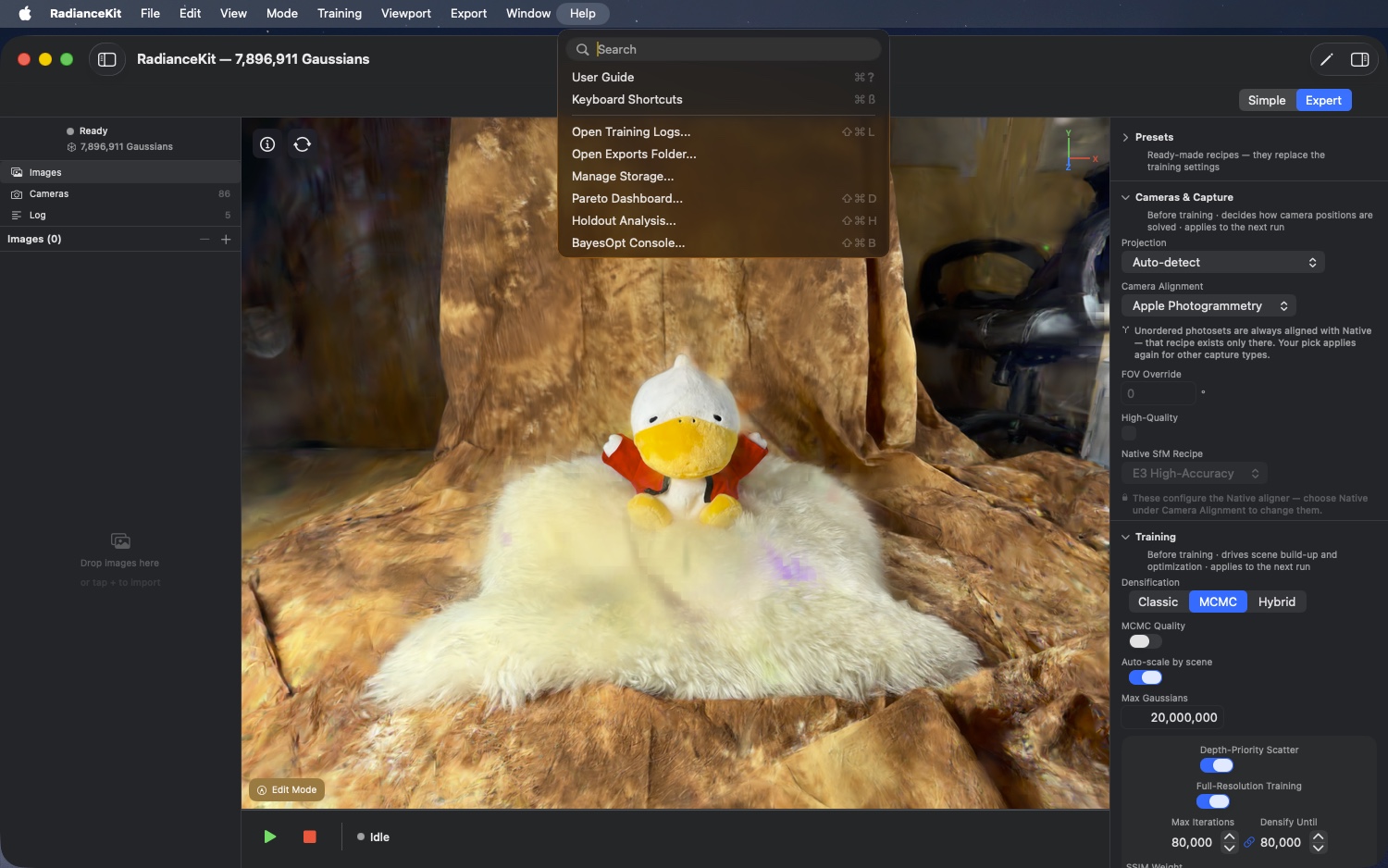
Eight entries: two documentation windows (User Guide, Keyboard Shortcuts), two folder shortcuts that open the Finder (Training Logs, Exports Folder), the "Manage Storage" window, and three analysis windows (Pareto Dashboard, Holdout Analysis, BayesOpt Console). True to Apple convention, the Help menu appears at the far right. The standard Help menu is completely replaced by RadianceKit's own variant.
M35Help > User Guide
WHERE
Menu bar → Help → User Guide (⌘?).
TECHNICAL
Opens the User Guide window. It shows a navigation with a topic sidebar and a scrollable detail area at a default size of 860×640. The content is stored statically (not parsed from Markdown).
M36Help > Keyboard Shortcuts
WHERE
Menu bar → Help → Keyboard Shortcuts (⌘/).
TECHNICAL
Opens the Keyboard Shortcuts window — a simple scroll layout at a default size of 440×560, organized into five groups: Navigation, Views, Capture, Editor, and Training. It lists the keys that work directly in the 3D viewport (mouse and WASD navigation, camera jumps, screenshot and video capture, selection and brush size in the editor). Menu keyboard shortcuts are not listed there, except for ⌘E. Content is stored statically.
M37Help > Open Training Logs…
WHERE
Menu bar → Help → Open Training Logs… (⇧⌘L).
TECHNICAL
Computes the log folder as ~/Documents/RadianceKit/Logs, creates it if necessary, and opens it in Finder. Each training run writes its own JSONL file training_YYYY-MM-DD_HHmmss.jsonl there.
M38Help > Open Exports Folder…
WHERE
Menu bar → Help → Open Exports Folder…
TECHNICAL
Analogous to M37, but with the exports folder. Without sandboxing this is ~/Documents/RadianceKit/Exports; in the App Store version it lives inside the app container — which is why this menu entry and the "Show Exports Folder…" button in Settings always lead to the actually used location via the same routine. The app automatically writes a PLY there after every completed run, including after a Continue Training; this can be disabled via Settings ▸ Training ▸ "Save a PLY automatically after each run" (default ON). Added to this are the default paths of the auto-test exports (e.g. autotest_<timestamp>.ply). Exports saved manually via the save dialog do NOT end up here, but wherever the user chooses to save them.
M39Help > Manage Storage…
WHERE
Menu bar → Help → Manage Storage…
TECHNICAL
Opens the storage browser (see Chapter 4, Auxiliary Windows, IDs W7–W12). Lists all persisted scenes, training logs, exports, and caches in the ~/Documents/RadianceKit/ folder with their size, and allows reveal-in-Finder and move-to-trash per entry.
M40Help > Pareto Dashboard…
WHERE
Menu bar → Help → Pareto Dashboard… (⇧⌘D).
TECHNICAL
Opens the Pareto Dashboard (see Chapter 4, IDs W13–W22). The dashboard loads all JSONL training logs from ~/Documents/RadianceKit/Logs/, sorts them by scene and preset, and draws a Pareto scatter plot (default: Loss vs Gaussians, optionally Loss vs Wallclock or PSNR vs Iterations).
M41Help > Holdout Analysis…
WHERE
Menu bar → Help → Holdout Analysis… (⇧⌘H).
TECHNICAL
Opens the Holdout Analysis window (see Chapter 4, IDs W23–W29). Loads a transforms.json, draws the cameras as a 3D globe, and allows train/test fold splits (angular or linear, 2–8 folds). Output is a fold-assignment.json, which the training can use as a test set in the respective training configs.
M42Help > BayesOpt Console…
WHERE
Menu bar → Help → BayesOpt Console… (⇧⌘B).
TECHNICAL
Opens the BayesOpt console (see Chapter 4, IDs W30–W39). Loads predefined search spaces (e.g. "MCMC scale-reg + opacity-reg + ssim"), runs Bayesian optimization trials asynchronously, and shows the convergence curve and trial log live.
Note: Undo and Redo in the Edit Menu
At the very top, the Edit menu contains the two entries for Undo (⌘Z) and Redo (⇧⌘Z). RadianceKit provides them itself and labels them after the action behind them: After a deletion in Edit Mode, the first entry reads "Undo Delete", after a crop "Undo Crop", after a desaturation "Undo Desaturate", and after a repair "Undo Heal" — and correspondingly "Redo …" for redoing. If there's currently nothing to undo from the editor, the entries simply read "Undo" and "Redo".
This also applies to the Project Navigator in Expert Mode: There, imported images can be removed with the minus button or the Backspace key, and ⌘Z brings them back. In this case, however, the menu entry isn't called "Undo Remove Image", but simply "Undo" — the exact label is only tracked for the editor actions.
Text input remains a special case: As long as the text cursor is in an input field, ⌘Z undoes your last text entry as usual, not the last change to the scene.
Overview of Keyboard Shortcuts
| Menu Item | Shortcut |
|---|---|
| File > Open Scene… | ⌘O |
| File > Save Scene / Save Scene… | ⌘S |
| File > Save Scene As… | ⇧⌘S |
| File > Import COLMAP / Metashape Workspace… | ⇧⌘I |
| File > New Project | ⌘N |
| Mode > Simple Mode | ⌘1 |
| Mode > Expert Mode | ⌘2 |
| Training > Start Training | ⇧⌘T |
| Viewport > Enter/Exit Edit Mode | ⇧⌘E |
| Viewport > Toggle Auto-Rotation | ⌥⌘T |
| Viewport > Save Screenshot | ⌥⌘S |
| Export > 3D Formats > PLY | ⌘E |
| Help > User Guide | ⌘? |
| Help > Keyboard Shortcuts | ⌘/ |
| Help > Open Training Logs… | ⇧⌘L |
| Help > Pareto Dashboard… | ⇧⌘D |
| Help > Holdout Analysis… | ⇧⌘H |
| Help > BayesOpt Console… | ⇧⌘B |
Edit menu (the label depends on the last action, see note above):
| Action | Shortcut |
|---|---|
| Edit > Undo (e.g. "Undo Delete") | ⌘Z |
| Edit > Redo (e.g. "Redo Delete") | ⇧⌘Z |
| Remove image in the Project Navigator | Backspace / Delete |