Chapter 2 — Inspector (Expert View)
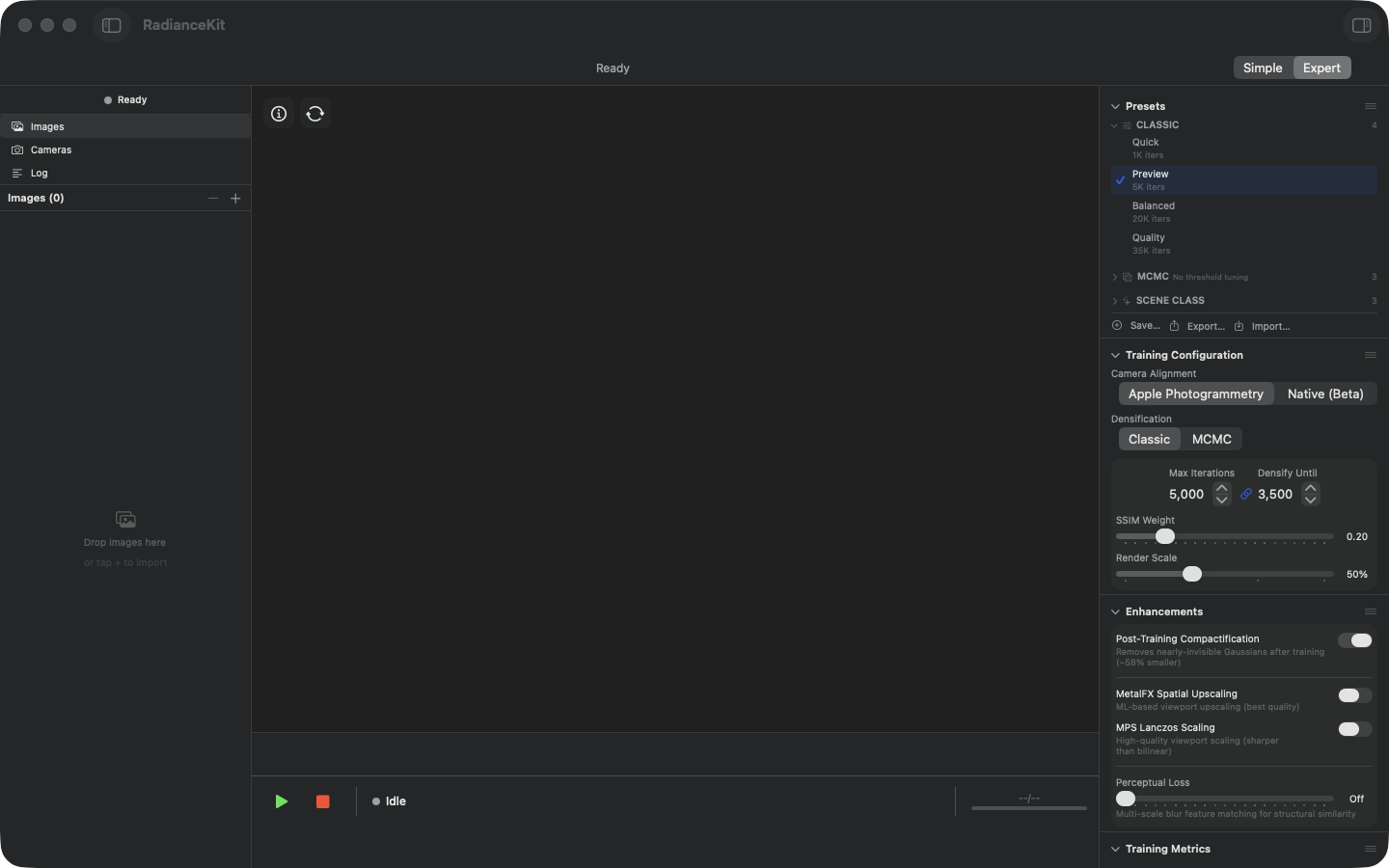
Empty Inspector before import: The left sidebar shows the Images counter 0 and the drop hint "Drop images here / or tap + to import". The Inspector on the right is fully functional, but presets are only informative (no active training). The default preset "Preview" (5K iters) is marked. Camera Alignment is set to Apple Photogrammetry, Densification to Classic, SSIM Weight to 0.20, Render Scale to 50 %. Empty states are shown in Training Metrics ("Start training to see live metrics") and Loss History ("Loss curve will appear during training").
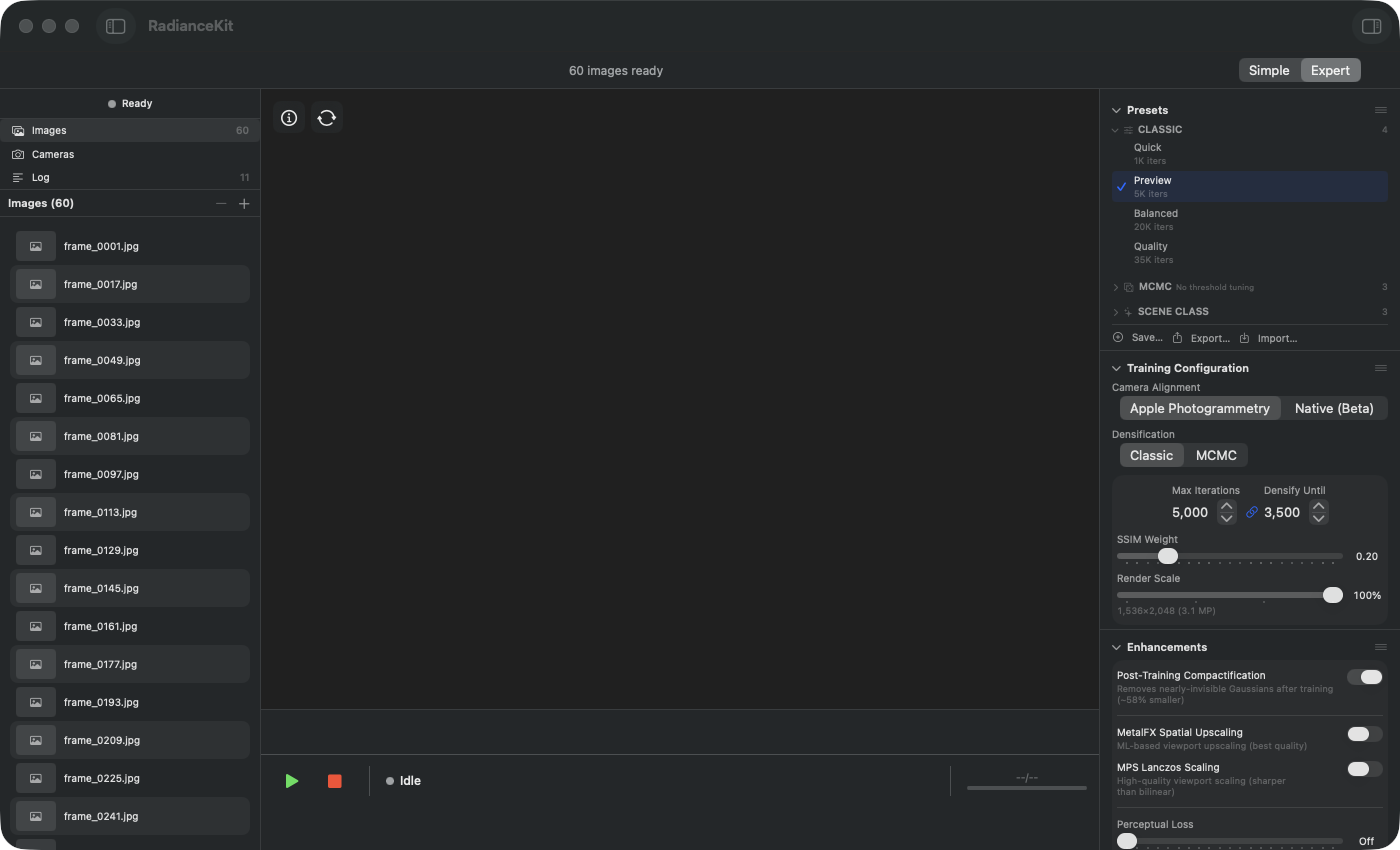
Inspector after import: Header status reads "60 images ready". The image sidebar lists all 60 imported frames (frame_0001.jpg to frame_0945.jpg, every 16th frame of the 960-cam Bouquet dataset as a subset for quick iterations). The auto render scale logic checks the image resolution (1536×2048 = 3.1 MP) and adjusts Render Scale accordingly. The Play button (green, bottom left) is now active and starts training with the active preset.
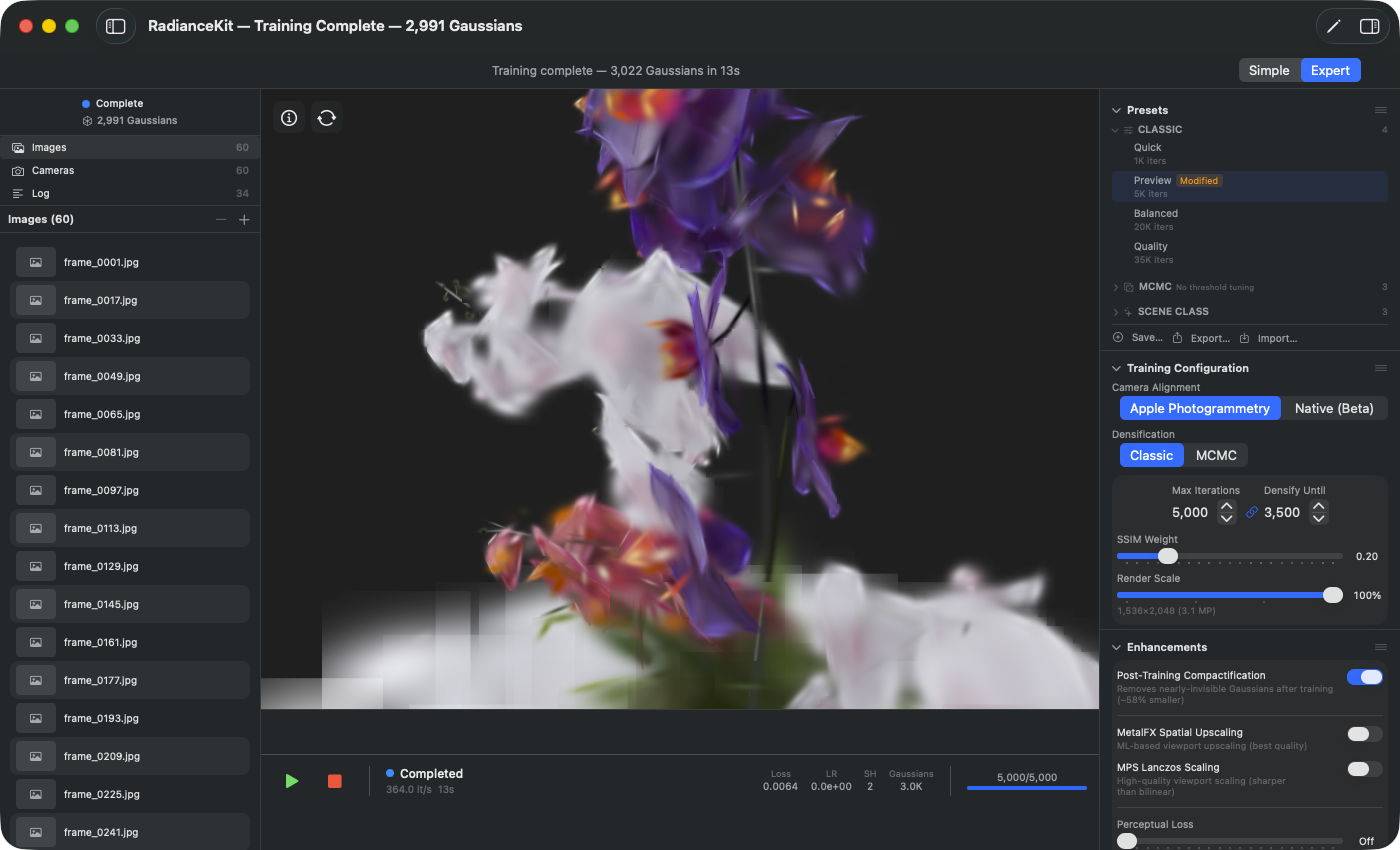
Inspector during training: The title bar shows global progress "RadianceKit — Training NN %". The viewport renders the running Gaussian reconstruction in real time (updated every 50 iterations — live preview interval can be set in Settings → General → Training → Live Preview). Metrics bar below the viewport: current Loss, Learning Rate, Gaussian count, and iteration counter (e.g. 1,600/5,000 with the Preview preset). The Inspector preset card "Preview" gets a "Modified" badge as soon as any parameter deviates from the built-in default. The "Log" sidebar collects SfM and training stage events.
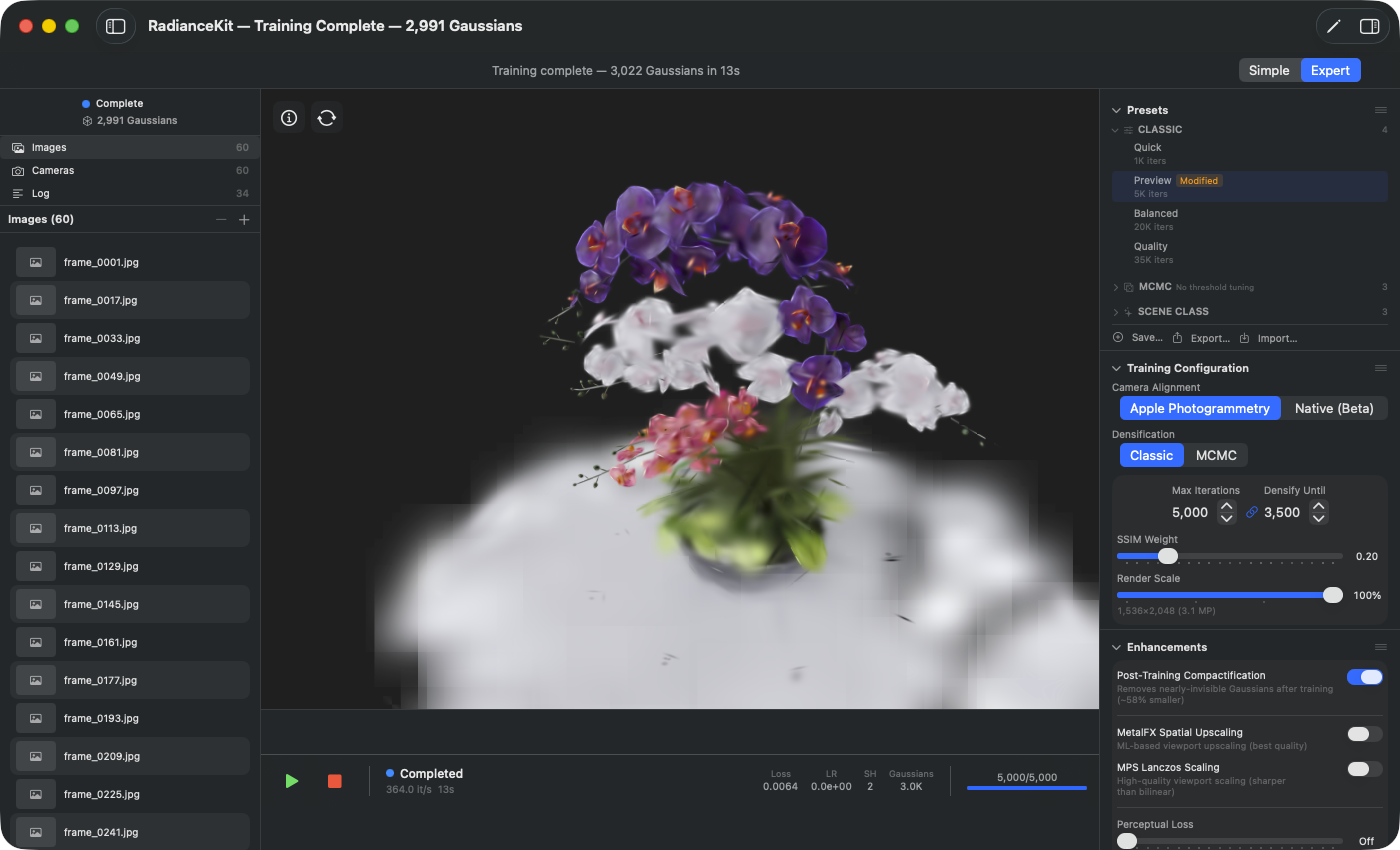
Inspector after training: The title bar shows the final Gaussian count (here 2,991 — very compact, because the synthetic Blender Bouquet scene has simple geometry on a bright background). The viewport shows the finished point cloud — orbital drag navigation is active (rotates around the scene center). The Training Metrics section is now filled with final values, the Loss History chart shows the course of the entire 5,000 iterations. The Export section at the bottom is now active (all format buttons enabled).
The Inspector is the right sidebar in Expert Mode (⌘2). It bundles all training-relevant parameters into five collapsible sections: Presets, Training Configuration, Enhancements, Metrics, and Loss Chart. Each section can be collapsed by clicking the header, and the order can be rearranged via drag-and-drop (InspectorView.swift:81-97). By default all sections are visible, and the app state persists collapse and ordering preferences across app starts.
A number of controls from the Inspector also appear in nearly identical form in the Settings (Chapter 3) — typically SfM backend, sky masking, and similar defaults. The split is deliberate: Settings provides the app-global template for newly created projects, the Inspector overrides those values for the currently open project. Once you know the operating logic of one side, you can use the other blindly.
The left column in Expert Mode — the Project Navigator — is not part of the Inspector, but it's its direct neighbor. There you can select imported images by clicking, preview them with Spacebar via Quick Look, and delete them via the minus button or the Delete key (with Cmd-Z to undo). The Inspector follows the current sidebar selection with context-specific detail information, but the five main sections always stay visible.
Presets section (I1–I11)
The Presets section is the fastest way to apply a tested configuration. Built-in presets (Classic, MCMC, Scene-Class) provide reproducible starting points from 560+ documented experiments; your own presets can be saved, exported, imported, and shared. The list is grouped by categories (Classic, MCMC, SceneClass, Custom) and more than one category can be expanded at the same time. The context menu (right-click on a row) makes Export, Duplicate, and — for custom presets — Delete reachable.
I1Save… button
WHERE
Inspector → Presets section → Save… button (action bar at the bottom).
TECHNICAL
Opens a popover with text field and Save/Cancel buttons. The current TrainingConfig state is persisted as a new custom preset (JSON-encoded, stored app-wide). The save process copies all 81 training parameters plus the current densification strategy. The preset lands automatically in the Custom category, regardless of which built-in preset it was derived from. Empty names and pure whitespace input are rejected. Already existing names are not rejected — every preset has its own internal ID, duplicate names are technically allowed but practically confusing.
I2Preset Name text field
WHERE
Save popover → "Preset Name" text field.
TECHNICAL
Simple text field with rounded border, wide shape. The value is taken as the preset name when you click the Save button. No length limit in the UI, but the stored name must be JSON-encodable and displayable in the UI lists — emoji and umlauts work. The content is automatically reset to an empty string when the popover opens. The Save button stays disabled as long as the field is empty after trim. There is no auto-suggest and no pre-fill with the name of the currently active preset.
I3Cancel button (Save dialog)
WHERE
Save popover → Cancel button (left).
TECHNICAL
Closes the popover without saving. Discards the text field content — on next open it will be reset to empty by the Save… button logic (I1). Standard button style, no confirmation dialogs, no hotkeys. The current TrainingConfig stays unchanged, since the save path wasn't even executed.
I4Save button (Save dialog)
WHERE
Save popover → Save button (right, prominent style).
TECHNICAL
Triggers the actual persistence. Validates again that the name is non-empty (defensive check) and then writes the current TrainingConfig as JSON to app storage. Then closes the popover. Highlighted blue, grayed out while the text field is empty. If saving fails (e.g. because app storage is full — very unlikely), there's currently no visible error dialog; the preset would simply not appear at the next app start.
I5Export… button
WHERE
Inspector → Presets section → action bar → Export… button.
TECHNICAL
Exports the currently selected preset as a .radiancepreset file (internally JSON). Disabled if no preset is selected. On click the app opens a save dialog with a preset filename (preset name + .radiancepreset extension). The saved format contains the complete TrainingConfig plus metadata (name, category, ID, built-in flag). Double-clicking in the Finder opens the app — but not automatically the import; the user has to use the Import button (I6).
I6Import… button
WHERE
Inspector → Presets section → action bar → Import… button.
TECHNICAL
Opens a file dialog that only allows .radiancepreset files (multiselect disabled). On selection the JSON file is loaded, validated, and inserted into the Custom category — with a new internal ID so no collisions with built-ins occur. The import automatically sets the category to Custom, even if the exported preset originally was e.g. a built-in. Corrupted or files incompatible with an older schema version are silently rejected, without error dialog (console log does provide info).
I7Preset row (click activation)
WHERE
Inspector → Presets section → every preset row in every category.
TECHNICAL
Clicking a preset row replaces all fields of the TrainingConfig with the values from the preset, remembers the ID of the active preset, and resets the Modified status. The active checkmark in front of the row only appears when the preset is selected AND unmodified. As soon as a value in TrainingConfig is changed (slider, stepper, toggle in the other Inspector sections), an orange "Modified" badge appears after the name. Built-in presets cannot be overwritten — on modification you have to create a copy via the Save button (I1).
I8Context menu "Export…"
WHERE
Right-click on any preset row → first entry "Export…".
TECHNICAL
Identical functionality as I5 (Export… button), but more conveniently reachable — without the preset having to be selected first. Exports directly the preset clicked in the row. Works for all preset categories alike (built-in or custom), no restriction. The export contains the built-in flag and the original category, but on re-import the category is mapped to Custom as described under I6.
I9Context menu "Duplicate"
WHERE
Right-click on any preset row → second entry "Duplicate".
TECHNICAL
Clones the preset into the Custom category. Creates a new internal ID, appends " Copy" to the name, and saves the copy. Also works for built-in presets — the clone is then editable. The original stays untouched. The TrainingConfig is copied value-by-value (JSON round-trip), so no reference bindings between original and copy exist.
I10Context menu "Delete"
WHERE
Right-click on your own preset rows → last entry "Delete" (red, destructive).
TECHNICAL
Only visible for custom presets. Built-ins cannot be deleted. The entry is marked as destructive, appears red in the context menu, and is set off behind a divider so you don't click it by accident. There is no confirmation dialog — a click deletes the preset immediately. The deleted preset is not recoverable (Cmd-Z does not work here — Undo exists in the current build only for the image list, not for preset operations). If the deleted preset was just active, the current TrainingConfig stays unchanged, only the active preset selection is nulled.
I11Category header (expand/collapse)
WHERE
Inspector → Presets section → every category header (Classic, MCMC, SceneClass, Custom).
TECHNICAL
Collapse status per category with different defaults: Classic starts expanded, MCMC, SceneClass, and Custom start collapsed. The status is not persisted — on app restart all categories are back to the default state. The chevron arrow rotates animated. The number on the right in the header shows the count of presets in that category. The click hit area spans the entire header region.
Training Configuration section (I12–I22)
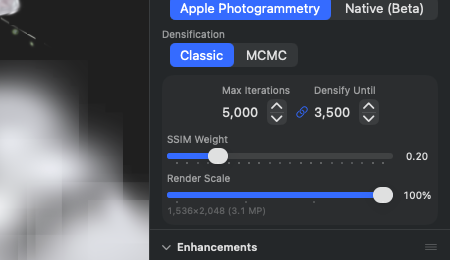
This is where the central levers live: which SfM backend should compute, how densification works, how many iterations, how much SSIM weight. With the MCMC strategy, two additional toggles appear ("MCMC Quality" and "Auto-scale by scene") that are hidden in Classic mode. With the Native SfM backend, the FOV override field is added, which is only needed for video frames without EXIF focal length.
I12Camera Alignment picker
WHERE
Inspector → Training Configuration → Camera Alignment (segmented picker at the top).
TECHNICAL
Segmented picker with two options: Apple Photogrammetry and Native (Beta). The selection determines the SfM backend used on the next camera reconstruction. At the same time it influences which further Inspector elements are visible: Native additionally shows the FOV override (I13), which is only needed with EXIF-less video frames. Note: for very large outdoor captures you can import the result of an external tool (Metashape or COLMAP) via workspace import — see Chapter 1 (M5) and Chapter 9 (Q3, Q6).
I13FOV Override field (Native SfM)
WHERE
Inspector → Training Configuration → FOV Override (only visible with Camera Alignment = Native).
TECHNICAL
Numeric text field (range 0-170°), default 0 = automatic determination from EXIF or heuristic. Manual input is needed when the input images were extracted from a video that contains no focal length metadata. Typical values: iPhone Wide ≈ 73°, DJI Mavic Wide-Crop ≈ 70°, drone with full-frame sensor ≈ 84°. The value is clamped to [0, 170] — values outside are pushed back directly. Only affects the native SfM pipeline (Q4/Q5); Apple Photogrammetry ignores this value completely.
I15Densification picker
WHERE
Inspector → Training Configuration → Densification (segmented picker, always visible).
TECHNICAL
Switches between the two densification strategies: Classic (original 3DGS procedure with clone/split/prune and gradient threshold) and MCMC (Stochastic Gradient Langevin Dynamics with Relocation, NeurIPS 2024). When switching from Classic to MCMC, the app sets the MCMC-specific fields automatically to proven default values (reg weights = 0, MCMC cap multiplier 3.0, sample/noise schedule). Without this automatic initialization, sessions with old presets suffered from the 1.4.4 MCMC collapse bug (460K→5 Gaussians, watchdog kill). The picker selection additionally determines which Inspector elements are visible — with MCMC, I16/I17 appear. Detailed field effect in Chapter 6, T11–T16 (Classic) and T61–T73 (MCMC).
I16MCMC Quality toggle
WHERE
Inspector → Training Configuration → MCMC Quality (only with Densification = MCMC).
TECHNICAL
Switches gradient accumulation to 2 steps (active) or 1 step (inactive). Accumulates the gradients from two consecutive camera views before the optimizer step is executed. Empirically (Session 33, V544a) reduces the final L1 error by about 6% (0.0246 with Quality vs 0.0261 without, in 3-trial average on Horse-Full-MCMC). The price: doubled training time. With very long trainings (200K iterations) this leads to an additional 10+ minutes waiting time — so only worth it if the last few percent of quality really are needed. Only affects training, not the export format or the viewport display.
I17Auto-scale by scene toggle
WHERE
Inspector → Training Configuration → Auto-scale by scene (only with MCMC).
TECHNICAL
When active, scales the effective max-Gaussians ceiling with the SfM init point count × MCMC cap multiplier (default 3.0). Example: SfM yields 250K init points, base cap = 150K, multiplier 3.0 → effective ceiling = max(150K, 750K) = 750K. When deactivated, only the base applies strictly. Was introduced for v1.4.5 because large outdoor captures with over 1000 frames and correspondingly high SfM point density starved densification with the rigid 150K cap default — superfluous points remained, new ones were not allowed to emerge. Default OFF in custom presets, ON in MCMC built-ins. Only affects training time, not export.
I18Max Iterations stepper
WHERE
Inspector → Training Configuration → GroupBox → Max Iterations.
TECHNICAL
Stepper with range 1,000–100,000, step size 1,000. Determines the total number of optimizer iterations. Linearly correlated with training time (halving = approx. 50% time). Empirical sweet spots: 20K (Classic Balanced, L1≈0.028), 40K (Classic Quality, L1≈0.023), 200K (MCMC Full, L1≈0.0246). Above 40K with Classic brings on average barely any improvement — diminishing returns. When changing, if the link function (I19) is active, Densify Until is proportionally pulled along (default ratio: 0.5, i.e. Densify-Until = Max/2).
I19Link/Unlink button (Densify ↔ Iterations)
WHERE
Inspector → Training Configuration → GroupBox → small link button between Max Iterations and Densify Until.
TECHNICAL
Toggle button that freezes the ratio of Densify Until to Max Iterations. When active (link icon highlighted), on every change of Max Iterations the Densify Until is proportionally pulled along. When unlinked (link-plus icon), the values remain independent. Default is linked, because that reflects the typical correlation — when you pull the training to double the iterations, you usually want to also let densification run proportionally longer. The ratio is computed from the current value when setting the link button; a typical ratio is 0.5 (Densify-Until = half the iteration count).
I20Densify Until stepper
WHERE
Inspector → Training Configuration → GroupBox → Densify Until.
TECHNICAL
Stepper with range 500–50,000, step size 500. Determines the iteration index from which no new Gaussians are added via clone/split (Classic) or relocation (MCMC) anymore. After reaching it, only position and color are refined. Higher values = more Gaussians = larger file, longer per-iteration time (+30-60% GPU time per step). Typical values: 15K (for 30K max-iter), 20K (for 40K), 100K (for 200K MCMC). With link active (I19), automatically scaled along. Acts differently with Classic vs MCMC: Classic completely stops growth, MCMC stops the relocation logic, but sample/noise adaption continues to run.
I21SSIM Weight slider
WHERE
Inspector → Training Configuration → GroupBox → SSIM Weight.
TECHNICAL
Slider 0.0–1.0 in 0.05 steps, displayed as "0.20". Mixes L1 loss (0.0) and SSIM loss (1.0). L1 tightens brightness per pixel, SSIM tightens structural similarity (edges, local statistics). Default 0.2 is the value from the original 3DGS paper (Kerbl 2023) and reverse-engineered as a robust compromise in numerous sessions. Higher values (0.5+) favor detail preservation, but may ignore local brightness errors. Lower values (< 0.1) lead to detail loss at sharp edges. The SSIM computation runs in the shader with an 11×11 Gaussian window. Performance: at 0.0 (only L1) the training is approx. 8-12% faster, because the SSIM computation is skipped in the shader.
I22Render Scale slider
WHERE
Inspector → Training Configuration → GroupBox → Render Scale.
TECHNICAL
Slider 0.25–1.0 in 0.25 steps, displayed as "100%". Scales the training rendering resolution relative to source image size. Biggest lever on performance: 50% reduces GPU time by approx. 75% (because 4× fewer pixels), 25% by approx. 94%. The gradient threshold is automatically scaled along. Below the slider a live resolution display in MP appears (e.g. "2304×1296 (3.0 MP)"). If the current value deviates from the recommended, "— recommended: 50%" is shown in orange text. The recommendation targets ~3 MP effective resolution — the range most efficiently processed by Apple Silicon GPUs. 4K source images get e.g. 25% recommended automatically, FullHD images 100%. A change additionally triggers the buffer reallocation.
Enhancements section (I26–I29)
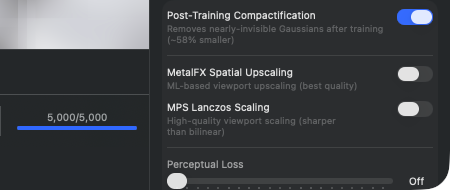
The Enhancements section groups four features that improve image quality without changing the core training loop itself. The first three (I26-I28) are post-training or viewport stages: Compactification tidies up after training ends, MetalFX and MPS Lanczos are pure viewport renderers that don't influence the running training. The Perceptual Loss (I29) despite belonging to the section is a training component — it is activated as an additional loss term during training, hence the separation from the viewport toggles via a divider.
I26Post-Training Compactification toggle
WHERE
Inspector → Enhancements → Post-Training Compactification.
TECHNICAL
Activates the V443 post-processing: after completion of training iterations, Gaussians with opacity below 0.01 (1% visibility) are deleted. Empirically this reduces file size by ~55-58% with zero visible quality loss — because these Gaussians don't visually contribute anyway. The compactification runs as a GPU compact pass and takes fractions of a second to a few seconds depending on Gaussian count. Doesn't affect training performance. If this toggle is off, invisible Gaussians are also exported — only relevant if you want to use the format for another training stage (Continue Training), otherwise wasted storage.
I27MetalFX Spatial Upscaling toggle
WHERE
Inspector → Enhancements → MetalFX Spatial Upscaling.
TECHNICAL
Activates Apple's MetalFX Spatial Upscaler in the viewport renderer. When the training resolution (via I22 Render Scale) is lower than the viewport size, MetalFX scales the rendered frame ML-based up to display size. Delivers the sharpest results of all scaling options, because the ML upscaler model is optimized for sharp edges. The renderer pipeline is reconfigured live when toggling — visible immediately, without restart. Has priority over MPS Lanczos (I28): if both are active, MetalFX wins. Performance overhead in the viewport approx. 1-2ms per frame on M3 GPUs. Acts only on the live viewport, not on rendered exports (orbit video, screenshots) — those are rendered at full source resolution.
I28MPS Lanczos Scaling toggle
WHERE
Inspector → Enhancements → MPS Lanczos Scaling.
TECHNICAL
Activates Apple's Metal Performance Shaders with Lanczos resampling as viewport upscaler. Lanczos is classical resampling with 8-tap sinc filter — sharper than bilinear, classical algorithm without ML. The renderer pipeline is reconfigured live when toggling. Is ignored if MetalFX (I27) is also active. Minimal overhead (<0.5ms per frame), but quality is below MetalFX. Application: fallback for scenes in which MetalFX produces artifacts (e.g. strong line structures that the ML upscaler occasionally "irons flat"). Acts like I27 only in the live viewport, not in exports.
I29Perceptual Loss slider
WHERE
Inspector → Enhancements → Perceptual Loss.
TECHNICAL
Slider 0.0–0.2 in 0.01 steps, displayed at 0.0 as "Off", otherwise as "0.05" etc. Activates an additional loss term that compares multi-scaled Gaussian blur of the rendering with the ground truth image (3 blur scales). Captures structural differences that L1+SSIM alone don't detect. V460 implementation. Empirically, a value of 0.05-0.1 improves the L1 score in sessions by a few percent, but costs ~5% training time (additional forward pass through the blur kernels). Above 0.15 the training becomes unstable and L1 worsens again (loss term dominates the optimization). Acts during training, not in post-processing — despite its position in the "Enhancements" section it is not a pure post-finishing.
Metrics section (I30–I38)
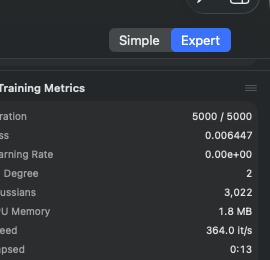
While a training is running, the Metrics section shows nine live values from the training loop. Before a training starts the section is empty ("Start training to see live metrics"). All values are updated every ~30 iterations (update frequency of the stream). The section is read-only — no element is clickable or modifiable. For deeper analysis, consult the JSONL training logs under ~/Documents/RadianceKit/Logs/ (script python3 scripts/analyze_logs.py best 5).
I30Iteration
WHERE
Inspector → Metrics → Iteration. Read-only.
TECHNICAL
Displayed in the format "4523 / 40000" — current iteration over total planned iterations. Counts synchronously with the training loop, which pushes the values every ~30 iter. The second number corresponds to the Max Iterations value at the start time; it doesn't change anymore, even if the user adjusts the stepper afterwards — the running run uses its own snapshot copy. If the app pushes additional iterations via the Training menu (Continue Training +5K/+10K/+20K), the denominator increases.
I31Loss
WHERE
Inspector → Metrics → Loss. Read-only.
TECHNICAL
Float value with six decimal places (e.g. "0.024385"). Measures the combined L1+SSIM loss (mix controlled via I21 SSIM Weight) plus optional Perceptual Loss (I29) and other regularizers. Scale is not absolute, but scene-dependent — demands the same dataset for most comparisons. Typical end values with good configurations: - Classic Quality 40K iters: 0.022–0.025 (Horse, Truck, Garden) - MCMC Full 200K iters: 0.024–0.028 - Outdoor drone 30K: 0.030–0.060 (geometry-related worse) - Indoor apartments: 0.018–0.025
Values above 0.10 after 5K iterations indicate SfM problems (bad camera poses) — abort and recompute SfM.
I32Learning Rate
WHERE
Inspector → Metrics → Learning Rate. Read-only.
TECHNICAL
Scientific notation display (e.g. "1.60e-04"). Current learning rate for the position parameters (3DGS has six independent LRs for position, SH-DC, SH-Rest, opacity, scale, rotation — displayed here is the position LR as a representative value). Default starting value 1.6e-4, which decays via an exponential decay to ~1.6e-6 by training end. The decay is adjustable via the LR schedule field in the training configuration (T field in Chap. 6). If the LR stays unusually high (e.g. 1e-3 or more after 10K iterations), this could indicate a faulty loaded configuration.
I33SH Degree
WHERE
Inspector → Metrics → SH Degree. Read-only.
TECHNICAL
Integer 0-3. Spherical-harmonics degree for the color representation. Starts at 0 (only the DC component, i.e. direction-independent color per Gaussian — so only a single RGB constant) and rises progressively to 3 over the course of training. The standard schedule lifts the degree at 1000/2000/3000 iterations by 1 each. SH-3 corresponds to 48 color coefficients per Gaussian (3 RGB channels × 16 SH basis functions). Higher SH degree = more direction-dependent reflection (glossy surfaces look correctly different under different viewing angles), but also more memory and slower training.
I34Gaussians
WHERE
Inspector → Metrics → Gaussians. Read-only.
TECHNICAL
Current number of Gaussians in the model, formatted with locale separator (e.g. "524.318"). Growth: - Classic: starts at the SfM init points (typically 50K-300K), grows via clone/split until just before Densify Until, then static until training end (modulo pruning) - MCMC: sample points are added up to the MCMC cap, then only relocation
Healthy end values: - Classic Quality: 400K-700K (Horse 524K, Garden 800K) - MCMC Full: exactly on the cap (default 150K, with auto-scale multiplier × SfM count, depending on scene 500K-1.5M)
With MCMC, if the number falls to < 60% of the cap → anomaly (collapse indicator, indicates too aggressive regularizers).
I35GPU Memory
WHERE
Inspector → Metrics → GPU Memory. Read-only.
TECHNICAL
Estimate of the Gaussian buffer memory consumption as Gaussian count × 616 bytes (formatted in memory style). 616 bytes is the empirical size of a fully equipped Gaussian (position, scale, rotation, opacity, SH coefficients degree 3, gradient accumulator). The display does not capture the renderer overhead (tile buffer, sort buffer, backward buffer) — the real GPU memory requirement is typically 2-3× over this value. At 500K Gaussians: displayed ~290 MB, real ~700 MB. At 1.5M Gaussians: displayed ~880 MB, real ~2.5 GB. On M3 Max with 64+ GB Unified Memory uncritical, on M3 Pro with 18 GB already a limit.
I36Speed
WHERE
Inspector → Metrics → Speed. Read-only.
TECHNICAL
Iterations per second with one decimal place ("24.3 it/s"). Computed by the trainer as a moving average over the last ~100 iterations. Typical values: - Quick preset (1K iters): 80-120 it/s (short, no steady state) - Classic 20K @ 1.0 Render Scale (Truck scene, M3 Max): 25-35 it/s - Classic 20K @ 0.5 Render Scale: 80-120 it/s - MCMC 200K @ 0.5 Render Scale: 25-50 it/s (slower due to relocation) - With 1M+ Gaussians and full resolution: < 10 it/s
Decreasing speed over the course of training is normal — more Gaussians = more compute per iteration. Sudden drops (e.g. from 30 → 5 it/s) indicate GPU thermal throttling or competing apps.
I37Elapsed
WHERE
Inspector → Metrics → Elapsed. Read-only.
TECHNICAL
Already elapsed time as "4:23" (m:ss) or "1:23:45" (h:mm:ss). Format switch from 1 hour. Measures only the pure training time, not the upstream phases (SfM computation, image import). With pause/resume the clock keeps running — so it's wall-clock, not CPU time.
I38ETA
WHERE
Inspector → Metrics → ETA. Read-only.
TECHNICAL
Estimated remaining time as "17:42" or "1:12:35". Computation: (Max Iterations − current iteration) / iterations per second. Shows "–" when speed is currently zero (at the very start or during pause). The estimate is not adjusted to the typical slowdown towards training end — especially with MCMC and Classic with large Densify-Until values, the training tends to become slower because more and more Gaussians come into the picture. Real it typically stays 10-20% above the initial ETA.
Loss Chart section (I39–I41)
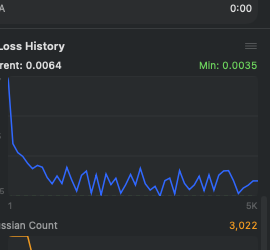
The Loss Chart section visualizes the training course over time. It consists of two charts: a Loss Curve chart (large, top, blue) and a Gaussian Count chart (smaller, bottom, orange). Both are built up live during training and persist until the next training start. Before the first training the area is empty ("Loss curve will appear during training"). The charts are pure SwiftUI path drawings (not Swift Charts framework), so they render fluidly even with 100K+ points.
I39Current Loss (display)
WHERE
Inspector → Loss Chart → left label area "Current: 0.0287". Read-only.
TECHNICAL
Float value of the last loss sample point, formatted with four decimal places. Identical with I31 (Loss in the Metrics section), just here more compactly formatted. Source is the loss history — a list that gets an entry every ~30 iterations. Only finite values are added to the list — NaN/Infinity (very rare, in the case of a gradient explosion bug) are filtered.
I40Min Loss (display)
WHERE
Inspector → Loss Chart → right label area "Min: 0.0245" (green). Read-only.
TECHNICAL
Minimum of all loss values ever seen of the current training run. Live recomputed from the loss history — no separate persistence. Displayed with green text, because "Min" = "Best so far". The dashed green line at the lower chart edge marks this Y position visually. With continue-training sessions, the min tracking restarts — the old history is replaced in the UI by the new (not appended). If the current training runs worse than the previous, the min display can be larger than the previous end result.
I41Gaussian Count Chart
WHERE
Inspector → Loss Chart → second chart below it (orange). Read-only.
TECHNICAL
Line chart of Gaussian count over the training iterations. Source: the Gaussian count history (list of (iter, count) pairs, filled by the trainer every ~30 iter). Y scale dynamic between minimum and maximum of the history. With Classic strategy the curve typically looks like this: steadily rising up to Densify Until, then flat (with small pruning fluctuations). With MCMC: steep rise up to cap, then horizontal line (relocation keeps the number constant). If the curve falls despite active training, densification prunes too aggressively — indication of wrong defaults or a known MCMC collapse bug (v1.4.4 hotfix topic).
How to read the loss curve?
The loss chart is the most important diagnostic tool in the Inspector — no other indicator shows as directly whether training is usefully progressing or stuck. The typical healthy shape is a quick drop in the first 1000-3000 iterations (from ~0.15 to ~0.05), followed by a slow, steady decline until training end (to 0.020-0.030). Logarithmically the curve looks like a smooth diagonal.
What does a plateau in the loss mean? If the curve stays flat over several thousand iterations, there are two possible readings: (a) training has "converged" — the loss can no longer significantly drop, because the model is as good as it can be with the given data and settings. That's desired; that's "done". (b) Training "hangs" — the loss could actually still drop, but optimization stagnates (local minimum, learning rate too small, densification off). Distinguishing: if the loss value lies in a typically good range (0.020-0.030 with indoor/object, 0.040-0.060 with outdoor) and the curve has been flat since 5K iterations, it's converged. If the value is clearly higher than with comparable scenes (e.g. 0.08), it's hung.
Note: Gaussian plateau ≠ Loss plateau. A plateau in the Gaussian count does not mean "training is done". It only means that densification has stopped adding new points — either because is reached (Classic) or because the MCMC cap is full. Training continues afterwards and only refines the existing points. The actual "done" signal you read from the loss curve and from the Iteration display (I30), not here.
Rule of thumb for aborting: If the loss curve after 5000+ iterations lies above 0.08 and barely sinks anymore, with high probability the SfM reconstruction is skewed. Abort training, look in Chapter 9 to see whether the chosen SfM backend matches the scene, possibly switch to COLMAP/Native, then restart. Better to invest 10 minutes in better SfM than 2 hours of training with bad camera alignment.
When to reach for the Inspector?
Quick reference: which section + which controls for which typical use case?
| Common task | Section | Control IDs |
|---|---|---|
| Load prefab setup | Presets | I7 (click row) |
| Save own setup | Presets | I1 → I2 → I4 |
| Share setup with colleague | Presets | I5 (Export) or I6 (Import) |
| Change SfM backend (e.g. because Apple-PG too unstable) | Training Configuration | I12 (see Chap. 9) |
| Process video frames without EXIF focal length | Training Configuration | I13 (FOV Override) |
| COLMAP performance: GLOMAP instead of Classic | Training Configuration | I14 |
| Switch from Classic to MCMC | Training Configuration | I15 |
| Let training run longer | Training Configuration | I18 (Max Iter) + I20 (Densify Until) — coupled via I19 |
| Halve GPU time | Training Configuration | I22 (Render Scale to 50%) |
| Training quality +6% (MCMC) | Training Configuration | I16 (MCMC Quality) |
| Outdoor scene with many SfM points | Training Configuration | I17 (Auto-scale by scene) |
| Set up / change COLMAP path | Training Configuration | I23 / I24 / I25 |
| Make export files smaller | Enhancements | I26 (always leave on) |
| Sharper viewport without more training time | Enhancements | I27 (MetalFX) |
| MetalFX smooths too much → alternative | Enhancements | I28 (MPS Lanczos) |
| Last bit of detail with fine structures | Enhancements | I29 (Perceptual Loss 0.05-0.1) |
| Monitor training | Metrics | I30 (progress), I36 (pace), I38 (remaining time) |
| Assess quality early | Metrics | I31 (Loss < 0.05 after 5K = good) |
| Suspect SfM problem | Metrics + Loss Chart | I31 + I39 (Loss > 0.08 after 5K → SfM redo) |
| Distinguish convergence vs stuck | Loss Chart | I39 + I40 (read loss plateau) |
| Identify densification problem | Loss Chart | I41 (Gaussian curve falls → bug) |