Chapter 3 — Settings
The Settings window opens via RadianceKit → Einstellungen… or the standard keyboard shortcut ⌘,. It contains two tabs: General and AI Helpers. Unlike the Inspector values from Chapter 2, the settings in this window act app-wide (across all projects) — with one exception, they are saved permanently and survive app restarts; the exception is the live-preview interval (S5), which only applies for the current session. The General tab groups three content sections: Interface, Viewport, and Training. (The outdoor floater toggles formerly located here — Sky Masking, Floater Cleanup, and Reconstruct Sky Dome — have moved to the Expert Inspector since v1.6, where they are stored per project: since the regrouping on 2026-07-18 they reside in the Training section, Outdoor subgroup; see Chapter 2, I42–I44.) The AI Helpers tab toggles the on-device machine-learning helpers (Vision, CoreML) for SfM and training preprocessing.
The window scrolls. It has a fixed size — set in the code at 460 #sym.times 600 points — and the content of the General tab is taller than that area. When you open it, you only see Interface and the top part of Viewport; Training, and with it the toggle for automatic PLY (S36) and the button for the exports folder (S37), only appear once you scroll down. If you're missing these two, you've usually simply not scrolled. The two figures below therefore show the same tab twice: once at the top and once scrolled down.
Earlier controls for collectively enabling or disabling all AI Helpers no longer exist in the current version — accordingly, they are not documented here. The former "Coming Soon" section for helpers not yet shipped has also been removed and is not referenced here.
General Tab
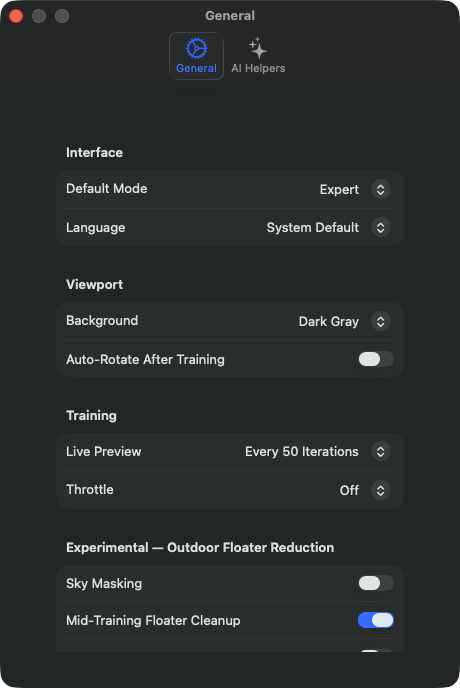
S1Default Mode
WHERE
Settings → General → Interface → Default Mode picker. Default: "Simple Mode".
TECHNICAL
Controls which of two UI modes the app opens in after the next launch. "Simple Mode" is the guided wizard workflow with 4 steps (Import → Processing → Preview → Export, documented in Chapter 10 under Z1–Z4), "Expert Mode" is the classic three-panel layout with Navigator, 3D viewport, and Expert Inspector from Chapter 2. The value is remembered across restarts. Same effect as the menu Mode → Simple Mode (⌘1) / Mode → Expert Mode (⌘2), except that the menu switches the current session while this picker sets the default for future sessions. Both modes access the same project state — projects, cameras, and training configuration are preserved when switching modes. Mode-specific toolbar buttons are re-rendered immediately.
S38Pause after frame extraction (Expert)
WHERE
Settings → General → Interface → Toggle "Pause after frame extraction (Expert)". Default: off.
TECHNICAL
Applies exclusively to Expert Mode and there exclusively to video footage. When the toggle is off (default), the large button reads "Start Processing" and the run goes through in one pass: extract frames from the video, check image quality, align cameras, train. When it's on, the same button reads "Extract Frames" and the run halts after extracting and reviewing the individual frames. During this pause you can review the image set in the Navigator, remove individual images, and change the training settings before starting the rest yourself. The value is remembered across restarts. It has no effect on Simple Mode or on imports that already consist of individual images — there's nothing to extract there.
S34Show marker recipe suggestions
WHERE
Settings → General → Interface → Toggle "Show marker recipe suggestions". Default: on.
TECHNICAL
Allows the app to silently search your images for AprilTag markers after an import and, if applicable, suggest a different SfM recipe. The notice appears as a banner in the Expert Inspector above the Cameras & Capture section and offers to switch to Professional, which uses repeatedly detected markers as rigid anchors for more accurate camera positions. Only what's actually usable gets counted: a marker ID must appear in at least three images, otherwise it doesn't yield a usable track and remains uncounted — so several different IDs that each appear only once trigger nothing. The notice also only appears if the native SfM is actually running and no higher-value recipe is set yet, and it disappears as soon as a run starts. The toggle is the permanent form of "Don't suggest again" in the banner itself; clicking that switches this off. Conversely, re-enabling it here counts as an explicit fresh start: even a notice dismissed for the current import is checked again.
S2Language
WHERE
Settings → General → Interface → Language picker. Default: "System Default" (follows the macOS language).
TECHNICAL
Selects the display language of the entire app UI, independent of the macOS system language. The picker lists the entry "System Default" and 18 fixed languages: English, Deutsch, Français, Español, Português, Italiano, Nederlands, 日本語, 中文, 한국어, Svenska, Norsk, Dansk, Suomi, Polski, Čeština, Русский, Türkçe. With "System Default", the app follows the macOS language. With an explicit choice, the language setting is remembered across restarts; full effect generally requires an app restart, because localization bundles are only loaded at launch.
S3Viewport Background
WHERE
Settings → General → Viewport → Background picker. Default: "Dark Gray" (RGB 0.1, 0.1, 0.1).
TECHNICAL
Sets the background color of the 3D viewport. Three options: "Dark Gray" (RGB 0.1, 0.1, 0.1 — default), "Black" (0, 0, 0) and "White" (1, 1, 1). The choice takes effect immediately on the running Metal renderer and is stored in the User Defaults, so it survives app restarts. There is exactly one setting with three controls: this picker, the menu Viewport → Background (M21, M22, M23), and the B key in the viewport all write through the same setter — whoever toggles it via menu or key will see the new value reflected here in the Settings picker afterward. (Up through v1.7 the app didn't remember the choice, and the word "Default" in the picker was somewhat dishonest in that regard; since 2026-07-18 the three paths are consistent.) A deliberate consequence of this change: a white background stays white even after a restart, and thus also ends up in screenshots and orbit video exports. Still valid for recordings: white backgrounds highlight green/blue floaters more strongly, dark backgrounds are better for clean render captures.
S39Selection color
WHERE
Settings → General → Viewport → Color picker "Selection color". Default: red (RGB 1, 0, 0).
TECHNICAL
Sets the color used to tint Gaussian points selected in edit mode — i.e. what you've just marked with the brush or via the clipping plane and would delete or desaturate in the next step. The picker doesn't support transparency. A change is written to the User Defaults immediately and passed on to the running renderer, so the view recolors with the next frame; a restart is not required. The tint is display-only and appears in no exported file.
S40Cylinder color
WHERE
Settings → General → Viewport → Color picker "Cylinder color". Default: cyan (RGB 0.1, 0.9, 1.0).
TECHNICAL
Sets the color of the cylinder crop — both the wireframe and the content the cylinder encloses. Careful, the two tones mean opposites: the selection color (S39) marks what is to be removed, the cylinder color marks what remains. That's why they're configurable separately and clearly distinct out of the box. Like S39, no transparency, takes effect immediately, display-only.
S35Invert vertical navigation
WHERE
Settings → General → Viewport → Toggle "Invert vertical navigation". Default: off.
TECHNICAL
Reverses the up/down direction of viewport navigation. Scope since 2026-07-18: orbiting, look direction in fly mode, and panning — the latter both via gesture and when dragging with the right mouse button, which previously didn't read the flag at all. Before, the toggle only worked half-way; anyone who enabled it moved two gestures against each other. When panning, vertical mouse movement inherently has the opposite sign compared to orbiting, which is why it's conditionally inverted there instead of copied from orbiting — anyone who never touches the toggle won't notice the correction. Zoom is deliberately excluded: there, the system's scroll direction already determines the sign, and the deltas control distance and viewing angle, not vertical navigation.
From here on you need to scroll — the following three entries lie below the visible area of the window.
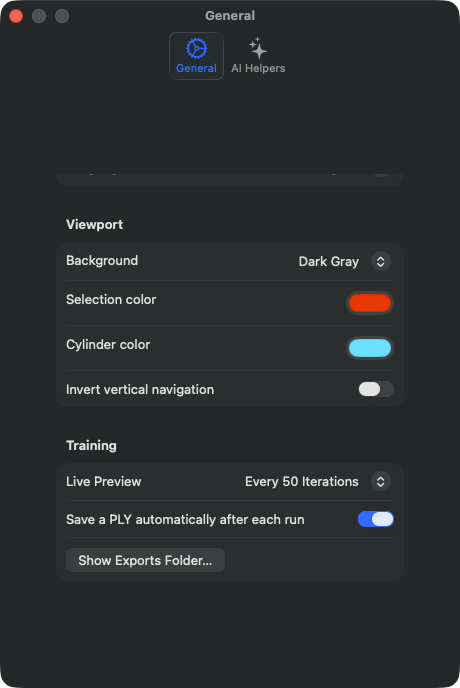
S5Live Preview Interval
WHERE
Settings → General → Training → Live Preview picker. Default: "Every 50 Iterations".
TECHNICAL
Determines at what iteration interval the running training snapshot is rendered into the 3D viewport. Four discrete values: 0 ("Off"), 50, 250, 1000 iterations. With live preview active, the trainer copies the Gaussian buffer from the GPU into a separate render buffer and triggers a viewport redraw. With "Off", the viewport is only updated after training completes. Performance cost: every 50 iterations ~5–10% slower on M3 Ultra, every 250 iterations ~1–2% slower, every 1000 iterations unmeasurable. Memory overhead constant ~2 GB for the snapshot buffer, independent of the interval. Scope: the value belongs to the app, not the scene. It is carried along with the training settings for technical reasons, but is explicitly preserved when opening a scene file, when switching the preset, and during automatic 360° switching — previously an opened scene would overwrite its own preview rate with that of the scene's author, "Off" included. For the same reason it doesn't count toward the recipe comparison and doesn't trigger a "Modified" badge on the preset. "Continue Training" also follows the current value rather than the one that was in effect during the original run — since then a continuation shows a preview at all and honors it if you turned it off in the meantime. It is also the only setting in this window that doesn't survive an app restart: unlike every other entry here, it is not stored permanently anywhere; every launch starts again at "Every 50 Iterations". A training run already in progress does not change its rate anymore; a change takes effect on the next run. At interval 50 the visual impression is a smooth "growing" of the point cloud, at 1000 it looks jerky.
S36Save a PLY automatically after each run
WHERE
Settings → General → Training → Toggle "Save a PLY automatically after each run". Default: on.
TECHNICAL
Writes the result as a PLY to the Exports folder after every completed run — fresh run and continuation — (training_<timestamp>.ply). The feature itself has existed since v1.7.0, but ran without any indication and without a toggle; since 2026-07-18 it is visible and can be switched off. Caution when disabling: the automatic write is a safety net — without it, a completed run exists only in memory until you export it yourself or save it as a scene. Caution when leaving it on: a file reaches ~2 GB for detail-rich scenes. If the setting was never touched, "on" applies: a missing value in the User Defaults is explicitly read as "on", not as "off" — otherwise every existing user would have silently lost the safety net. The target folder depends on the build: without sandboxing ~/Documents/RadianceKit/Exports, in the App Store version instead ~/Library/Containers/…/Documents/RadianceKit/Exports — hence the button next to it (S37).
S37Show Exports Folder…
WHERE
Settings → General → Training → Button "Show Exports Folder…". Pure action, no stored value.
TECHNICAL
Opens the folder in Finder that the automatic PLYs from S36 are written to. Exists because the path differs depending on the build, and in the App Store version the files sit in the app's container, where nobody looks — which is exactly why they repeatedly seemed "lost". The button and the writer use the same path definition, so they cannot diverge. No stored state.
Since 2026-07-18, the app asks for confirmation on quitting with unsaved work instead of closing without comment. If a run is currently in progress, the prompt reads "Quit while a run is in progress?" — the run would be aborted and its progress lost. If there is a finished, trained result that has been neither exported nor saved as a scene, it reads "Quit without saving the result?". Cancel is the default in each case; Return and Escape thus cancel the quit, while "Quit Anyway" quits regardless. Script and automated test launches are exempted and quit without a prompt. If S36 is on, the second case rarely occurs — the result is then already saved as a PLY in the Exports folder and counts as saved.
AI Helpers Tab
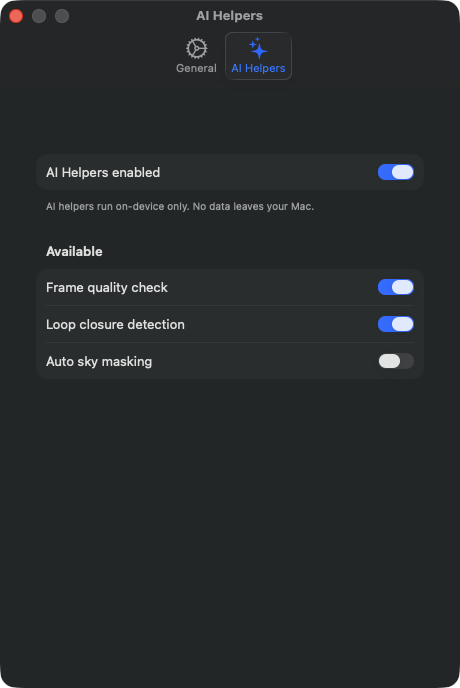
S11AI Helpers enabled (Master)
WHERE
Settings → AI Helpers → first section → toggle „AI Helpers enabled". Default: on.
TECHNICAL
Master switch over all AI Helpers features in the pipeline. When off, the import and SfM pipeline skips all ML-based preprocessing stages entirely — no Apple Vision call, no CoreML model load, no NPU wake-up. When on, the individual sub-options (S12–S13) are consulted. The value is remembered across restarts. Affects the following stages: (a) frame quality pre-check before SfM (S12), (b) loop closure detection (S13). Important: when off, all sub-options in the tab are disabled and visually greyed out. A footer note emphasizes that all AI Helpers run strictly on-device — no image upload, no cloud processing. The privacy guarantee comes from using exclusively the Apple Vision framework (locally on the Neural Engine) and CoreML models that live directly in the app bundle.
S12Frame quality check
WHERE
Settings → AI Helpers → Available section → toggle „Frame quality check". Default: on.
TECHNICAL
Enables the frame quality screener, which analyzes every imported frame before the SfM call. Each frame is checked for motion blur, over- and underexposure, insufficient image structure, and an obscured lens area; the finding is additionally graded by severity (unremarkable, warning, severe). Frames without a finding pass straight through. Flagged frames trigger a modal confirmation dialog that lists every problematic frame with a thumbnail and reasoning and asks whether it should be removed — optionally keep all, remove all flagged ones, or remove a custom selection. Important: no automatic deletion — the dialog is always required, the user retains the final decision. When off, all frames are passed on to SfM unchecked. When the master (S11) is disabled, this toggle is visually greyed out and without effect.
S13Loop closure detection
WHERE
Settings → AI Helpers → Available section → toggle „Loop closure detection". Default: on.
TECHNICAL
Enables the Apple Vision feature-print-based loop closure detection. For each imported frame, a feature print is computed, a neural embedding of the image content. The feature prints are then compared pairwise; sufficiently similar pairs that are far enough apart in capture order (i.e. not direct neighbours) are identified as „loop closure candidates" and written to a sidecar JSONL file in the project folder. Informational only — the imported image sequence is not modified. Purpose: gives the SfM solver (especially COLMAP) a hint that these frames belong together in a cluster in 3D space. For native SfM, the sidecar information is currently documentary only; COLMAP uses the hints internally via a custom matches file (manual integration possible, not automatically linked). When off, no feature prints are generated. Visually greyed out when the master (S11) is disabled.
Inspector Mirror Settings
The remaining settings entries (S17–S33) are mirrors of the Expert Inspector and are documented in Chapter 2 (Inspector Controls I12–I29). They don't appear physically in the Settings window; they're listed here only because they belong to the training settings and thus formally have settings character. Unlike the entries in this chapter, they are not app-global: they belong to the preset, are saved with the preset and scene file, and therefore change with the project. For content explanations, see there.
When does what apply?
| Setting | Scope | Persistence |
|---|---|---|
| S1 Default Mode | App-Global | App restart |
| S2 Language | App-Global | App restart |
| S3 Viewport Background | App-Global (the picker, the menu, and the B key are the same setting) | App restart |
| S5 Live Preview Interval | App-Global (does not travel with the scene) | current session only |
| S11 AI Helpers Master | App-Global | App restart |
| S12 Frame quality check | App-Global | App restart |
| S13 Loop closure detection | App-Global | App restart |
| S34 Show marker recipe suggestions | App-Global | App restart |
| S35 Invert vertical navigation | App-Global | App restart |
| S36 Save a PLY automatically | App-Global | App restart |
| S37 Show Exports Folder… | Action | — |
| S38 Pause after frame extraction | App-Global (Expert Mode only, video only) | App restart |
| S39 Selection color | App-Global (display only) | App restart |
| S40 Cylinder color | App-Global (display only) | App restart |
App-Global = affects all projects. Action = no stored state, the button performs a one-time action. None of the settings documented here travel along in a scene file. All but one also survive an app restart; the exception is the Live Preview Interval (S5), which resets to "Every 50 Iterations" on every launch.