Chapter 3 — Settings
The Settings window opens via RadianceKit → Settings… or the standard keyboard shortcut ⌘,. It contains two tabs: General and AI Helpers. Unlike the Inspector values from Chapter 2, the settings in this window take effect app-globally (across all projects) — they are persisted and survive app restarts. The General tab groups four content sections: Interface, Viewport, Training, and an experimental section for outdoor floater reduction. The AI Helpers tab enables the on-device machine-learning helpers (Vision, CoreML) for SfM and training preprocessing.
Earlier controls for collectively enabling or disabling all AI Helpers no longer exist in the current version — they are therefore not documented here. The earlier "Coming Soon" area for not-yet-shipped helpers has also been removed and is not referenced here.
General Tab
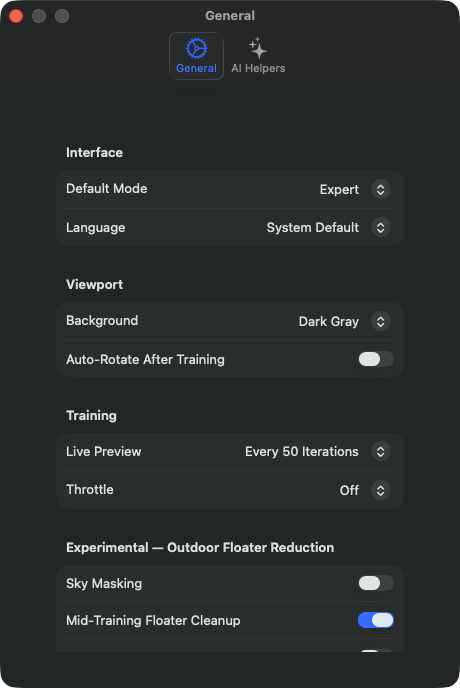
S1Default Mode
WHERE
Settings → General → Interface → Default Mode picker. Bound:. Default: .simple.
TECHNICAL
Controls which of two UI modes the app opens in after the next launch. "Simple Mode" is the guided wizard workflow in 4 steps (Import → Processing → Preview → Export, documented in Chapter 10 under Z1–Z4), "Expert Mode" the classic three-panel layout with Navigator, 3D Viewport and Expert Inspector from Chapter 2. The value is remembered across restarts. Identical effect to the menu Mode → Simple Mode (⌘1) / Mode → Expert Mode (⌘2), except the menu switches the running session while this picker sets the default for future sessions. Both modes access the same project state — projects, cameras and training configuration are preserved when switching modes. Mode-specific toolbar buttons are re-rendered immediately.
S2Language
WHERE
Settings → General → Interface → Language picker. Bound:. Default: .system (follows the macOS language).
TECHNICAL
Selects the display language of the entire app UI, independent of the macOS system language. RadianceKit is localized in 17 languages (de, en, pl, en-AU, ar-SA, plus 12 more). When set to "System", the app follows the macOS language. With an explicit choice the language setting is remembered across restarts; full effect usually requires an app restart, because localization bundles are only loaded at startup. The 298 documented localization keys in the project are all considered, including all texts in sub-views and help tooltips.
S3Viewport Background
WHERE
Settings → General → Viewport → Background picker. Bound:. Default: .darkGray (RGB 0.1, 0.1, 0.1).
TECHNICAL
Sets the default background color for the 3D Viewport. Three options: "Dark Gray" (RGB 0.1, 0.1, 0.1 — default), "Black" (0, 0, 0) and "White" (1, 1, 1). The setting persists the default for new projects and sessions across restarts and at the same time updates the running Metal renderer immediately. Identical options can be found in the menu Viewport → Background (M21, M22, M23), but the Settings picker sets the default, while the menu switches the running display. Important for screenshots and demo videos: white backgrounds emphasize green/blue floaters more strongly, dark backgrounds are better for clean render captures.
S4Auto-Rotate After Training
WHERE
Settings → General → Viewport → Toggle "Auto-Rotate After Training". Bound:. Default: false.
TECHNICAL
Starts a continuous turntable rotation of the Viewport camera around the scene centroid immediately after training ends (default rotation rate ~0.3 rad/s). Practically useful for demo sessions, A/B comparisons and to immediately assess from a 360° view whether "floaters" have formed at the scene edge. The effect is visually identical to the menu Viewport → Toggle Auto-Rotation (M16, ⌘⌥T), except this toggle triggers the behavior automatically after training ends rather than manually. It can be interrupted at any time via the menu or by clicking in the Viewport (which pauses the rotation). Has no influence on training performance — the rotation only runs once training is finished.
S5Live Preview Interval
WHERE
Settings → General → Training → Live Preview picker. Bound: AppState.trainingConfig.livePreviewInterval. Default: 0 (Off).
TECHNICAL
Determines the iteration interval at which the running training snapshot is rendered into the 3D Viewport. Four discrete values: 0 ("Off"), 50, 250, 1000 iterations. With Live Preview active, the trainer copies the Gaussian buffer from the GPU into a separate render buffer and triggers a Viewport redraw. With "Off", the Viewport is only updated after training completes. Performance cost: every 50 iterations ~5–10% slower on M3 Ultra, every 250 iterations ~1–2% slower, every 1000 iterations unmeasurable. Memory overhead constant ~2 GB for the snapshot buffer, independent of the interval. The value serves as the default for new trainings; after training start, the Training Inspector shows the actual live value of the running training. At an interval of 50 the visual impression is a fluid "growing" of the point cloud, at 1000 it looks choppy.
S6Throttle Delay
WHERE
Settings → General → Training → Throttle picker. Bound: AppState.trainingConfig.throttleDelayMs. Default: 0 (Off).
TECHNICAL
Inserts an artificial delay in milliseconds between training iterations. Four discrete values: 0 ("Off"), 2 ("Light"), 5 ("Moderate"), 10 ("Eco"). Purpose: during longer trainings (several hours) the GPU would otherwise be 100% utilized, which leads to noticeably slower system UI (mouse cursor stutters, other apps become sluggish). The throttle delay gives the GPU pauses in which other tasks can be executed. Performance cost is considerable: with 5 ms throttle a typical 40K training takes about 50–80% longer than without throttle. In performance mode "Eco" (10 ms) the delay per iteration is longer than the iteration itself — factor 2–3× slower. With throttle active, a note appears below the picker: "Throttle is on. Training will be slower than usual." The app itself does not react noticeably better — only other apps benefit.
S7Sky Masking
WHERE
Settings → General → Experimental — Outdoor Floater Reduction → Toggle "Sky Masking". Bound: AppState.trainingConfig.skyMaskingEnabled. Default: false.
TECHNICAL
Activates pre-training Apple Vision-based sky pixel segmentation. Before training starts, the sky region is extracted for each input camera via Apple Vision foreground mask (Sky = Background) and assigned as a per-pixel mask to the respective camera. During training, the loss contribution per pixel is multiplied by the complement of the Sky Masking — sky pixels contribute 0 to the gradient, so Gaussians projecting into the sky receive no optimization signals and therefore do not become "denser" or "brighter". Significantly reduces floaters (dark clumps in the sky) in outdoor/drone scenes. Costs ~3% L1 regression in classic 40K training (see memory/dev_outdoor-floater-reduction.md). Only useful for outdoor scenes with clearly recognizable sky; for indoor scenes or white backgrounds the sky segmentation identifies wrong areas and blocks valid loss signals. Unlike the other experimental toggles, the value is not remembered across app restarts — on the next app start it is off again.
S8Mid-Training Floater Cleanup
WHERE
Settings → General → Experimental — Outdoor Floater Reduction → Toggle "Mid-Training Floater Cleanup". Bound:. Default: false.
TECHNICAL
Enables two additional density-control passes during Classic 40K training (preset "P4 Quality"): at iteration 20,000 and at iteration 30,000. Both passes scan all Gaussians by three criteria: (a) very low opacity (default 0.005), (b) tiny screen-space size, (c) no loss contributions in the last 1000 iterations. Gaussians that meet all three conditions are purged. Effect: ~5–15% fewer Gaussians at the end of training, visibly fewer dark clumps in the sky for drone/outdoor scenes. Costs ~1–3% L1 regression on close-up indoor scenes, hence not enabled as default. The value is remembered across restarts (unlike S7). The two cleanup iterations (20K, 30K) are hard-coded and currently cannot be changed via UI; for shorter trainings (e.g. P2 Preview 5K) the toggle has no effect, because it never reaches the iteration marks. Details: memory/dev_outdoor-floater-reduction.md.
S9Reduce Elongated Gaussians
WHERE
Settings → General → Experimental — Outdoor Floater Reduction → Toggle "Reduce Elongated Gaussians". Bound:. Default: false.
TECHNICAL
Activates an additional anisotropy regularization in the loss term. During optimization, for each Gaussian the anisotropy is computed as the ratio between the largest and smallest scale axis. If the ratio exceeds a threshold (, default 10.0), a penalty term is added to the loss, scaled proportionally to the excess. Effect: needle-shaped Gaussians, which are typical for cross-hatch and streak artifacts in grass and dense foliage, are either forced into rounder shapes during training or purged. In return ~6 % L1 regression on standard indoor scenes, no effect on strict object captures. Sweet spot is for drone flight shots over vegetation. Writes to, persisted via. Implementation in optimizer.metal as an additional penalty in the gradient computation. See the note in the project memory: V549d was the shipped version; a later V549f with more aggressive scale regularization was reverted due to catastrophic regression. Details: memory/dev_outdoor-floater-reduction.md and memory/dev_v549f-needle-reduction.md.
S10Reconstruct Sky Dome
WHERE
Settings → General → Experimental — Outdoor Floater Reduction → Toggle "Reconstruct Sky Dome". Bound:. Default: false.
TECHNICAL
Activates the pre-training Sky Dome projection (V549e MVP). After SfM and before training start, the Apple Vision sky mask shared with S7 is extracted from the image for each input camera, the sky pixels are un-projected using the camera intrinsics onto a virtual sphere surface (default radius 8× scene radius). On this sphere ~5000 new Gaussians are initialized with color means from the projected sky pixels, very large scale (1.0 in scene units) and initial opacity 0.95. These 5000 Gaussians are not a sky mask in the classical sense — they are trained like all others, but the high initial opacity keeps them in a thin shell. Result: for 360° novel views in outdoor/drone scenes, actual sky color and cloud structures appear instead of dark confetti clumps. The value is remembered across restarts. Only useful for outdoor scenes with at least 360° camera coverage; for pure object captures without sky view it has no effect. Status: experimental, broader A/B validation across more outdoor sets still pending.
AI Helpers Tab
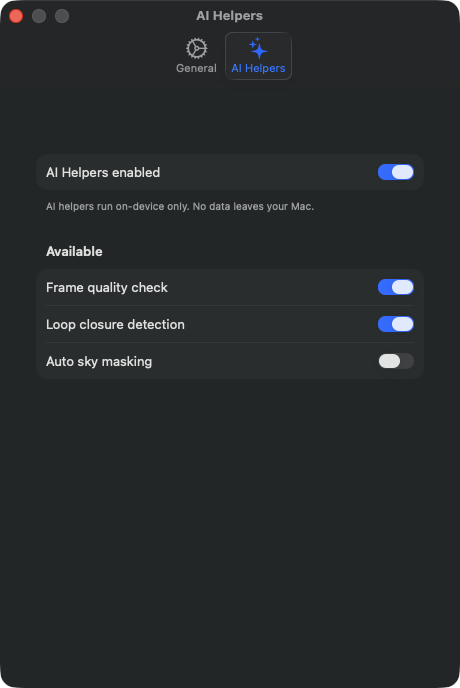
S11AI Helpers enabled (Master)
WHERE
Settings → AI Helpers → first section → Toggle "AI Helpers enabled". Bound:. Default: true.
TECHNICAL
Master switch over all AI Helpers features in the pipeline. When off, the import and SfM pipeline skip all ML-based preprocessing stages completely — no Apple Vision call, no CoreML model load, no NPU wake-up. When on, the individual sub-toggles (S12–S14) are consulted. The value is remembered across restarts. Affects the following stages: (a) frame quality pre-check before SfM (S12), (b) loop closure detection (S13), (c) auto sky masking as default value for new trainings (S14). Important: when off, the three sub-toggles are disabled and visually grayed out. Footer note emphasizes that all AI Helpers run strictly on-device — no image upload, no cloud processing. The privacy guarantee comes from using exclusively the Apple Vision framework (locally on the Neural Engine) and CoreML models that ship directly in the app bundle.
S12Frame quality check
WHERE
Settings → AI Helpers → Available section → Toggle "Frame quality check". Bound:. Default: true.
TECHNICAL
Activates the frame quality screener (Phase 3.11), which analyzes every imported frame before the SfM call. Pipeline steps per frame: (a) Laplacian variance filter from Apple Vision (blur detection — threshold ~150), (b) histogram-based over/under-exposure check (threshold: >5% pixels at 0 or 255), (c) blank frame detect (standard deviation < 5 over all pixels). Frames that pass all three checks go through directly. Frames that fail at least one check trigger a modal confirmation dialog that lists every problematic frame with thumbnail and reason and asks whether it should be removed. Important: no automatic deletion — the dialog is always required, the user keeps the final decision. Performance: ~50 ms per frame on M3 Ultra, runs in parallel. When off, all frames are forwarded to SfM unchecked. With the master (S11) disabled, this toggle is visually grayed out and has no effect. Shipped status per memory: SHIPPED 2026-05-23.
S13Loop closure detection
WHERE
Settings → AI Helpers → Available section → Toggle "Loop closure detection". Bound:. Default: true.
TECHNICAL
Activates the Apple Vision feature-print-based loop closure detection. For every imported frame, a ~768-dimensional feature vector is computed, which represents a neural embedding of the image content. All feature prints are then compared pairwise via cosine similarity. Pairs with similarity > 0.85 and frame-index distance > 50 (i.e. non-adjacent frames) are identified as "loop closure candidates" and written to a sidecar JSONL file in the project folder. Informational only — the imported image sequence is not modified. Purpose: gives the SfM solver (especially COLMAP) a hint that these frames cluster together in 3D space. For native SfM the sidecar information is currently only documentary; COLMAP uses the hints internally via custom matches file (manual integration possible, not automatically wired). Performance: ~200 ms per frame on M3 Ultra, runs in parallel. When off, no feature prints are generated. With the master (S11) disabled, visually grayed out.
S14Auto sky masking (AI)
WHERE
Settings → AI Helpers → Available section → Toggle "Auto sky masking". Bound: UserDefaults.standard.bool(forKey: "aiHelpersSkyMaskingDefault") (via custom binding). Default: false.
TECHNICAL
Sets the default value for the Sky Masking setting from S7 in new training configurations. Unlike S11–S13, the actual Sky Masking setting lives per training session and is not remembered across app restarts (see S7). So that the AI Helpers UI can still offer a persistent default for "new trainings", there is this shadow value: it is remembered across restarts and is taken as the initial default for Sky Masking when setting up a new training (e.g. new project import). With the master (S11) disabled, visually grayed out.
Inspector-Mirror Settings
The remaining settings entries (S17–S33) from the inventory table are mirrors from the Expert Inspector and are documented in Chapter 2 (Inspector controls I12–I29). They do not appear physically in the Settings window, but were listed in the inventory only because they run via TrainingConfig properties that are persisted via and therefore formally have settings character. For substantive explanations see there.
When What?
| Setting | Scope | Persistence |
|---|---|---|
| S1 Default Mode | App-Global | App Restart |
| S2 Language | App-Global | App Restart |
| S3 Viewport Background | App-Global (Default) + Runtime | App Restart |
| S4 Auto-Rotate After Training | App-Global | App Restart |
| S5 Live Preview Interval | Default for new trainings | App Restart |
| S6 Throttle Delay | Default for new trainings | App Restart |
| S7 Sky Masking | Current training | Session only |
| S8 Mid-Training Floater Cleanup | App-Global | App Restart |
| S9 Reduce Elongated Gaussians | App-Global | App Restart |
| S10 Reconstruct Sky Dome | App-Global | App Restart |
| S11 AI Helpers Master | App-Global | App Restart |
| S12 Frame quality check | App-Global | App Restart |
| S13 Loop closure detection | App-Global | App Restart |
| S14 Auto sky masking | Default for new trainings | App Restart |
App-Global = affects all projects. Default for new trainings = affects only the next training created; running sessions remain unchanged. Current training = takes effect immediately on the running training configuration, but does not persist without explicit re-import.