Chapter 7 — Built-in Quality Presets
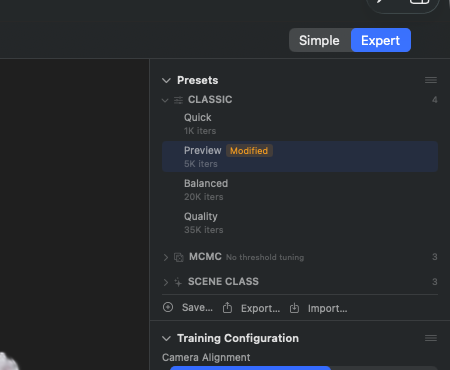
Presets section in the Inspector, all four groups expanded, with the line "Ready-made recipes — they replace the training settings" beneath the heading. CLASSIC sits at the top with Quick (1K iters), Preview (5K iters, active selection with a green checkmark), Balanced (20K iters), Quality (35K iters) and Ultra Detail (35K iters). CAPTURE CLASS with the subline "Curated real-world examples" follows below: Drone / Aerial, 360° Walkaround, 360° Walkaround (High Detail) and Photo / Object each with 40K iters and 1500K Gaussians, plus Photoset / Unordered (40K iters) and Maximum Quality Native (80K iters, 20000K Gaussians). MCMC carries the subline "No threshold tuning" — MCMC doesn't need a densify-until threshold: Preview (60K iters, 100K Gaussians), Balanced (120K, 150K), Quality (200K, 150K). HYBRID contains Balanced (Hybrid) (20K iters, 150K Gaussians). At the very bottom, the footer action row: Save…, Export…, Import…
A preset is a prepared configuration for training. RadianceKit ships fifteen built-in presets in four groups: five Classic presets (P1–P5: Quick/Preview/Balanced/Quality/Ultra Detail), three MCMC presets (P6–P8), six Capture-Class presets (P9–P14) — curated recipes for real-world capture types (drone, 360° walkaround, photo object, unsorted photoset), validated by eye against real material — and one Hybrid preset (P15) that combines the Classic and MCMC strategies. The former "Scene-Class" presets (Render/3D, Outdoor, Indoor) have been withdrawn as a visible group — Capture Class has taken their place. You choose presets in the sidebar under the Presets section or in Simple Mode during import. The buttons at the bottom of the section let you create your own presets alongside them — the fifteen built-in ones cannot be deleted, but they can be duplicated.
In the Expert View, presets appear grouped by strategy and capture type (Classic / Capture Class / MCMC / Hybrid). Clicking an entry writes the stored training configuration into the current state. This is not a snapshot — if you subsequently move sliders, the state changes, but the preset itself remains unchanged; a coloured indicator then shows "modified".
Which preset is right and when depends mainly on scene type and hardware. The two tabular overviews at the end of the chapter summarise this.
P1 — Quick
WHERE
Inspector → Presets section → group "Classic" → entry "Quick". UUID suffix …001.
TECHNICAL
Diagnostic preset with 1,000 iterations, classic (adaptive) densification strategy, and a training resolution scale of 0.25× (input images are shrunk to 25 % before training). Not intended for delivering a finished scene, but to quickly determine whether the setup (camera poses, point cloud, image sequence) shows any meaningful movement in the loss values at all. On an M3 Ultra typically under 30 seconds on 50–200 images. The small resolution obscures true image quality but keeps memory demand and render cost very low. Also chosen automatically as the default on first launch if the system has less than 10 GB of RAM.
P2 — Preview (Classic)
WHERE
Inspector → Presets section → group "Classic" → entry "Preview". UUID suffix …002.
TECHNICAL
5,000 iterations of Classic densification, 0.5× resolution scale, double the learning rates compared to the default. Densification (cloning + splitting) is active over the first 2,500 iterations, after which only pruning continues. Default preset for systems with ≥ 10 GB RAM. On an M3 Ultra typically 90 seconds to 3 minutes for a 200-image scene. Delivers a usable impression of the geometry and camera pose, but textures are visibly blurred — the 0.5× render resolution can't be bypassed simply by retraining with P3 or P4 afterwards, because the learning rates are calibrated for the halved resolution.
P3 — Balanced (Classic)
WHERE
Inspector → Presets section → group "Classic" → entry "Balanced". UUID suffix …005.
TECHNICAL
20,000 iterations of Classic densification at full image resolution. Densification runs over the first 15,000 iterations, with a densify interval of 100 starting at iteration 3,000. In this range, returns clearly flatten out: quality stabilises between iteration 18,000 and 22,000, and only the jump to Quality (P4) brings noticeably more again. On an M3 Ultra typically 30–60 seconds on 200 images, 5–8 minutes on 1,000+ images.
P4 — Quality (Classic)
WHERE
Inspector → Presets section → group "Classic" → entry "Quality". UUID suffix …003.
TECHNICAL
35,000 iterations of Classic densification with "Opacity Decay" (HTGS, Eurographics 2025): after each densify cycle, the opacity of all existing Gaussians is multiplied by a factor < 1.0, which reliably removes Gaussians that have become inactive during pruning — a visibly cleaner result than without this step at the same iteration count. SSIM loss is enabled (ssimWeight=0.05). On an M3 Ultra typically 2–4 minutes on 200 images. On object scenes, the strongest of the classic variants. Note: needs ~3–5 GB of GPU memory; on 8 GB systems, P3 is the safer choice.
P5 — Ultra Detail (Classic)
WHERE
Inspector → Presets section → group "Classic" → entry "Ultra Detail". UUID suffix …008.
TECHNICAL
Around 35,000 iterations of Classic densification — the sharpest recipe in the Classic group. At a comparable compute time, it outperforms the MCMC "Quality" preset (P8), making it the strongest quality preset in the Classic group and the sharpest Classic variant RadianceKit ships. On an M3 Ultra typically in the same time frame as P4 Quality (2–5 minutes on 200 images), but requires somewhat more GPU memory; on 8 GB systems, P3 remains the safer choice.
P6 — Preview (MCMC)
WHERE
Inspector → Presets section → group "MCMC" → entry "Preview". UUID suffix …006.
TECHNICAL
60,000 iterations of MCMC densification (3DGS-MCMC, NeurIPS 2024) with a cap of 100,000 Gaussians. MCMC replaces the heuristic clone/split logic with Markov-Chain-Monte-Carlo relocation: dead Gaussians are re-placed via sigmoid-weighted sampling depths, giving a controlled and reproducible number of Gaussians. The cap hard-limits the maximum count at 100K — saving memory and render time, at the cost of detail. On an M3 Ultra typically 5–8 minutes on 200 images. Serves as an "MCMC functionality test" — helps judge whether switching from Classic to MCMC would be worthwhile before you invest more time in P7 or P8.
P7 — Balanced (MCMC)
WHERE
Inspector → Presets section → group "MCMC" → entry "Balanced". UUID suffix …007.
TECHNICAL
120,000 iterations of MCMC with a cap of 150,000 Gaussians. The middle MCMC tier — nearly the final Gaussian count of P8 Quality, but only 60 % of the iterations. The result therefore lags a bit behind P8 Quality but costs only about half the waiting time. On an M3 Ultra typically 8–15 minutes on 200 images. Uses a method that scales the effective Gaussian cap to the point density of the input SfM point cloud (see T75 in Chapter 6).
P8 — Quality (MCMC)
WHERE
Inspector → Presets section → group "MCMC" → entry "Quality". UUID suffix …004.
TECHNICAL
200,000 iterations of MCMC with a cap of 150,000 Gaussians, SSIM loss 0.05, MCMC noise decay over 80 % of the iterations. Image quality is on par with the best Classic variant (P4), but MCMC gets there with about 71 % fewer Gaussians (150K vs ~524K) — decisive if you want to deliver the result on the web, because the smaller cloud produces noticeably smaller export files. Training time on an M3 Ultra is typically 20–35 minutes on 200 images; on 1,000+ image sets more like 1–2 hours. The best choice when maximum image quality at minimum final size is desired.
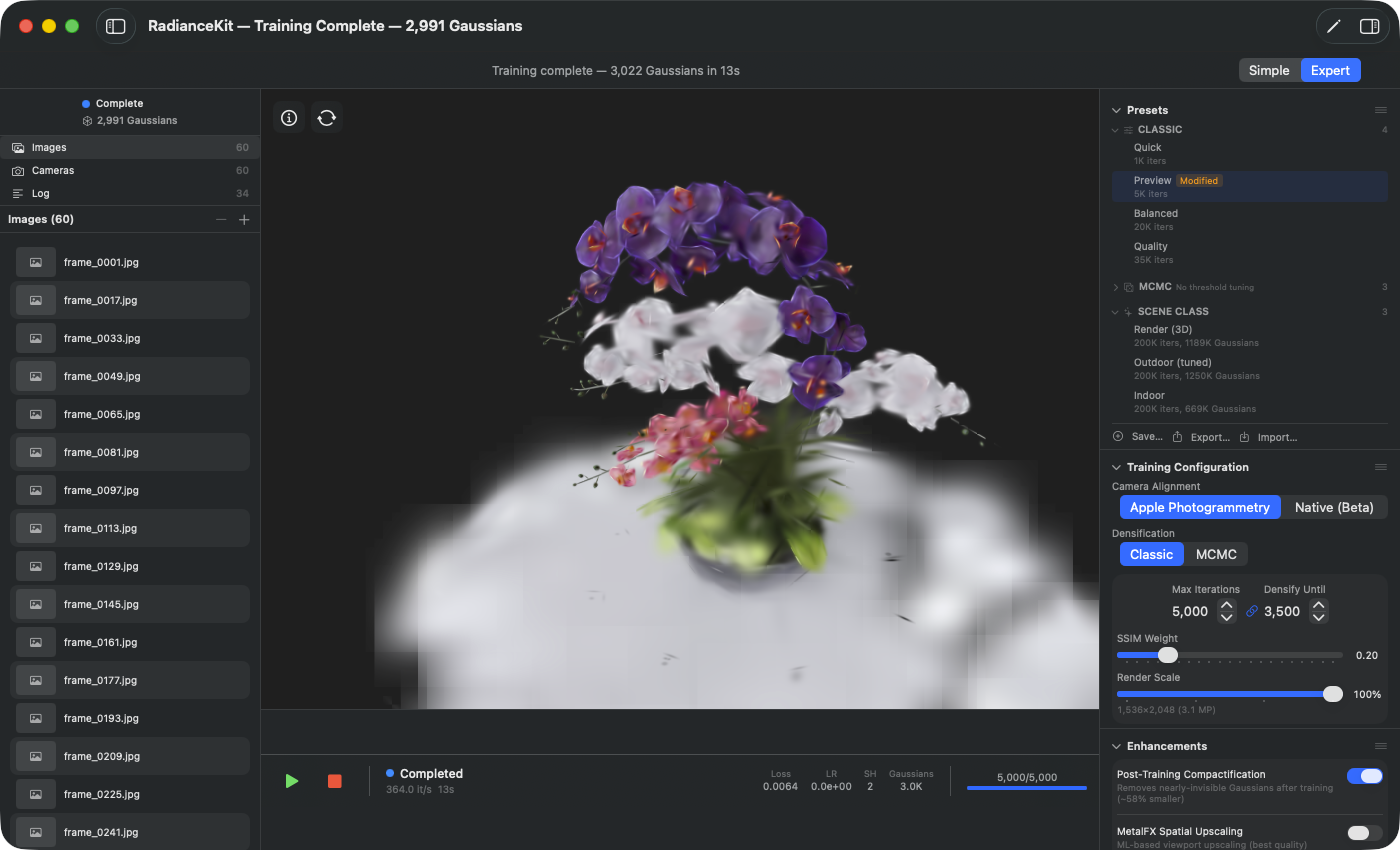
Inspector with the CAPTURE CLASS group expanded. Each entry is a recipe validated by eye against real material for a concrete capture type (drone, 360° walkaround, photo object), not a value optimised against an academic test set. Below each name are the iteration count and Gaussian ceiling. Selecting by click writes the stored training configuration into the current state.
P9 — Drone / Aerial
WHERE
Inspector → Presets section → group "Capture Class" → entry "Drone / Aerial". UUID suffix …010.
TECHNICAL
Capture-Class preset for aerial and drone orbits of buildings and landscapes. MCMC densifier, 40,000 iterations, cap of 1.5 million Gaussians, SSIM loss 0.5 plus edge-aware term 0.1. Decisive is the anisotropy penalty with weight 0.003 at a ratio threshold of 6 — the "spaghetti killer" against the typically needle-shaped artefacts that drone footage produces. Validated on a real DJI 4K drone flight over the Pensford Viaduct (checked by eye, not merely by metrics).
P10 — 360° Walkaround
WHERE
Inspector → Presets section → group "Capture Class" → entry "360° Walkaround". UUID suffix …011.
TECHNICAL
Capture-Class preset for 360° walkaround videos. MCMC densifier, 40,000 iterations, cap of 1.5 million Gaussians, SSIM loss 0.5 plus edge-aware term 0.1, gentle anisotropy penalty (weight 0.001 at ratio threshold 15). Person and sky masking are active. The preset expects a 360° equirectangular video, which is internally reprojected into roughly 90°-wide perspective crops before training starts. Validated on 8K 360° walkarounds shot with a selfie stick (Monument scene, checked by eye).
P11 — 360° Walkaround (Hybrid)
WHERE
Inspector → Presets section → group "Capture Class" → entry "360° Walkaround (Hybrid)". UUID suffix …013 (opt-in).
TECHNICAL
Experimental Capture-Class preset for 360° walkaround videos. Hybrid densifier (classic abs-gradient cloning/splitting + MCMC noise + relocation), 40,000 iterations, cap of 1.5 million Gaussians, anisotropy penalty 0.0015 at ratio threshold 15, SSIM loss 0.2 and edge-aware term 0. It produced a very good, compact result on one real 360° reference scene. On later real footage, however, it did not beat the standard preset and could perform worse. It therefore remains a manual comparison option alongside P10; P10 is the recommended default.
P12 — Photo / Object
WHERE
Inspector → Presets section → group "Capture Class" → entry "Photo / Object". UUID suffix …012.
TECHNICAL
Capture-Class preset for object orbits made from sharp individual photos (no video). Hybrid-t1 densifier (with relocation), 40,000 iterations, cap of 1.5 million Gaussians, SSIM loss 0.5 plus edge-aware term 0.1, gentle anisotropy penalty (weight 0.001 at ratio threshold 15), opacity decay 0.9995 every 50 iterations, no masking. Validated on 163 high-resolution 41 MP photos of a skeleton (checked by eye). Few views (up to about 600) stay under the hybrid-collapse threshold.
P13 — Photoset / Unordered
WHERE
Inspector → Presets section → group "Capture Class" → entry "Photoset / Unordered".
TECHNICAL
Capture-Class preset for an unsorted photoset — shots with no known order, for instance from multiple sessions or several people. 40,000 iterations. For this capture type the app always aligns camera positions using the native method, regardless of the otherwise configured setting (see Chapter 9).
P14 — Maximum Quality Native
WHERE
Inspector → Presets section → group "Capture Class" → entry "Maximum Quality Native".
TECHNICAL
The most expensive recipe on the list: 80,000 iterations with a Gaussian ceiling of 20 million. It sets both the training and the highest native alignment tier in one step (recipe E3, see Chapter 9) — the direct route to the highest quality of the native path, without setting the individual values by hand. Correspondingly long runtime and correspondingly high memory demand: on weaker systems, one of the other Capture-Class presets is the safer choice.
P15 — Balanced (Hybrid)
WHERE
Inspector → Presets section → group "Hybrid" → entry "Balanced (Hybrid)". UUID suffix …009.
TECHNICAL
20,000 iterations with the hybrid densification strategy: classic gradient-driven cloning/splitting places capacity where the loss needs it, MCMC SGLD noise keeps exploring, and dead Gaussians are relocated instead of being lost during pruning. Opacity decay replaces opacity resets; an anisotropy penalty (weight 0.001, ratio threshold 15) keeps needle-shaped splats in check. The Gaussian cap scales with the scene (150K base, scene-aware ×3.0). Compared to pure MCMC at the same budget, this delivers somewhat more image quality while needing 20–30 % fewer Gaussians. On an M3 Ultra typically 5–10 minutes on 200 images.
When to Use Which Preset?
| Scenario | Initial Test | Main Run |
|---|---|---|
| Functional test of new images, < 30s | P1 Quick | — |
| Object orbit from sharp individual photos | P2 Preview | P12 Photo / Object |
| Single-object scan (video), < 500 photos | P2 Preview | P4 Quality or P8 Quality MCMC |
| 360° walkaround video | P6 Preview MCMC | P10 360° Walkaround (sharp: P11 High Detail) |
| Aerial/drone orbit, landscape | P6 Preview MCMC | P9 Drone / Aerial |
| Photos without recognizable order | P2 Preview | P13 Photoset / Unordered |
| Highest quality, time doesn't matter | P2 Preview | P14 Maximum Quality Native |
| Web delivery (small, compact) | P2 | P8 Quality MCMC (smallest file at full quality) |
| Sharp details in little time, compact export | P2 or P6 | P15 Balanced (Hybrid) |
| Maximum detail fidelity, Classic strategy | P3 or P6 | P5 Ultra Detail |
| Print, marketing, full detail | P3 or P6 | P4 Quality (Classic) or P5 Ultra Detail |
Quick Comparison
| Preset | Strategy | Iters | Max Gs | Render Scale | Typical time (200 images, M3 Ultra) | Special feature |
|---|---|---|---|---|---|---|
| P1 Quick | Classic | 1 000 | ∞ | 0.25× | ~30 s | — |
| P2 Preview | Classic | 5 000 | ∞ | 0.5× | 2–3 min | — |
| P3 Balanced | Classic | 20 000 | ∞ | 1.0× | 30–60 s | — |
| P4 Quality | Classic | 35 000 | ∞ | 1.0× | 2–4 min | Opacity Decay (HTGS) |
| P5 Ultra Detail | Classic | ~35 000 | ∞ | 1.0× | 2–5 min | sharpest Classic tier |
| P6 Preview MCMC | MCMC | 60 000 | 100 K | 1.0× | 5–8 min | — |
| P7 Balanced MCMC | MCMC | 120 000 | 150 K | 1.0× | 8–15 min | — |
| P8 Quality MCMC | MCMC | 200 000 | 150 K | 1.0× | 20–35 min | Gradient accumulation |
| P9 Drone / Aerial | MCMC | 40 000 | 1.5 M | 1.0× | 10–25 min | Eye / Viaduct |
| P10 360° Walkaround | MCMC | 40 000 | 1.5 M | 1.0× | 10–25 min | Eye / Monument |
| P11 360° Walkaround (Hybrid) | Hybrid | 40 000 | 1.5 M | 1.0× | 10–25 min | Eye (opt-in) |
| P12 Photo / Object | Hybrid | 40 000 | 1.5 M | 1.0× | 10–25 min | Eye / Skeleton |
| P13 Photoset / Unordered | — | 40 000 | — | 1.0× | — | always aligns natively |
| P14 Maximum Quality Native | — | 80 000 | 20 M | 1.0× | — | also sets the highest native alignment level |
| P15 Balanced (Hybrid) | Hybrid | 20 000 | 150 K | 1.0× | 5–10 min | Classic + MCMC combined |
Custom Presets
Using the Save… button in the Presets section (I1 in Chapter 2), you save the current training configuration as your own Preset. Custom Presets are not "Built-in" and can be renamed, exported (as JSON), shared via drag-and-drop, duplicated, and deleted. The fifteen built-in Presets P1–P15 remain untouched by the delete button.
Rule of thumb: If you change something in a Preset that you'll need more often — Sky-Dome on, higher SSIM weight for a specific scene class, different iteration counts — then save the variant as a custom Preset. That way, the next time you run it, you'll immediately know it's a configuration that deviates from the standard.