Глава 4 — Вспомогательные окна
Besides the main window (3D viewport plus Inspector), RadianceKit manages seven additional windows, all of which are opened via the Help menu. The list from top to bottom: User Guide (⌘?), Keyboard Shortcuts (⌘/), Open Training Logs… (does not open an app window, but the Finder; therefore not covered further here), Manage Storage…, Pareto Dashboard… (⇧⌘D), Holdout Analysis… (⇧⌘H), BayesOpt Console… (⇧⌘B). Three of these — Dashboard, Holdout, BayesOpt — are standalone analysis tools. They each have their own view-model stack, read or write JSON files on disk, and there is a CLI argument for each that lets you point the window at a specific file directly at app startup (–dashboard-dir, –holdout-file, –bayesopt-autorun).
The four simple windows (User Guide, Keyboard Shortcuts, Manage Storage, plus the submenu items Open Training Logs / Open Exports Folder) get a short entry per control. The three analysis windows are documented in more detail — each with an introduction explaining what you see in the window, when you should open it, and how to interpret the picture shown.
At the end of the chapter there is a cross-reference section to the main window's Inspector: what you can meaningfully read from the live loss chart and the Gaussian count display during a running training.
User Guide (W1–W4)
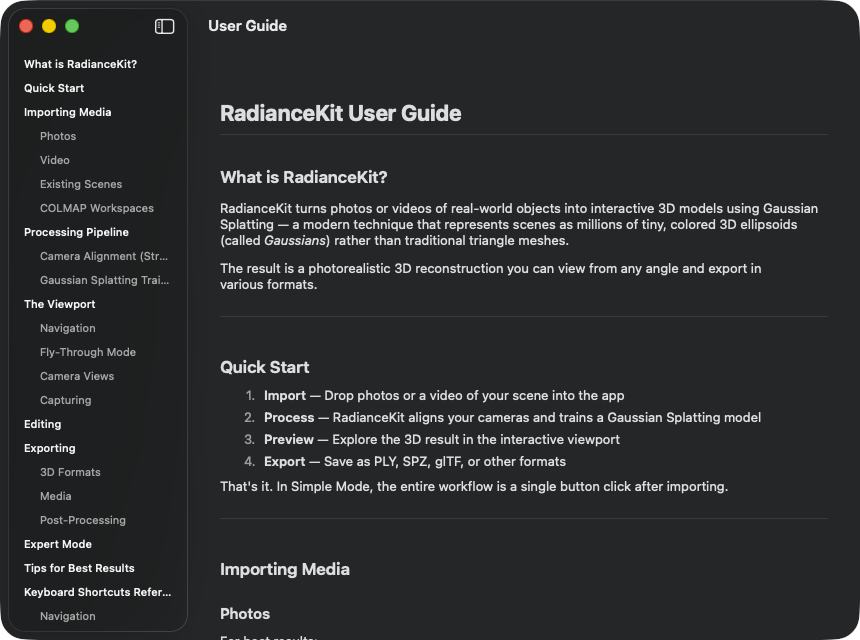
What it is: A built-in help window that renders the guide_<language>.md shipped with the app. The language is derived from the Settings (General tab → Language) or, if "System" is set there, from the macOS language preferences. Layout is classic: sidebar with all headings on the left, body text on the right.
When you need a quick reminder of a single point — so as a keyword substitute. The full reference is this manual; the built-in help window is more like what a –help would be on the command line. It is updated with every app release, but is intentionally kept more superficial in content.
W1NavigationSplitView (Sidebar + Detail)
ГДЕ
Help → User Guide (⌘?)..
ТЕХНИЧЕСКИ
Two-column layout with a narrow sidebar (at least 180 pt wide) for the content tree and a scrollable detail area for the actual Markdown content. The window has a minimum size of 700 × 500 pt. On first open, the window loads the matching guide_<lang>.md from the app bundle (fallback guide_en.md), parses it into block records (headings H1–H4, paragraphs, lists, tables, separators) and separately extracts the heading structure for the sidebar. Inline formatting (bold, italic, code-span) is rendered via the built-in Markdown engine. The language is read from the app settings, with the special case of Chinese (zh-Hans) and Brazilian Portuguese (pt-BR), which are kept as full locale tags because these variants differ from zh and pt respectively.
W2List (Heading sidebar)
ГДЕ
Left column in the User Guide window..
ТЕХНИЧЕСКИ
List of all H2 and H3 headings of the current Markdown document. H2 entries appear without indentation in Medium font weight, H3 entries with 16 pt left indentation and a reduced foreground style. H4 and deeper are ignored, because the depth would otherwise make the sidebar cluttered. Anchor IDs are generated from the heading text via slugification (lowercase + spaces to dashes + filtering for letters/numbers/dashes — the same algorithm GitHub uses for its Markdown anchors, so external URLs to the docs would potentially land on the same anchor as well). The list uses the native macOS style.
W3Button (Heading → anchor jump)
ГДЕ
One button per sidebar row..
ТЕХНИЧЕСКИ
Each sidebar entry is a button that sets the current anchor, but visually looks like a list entry. An observer variable then triggers the scroll jump to the matching anchor with a smooth animation over 0.3 s. After the jump, the anchor value is reset so that the next click on the same anchor fires again (otherwise the observer wouldn't trigger again because the value hasn't changed).
W4ScrollView (detail content)
ГДЕ
Right column..
ТЕХНИЧЕСКИ
Scrollable, vertically stacking content area with lazy rendering, because longer guides can easily have over 200 Markdown blocks — a non-lazy variant would instantiate them all at once. Each block gets its own ID, either the heading anchor (for jumpable H1–H3) or an index placeholder. Maximum width is 720 pt, padding 32 horizontal / 24 vertical, so long lines retain a well-readable layout. Tables are rendered cell-by-cell with horizontal stacks and separators; inline code via the built-in Markdown engine. Real code blocks are currently treated as paragraphs — a known limitation of the Help window.
Keyboard Shortcuts (W5–W6)
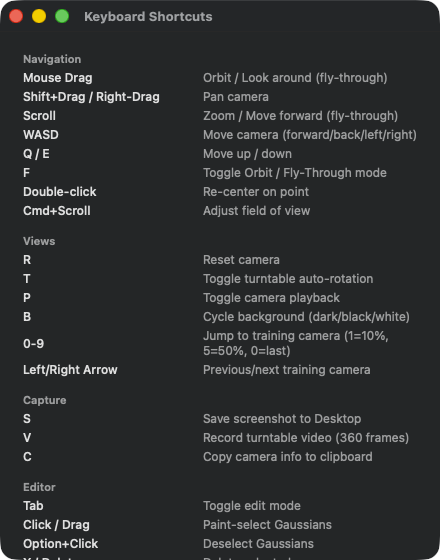
Static reference list in five sections. Navigation: Mouse Drag (Orbit/Fly), Shift+Drag/Right-Drag (Pan), Scroll (Zoom), WASD (fly-through movement), Q/E (Up/Down), F (Toggle Orbit/Fly), Double-click (Re-center), Cmd+Scroll (FoV adjust). Views: R (Reset Camera), T (Auto-Rotation), P (Camera Playback), B (Background cycle), 0–9 (jump to training cam 1=10%/5=50%/0=last), Left/Right Arrow (Prev/Next Cam). Capture: S (Screenshot to Desktop), V (Turntable Video), C (Copy Camera Info). Editor: Tab (Edit mode), Click/Drag (Paint-Select), Option+Click (Deselect), X / Delete (delete selection), Cmd-Z (undo last deletion), [ / ] (brush size smaller/larger), Esc (clear selection). Training: Start, Pause/Resume, Cancel, Continue +5K/+10K/+20K via the menu shortcuts in M9–M14.
What it is: A simple static overview of all keyboard shortcuts — Navigation, Views, Capture, Editor, Training. Content is hardcoded in, no Markdown loading.
When you're looking for the fastest way to do something in the viewport. WASD fly-through, R for camera reset, B for background cycling — they're all here.
W5ScrollView (content area)
ГДЕ
Help → Keyboard Shortcuts (⌘/)..
ТЕХНИЧЕСКИ
A simple scroll area with a vertical list inside. Padding 20 all around, no sidebar navigation tree (the list is short enough). Content is grouped into five sections (Navigation, Views, Capture, Editor, Training). One row per key combination with translatable text in both columns. Left column (key code) fixed to 180 pt width, so the descriptions on the right stay vertically aligned. No interaction except scrolling — clicking on a row doesn't trigger anything; the shortcuts are real keyboard modifiers in the menu and on the viewport.
W6VStack (shortcut sections)
ГДЕ
Inside the ScrollView..
ТЕХНИЧЕСКИ
Left-aligned stacked sections with 16 pt spacing. Within the five sections, each contains a heading + row sequence. Headings use a secondary subheadline style — intentionally not a title format, because the sections don't need to be navigable. Content is intentionally flat (no disclosure, no search, no filter) so that the component runs unchanged on every macOS version and the file stays readable.
Manage Storage (W7–W12)
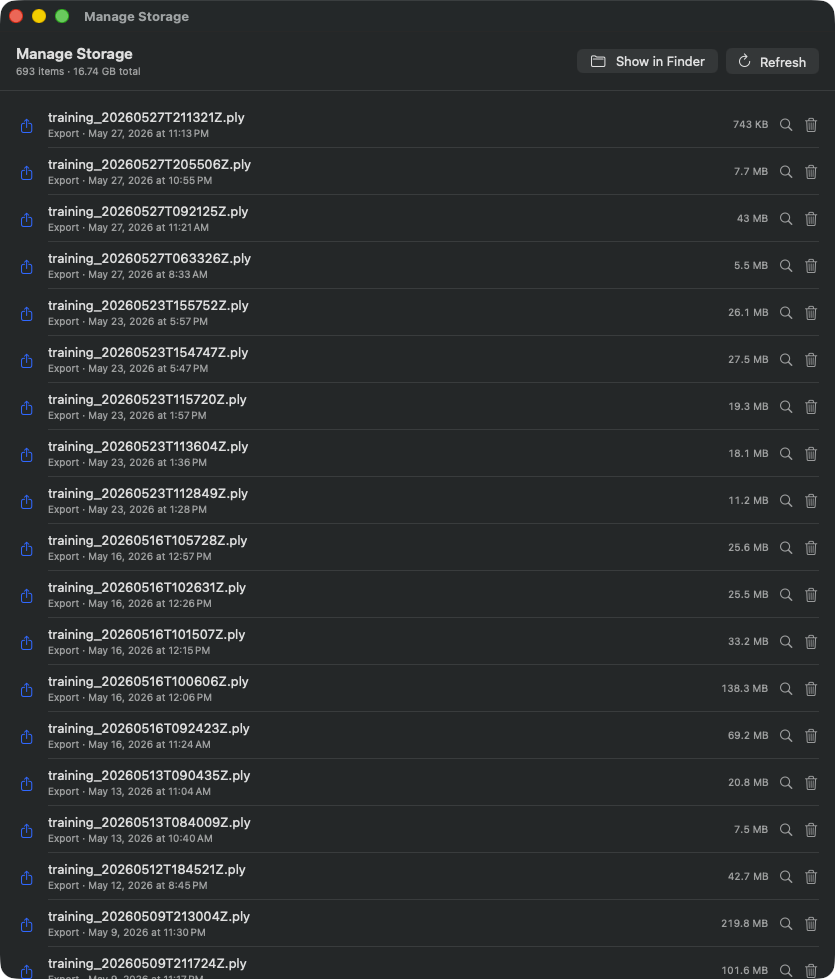
Table view of all files managed by RadianceKit. Header counts 693 items, 16.74 GB total size. Toolbar at top: "Show in Finder" + "Refresh". Each row: PLY icon, filename (e.g. training_20260527T211321Z.ply), export date, size (varies 7 KB to 218 MB), magnifier icon (Reveal) and trash icon (Move to Trash). Files are sorted by date, newest at the top. In this demo recording PLY exports dominate because a lot of work was done with –benchmark.
What it is: A disk usage overview of everything RadianceKit stores under ~/Documents/RadianceKit/ — Logs, Exports, Scenes, Capture bundles (from the iOS companion), Imports (staging copies of the input images). One size in bytes per entry and two buttons: "Show in Finder" and "Move to Trash". This is NOT automatic cleanup — the app doesn't delete anything itself; you decide per entry.
When the disk is filling up. Logs in particular accumulate (one JSONL per training attempt, plus the _qualityMetrics.json); exports too of course (PLY 100% raw data, one per export). Also useful after a crash when the imports staging directory still has old copies of the input images lying around (see "Disk pressure incident" in dev_v549f-needle-reduction.md).
W7Button "Show in Finder"
ГДЕ
Top right of the header in the storage browser window..
ТЕХНИЧЕСКИ
Opens the entire RadianceKit directory (~/Documents/RadianceKit/) in the Finder, so you can see the folder structure directly and also manipulate it with the Finder itself. The action opens a new Finder window and does not switch into the app sandbox container — ~/Documents/RadianceKit/ is the regular Documents domain accessible to apps, not a sandboxed container path.
W8Button "Refresh"
ГДЕ
Header, next to the Finder button..
ТЕХНИЧЕСКИ
Triggers a background scan that runs on a user-initiated asynchronous task so that scanning large directory trees doesn't block the UI. The actual walk goes through every known subfolder (Logs, Exports, Scenes, Captures, Imports) and produces one storage entry per direct child. Per entry the recursive size is determined — preferably the actual disk usage (including APFS hardlink sharing) with fallback to the logical file size.
W9List (storage entries)
ГДЕ
Main content below the header..
ТЕХНИЧЕСКИ
List with this layout per row: category- specific SF Symbols icon (document for Logs, upload arrow for Exports, cube for Scenes, tray for Imports), name + subtitle (Kind label + formatted modification date), bytes counter on the right (right-aligned, monospaced), Reveal button (magnifier icon), Trash button (trash can). Sorting: primarily by Kind (Scenes first, then Exports, Logs, Captures, Imports, Other), secondarily by modification date descending (newest at top). If the scan is still running, the area shows a "Scanning…" progress indicator instead. If nothing was found, an empty-state display with a tray icon.
W10Row button "Reveal in Finder"
ГДЕ
Per row, magnifier icon on the right..
ТЕХНИЧЕСКИ
Opens the Finder and selects the specific item (file or folder). Difference from W7: W7 opens the root directory; W10 highlights exactly this one entry. Practical workflow: identify a large entry, click on the magnifier, then copy it to an external volume for example.
W11Row button "Move to Trash"
ГДЕ
Per row, trash icon on the right next to the magnifier..
ТЕХНИЧЕСКИ
Triggers the confirmation dialog box (W12). Only after confirmation does the macOS standard "move to trash" operation run (so reversible, no direct deletion). After successful trash, the entry is removed from the list and the total byte counter is updated. On errors, a modal error dialog is displayed.
W12ConfirmationDialog (delete confirmation)
ГДЕ
Triggered by W11, displayed as a macOS sheet..
ТЕХНИЧЕСКИ
Standard confirmation dialog with a dynamic title "Delete <name>?" and a message line that explicitly points out that the entry goes to the trash and can be restored from there (until the trash is emptied). Two buttons: "Move to Trash" as destructive action (shown in red) and "Cancel" with automatic Esc binding. The dialog is non-modal in the sense that it only blocks this window, not the whole app — that's macOS standard for reversible deletions.
Pareto Dashboard (W13–W22)
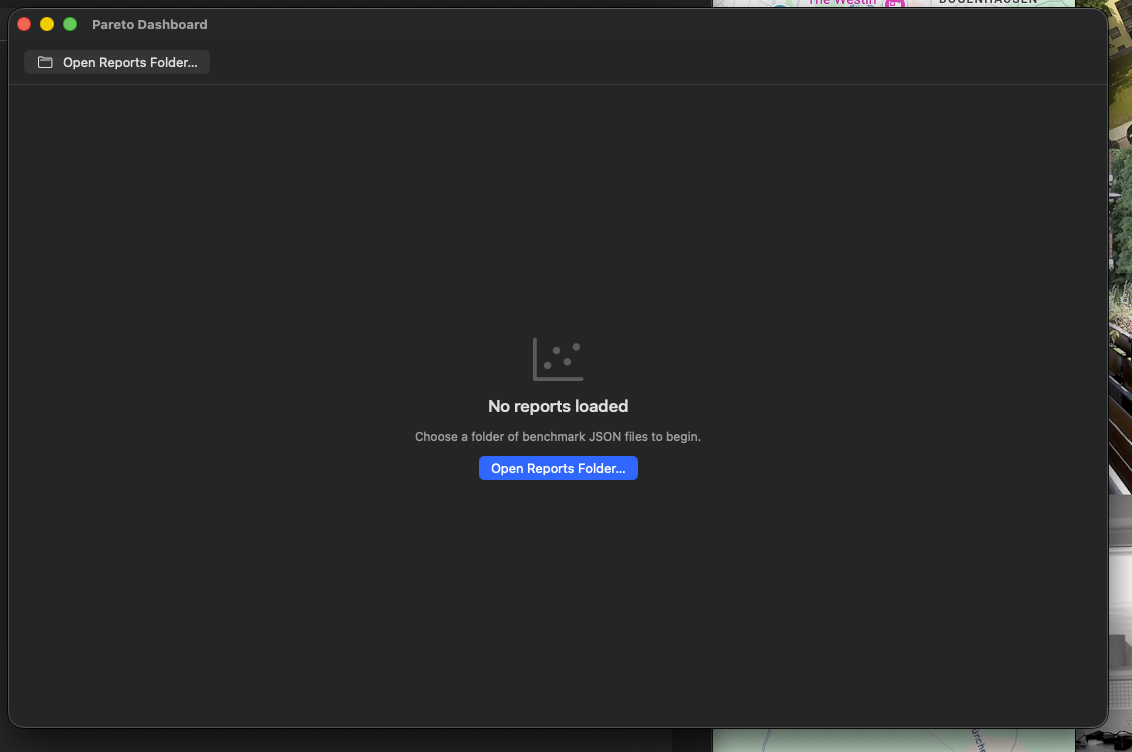
Empty state (after first open) — empty state with call-to-action "Open Reports Folder…". The data points appear as soon as training reports are loaded, see next shot.
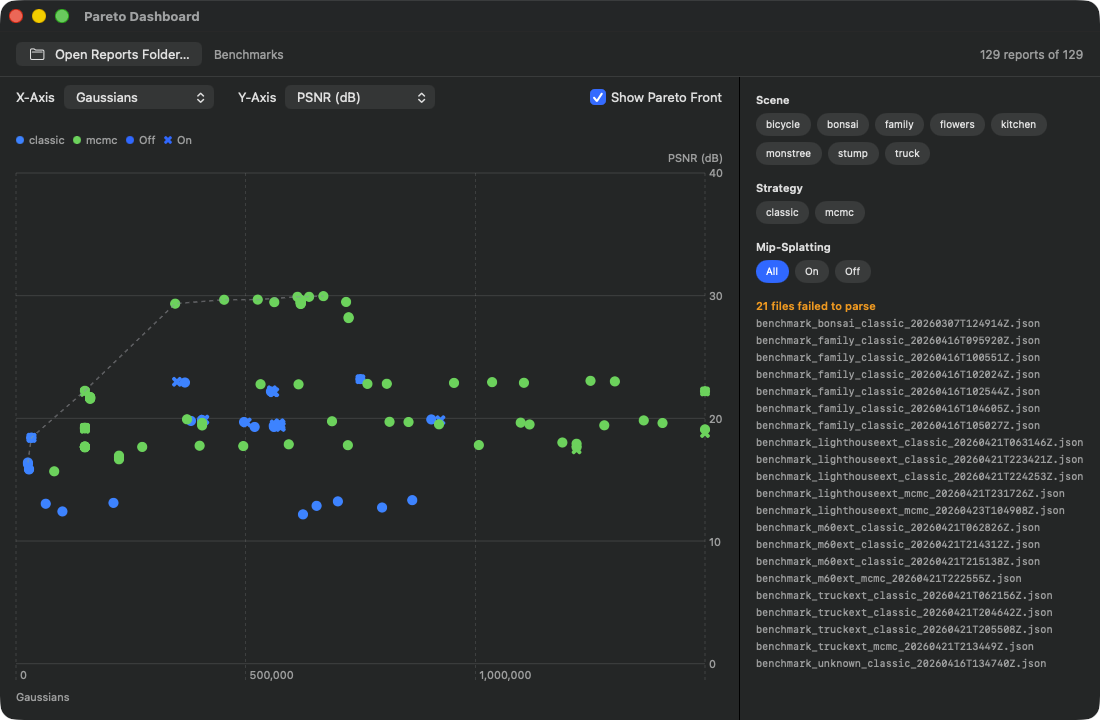
Header toolbar shows "129 reports of 129" (all reports in the selected folder parsed successfully — 21 additional files could not be parsed due to older format, see hint list on the right). Axes: X-axis picker on Gaussians, Y-axis picker on PSNR (dB). Scatter plot: green points = Classic strategy, blue points = MCMC. The dashed Pareto front line runs along the best-achieved PSNR values and plateaus around PSNR≈30 dB from about 500K Gaussians onwards. Filter chips on the right: 7 scenes (bicycle, bonsai, family, flowers, kitchen, stump, truck), 2 strategies (classic, mcmc), 3 Mip-Splatting options (All, On, Off). Currently all filters are open, hence the dense point cluster.
What it is: A multi-run comparison tool. In the past you have trained several scenes, or the same scene with different presets — each of these training runs produces (if you passed –benchmark or called via the Benchmark function) a JSON report file containing among other things final PSNR, SSIM, LPIPS, Gaussian count and wallclock time. The Dashboard reads a whole folder of such reports at once and plots them as a 2D scatter with selectable axes. Additionally, the Pareto front (the set of non-dominated points) is drawn as a dashed line.
After you have produced at least three or four training reports. With fewer points the frontier line is not meaningful. Typical use case: you tried to reconstruct an outdoor scene and successively ran P3 Balanced (Classic), P4 Quality (Classic), P7 MCMC Quality and P9 Outdoor (tuned) — now you want to know which configuration delivers the best PSNR per second of training time, or which requires the fewest Gaussians for a given PSNR.
Both axes are freely selectable (X-axis:,, psnr, ssim, lpips, …; Y-axis the same). The Pareto front logic in ParetoFront2D.indices knows for each metric whether "smaller = better" (e.g. LPIPS, Loss, Time) or "larger = better" (PSNR, SSIM) — so depending on the axis choice, the line runs from bottom-left to top-right or from top-left to bottom-right, always along the best achieved combination. A point is Pareto-optimal if NO other point is at least as good in BOTH dimensions (so no other point dominates it). Pareto-optimal points lie on the line, other points to the right/above (depending on axis orientation). Points ON the line are the real candidates for "best preset"; points FAR from the line are wasted training time.
You can restrict the selection to a particular scene (if you only want to compare outdoor runs, e.g.), to a particular strategy (Classic or MCMC), or to Mip-Splatting on/off (relevant after Phase Q1.5, where Mip remains as an opt-in advanced flag).
You have three reports for the "truck" scene under ~/Documents/RadianceKit/Reports/: Run A (P4 Quality, 40K iter, 524K Gs, 105 s, PSNR 23.4), Run B (P7 MCMC, 200K iter, 150K Gs, 693 s, PSNR 24.6), Run C (P9 Outdoor, 100K iter, 1.25M Gs, 312 s, PSNR 25.8). Set X-axis to trainingTime, Y-axis to PSNR. Run B lies upper right, Run C even further upper right, Run A lower left. The Pareto front connects A and C — both non-dominated. Run B is "lost" (C is better in Time AND PSNR). Insight: for "truck" the MCMC default isn't worth it; either fast+ok (A) or long+very good (C). Save the configuration from C as your own preset (Inspector → I1 Save Preset).
Next action: Save the best configuration as a preset. Concretely: look at the Pareto points (hover shows PSNR/SSIM/LPIPS/Gs/Time in the tooltip), decide which one suits you best in the time-vs-quality trade-off, open the corresponding report (filename contains run timestamp), copy its training configuration into a new run, or save it after the next training session as a preset via the Inspector.
W13Button "Open Reports Folder…"
ГДЕ
Toolbar top left..
ТЕХНИЧЕСКИ
Opens a folder picker dialog with the prompt "Select a folder containing benchmark .json reports". After confirmation, a background task runs that parses all .json files in the folder sequentially. Faulty reports (broken JSON, wrong schema) are collected and shown at the bottom of the sidebar as "N file failed to parse" — no crash. If a second click happens while a first load is still running, the previous task is canceled so that two results don't write into state simultaneously.
Also via CLI: –dashboard-dir /path/to/reports loads the folder directly at app startup.
W14Picker "X-Axis"
ГДЕ
Above the chart, on the left..
ТЕХНИЧЕСКИ
Menu picker with all available metric axes of the dashboard module (PSNR, SSIM, LPIPS, Gaussian count, training time and so on). Default is Gaussian count. On change, the hovered point is reset because a previously highlighted position in the old axis coordinate system no longer makes sense after axis change. The picker is constrained to content width so it doesn't span the entire width.
W15Picker "Y-Axis"
ГДЕ
Above the chart, next to X-Axis..
ТЕХНИЧЕСКИ
Identical to W14, except the default is PSNR. The axis choice is stored independently, so the user can also pick nonsense combinations (X=PSNR, Y=PSNR — would throw all points onto a diagonal). Such combinations are not caught, however; a deliberate decision, because a comparison "SSIM vs PSNR" is quite interesting for seeing how consistently the metrics behave.
W16Toggle "Show Pareto Front"
ГДЕ
To the right of the axis pickers..
ТЕХНИЧЕСКИ
Standard macOS toggle. If active, a line with the computed 2D Pareto front is drawn in the Pareto chart in addition to the point cloud. Style: dashed (dash pattern 4–4), gray semi-transparent, line width 1.5 pt. The Pareto computation runs on the main thread — with the typical number of reports (≤ ~50) this is fast without issue. If the toggle is off, the line is omitted so only the bare points remain.
W17Chips "Scene" filter
ГДЕ
Right sidebar in the Dashboard window..
ТЕХНИЧЕСКИ
Filter chips for every scene appearing in the loaded reports. Custom flow layout that automatically wraps chips into multiple lines as soon as the width is exhausted. Active chips get the accent background, inactive ones a neutral standard material background. Multi-selection is possible (set semantics); if no chip is selected, all scenes count as "passed through" — i.e. the set logic is "empty selection = all", not "empty selection = nothing".
W18Chips "Strategy" filter
ГДЕ
Below Scene filter in the sidebar..
ТЕХНИЧЕСКИ
Exactly like W17, but for training strategies — typically the two values "classic" and "mcmc", derived from the strategy field of the benchmark report JSONs. Helpful if you have mixed reports of both strategies and only want to see one kind (e.g. "only show MCMC runs because I've already excluded Classic").
W19Chips "Mip-Splatting" filter
ГДЕ
Below Strategy filter in the sidebar..
ТЕХНИЧЕСКИ
Three-valued filter (instead of a set like W17/W18): "All" / "On" / "Off". Background: Mip-Splatting was evaluated in Phase Q1.5 as an experimental multi-scale improvement and the final verdict was "no nice win across the board; keep as opt-in flag". When you do Mip on/off comparisons you often want to separate very sharply. Hence the dedicated ternary filter with the states "let everything through", "only Mip on", "only Mip off". The sidebar section is only displayed if at least one Mip report AND at least one non-Mip report is in the data set (otherwise filtering makes no sense).
W20ChipButton (filter toggle, all/on/off)
ГДЕ
Helper component, used in W17/W18/W19..
ТЕХНИЧЕСКИ
Minimalist button wrapper. Content: label text with caption font size and padding 10 horizontal / 5 vertical. Background conditional: if active → app accent color with white text; otherwise neutral standard material background with black text. Shape is a capsule (pill-like). Plain button style so the capsule material isn't overlaid by a system border.
W21Chart (Pareto scatter)
ГДЕ
Center area of the Dashboard..
ТЕХНИЧЕСКИ
Swift Charts diagram with two layers: 1. one point per report — position from the chosen X and Y metrics, color by strategy, symbol by Mip status. Symbol size normal 80, highlighted 200 (if the ID matches the currently hovered report). 2. a line for the Pareto front, only if the toggle is on.
Chart overlay: a transparent rectangle registers mouse motion; per frame the Euclidean nearest point position in the plot frame is determined and the hovered report is updated if the distance is under 24 px (otherwise reset). So you get the tooltip without clicking — hovering is enough.
W22Tooltip (hover detail)
ГДЕ
Below the chart, displayed on hover..
ТЕХНИЧЕСКИ
Horizontal stack: scene name (headline), strategy tag (caption), separator, then PSNR/SSIM/LPIPS/Gs/Time metrics each in a small vertical group (label + monospaced value). If Mip was activated, additionally a "Mip" capsule tag in accent color. Background semi-transparent blur, rounded rectangle with 8 pt radius. Only displayed when the mouse is actually over a point. Disappears automatically on leaving.
Holdout Analysis (W23–W29)
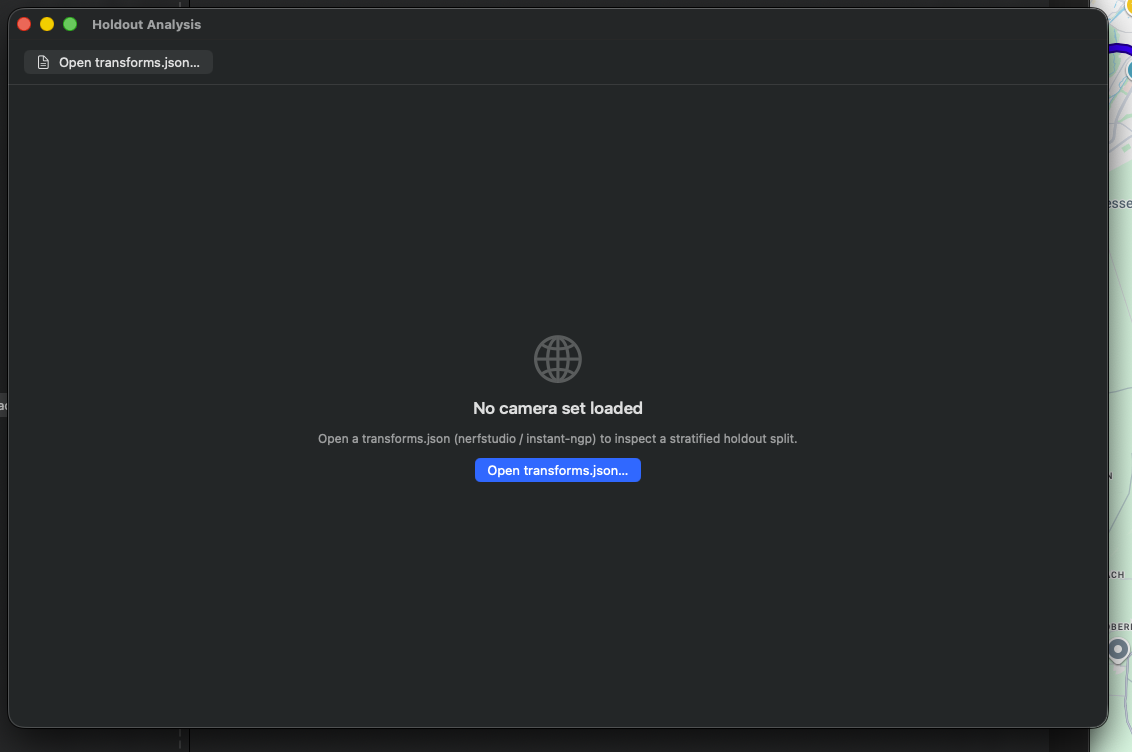
Empty state with empty state and call-to-action "Open transforms.json…". Accepts NeRF Studio and Instant-NGP format.
Empty state (after first open) — the camera markers appear as soon as a transforms.json is loaded, see next shot.
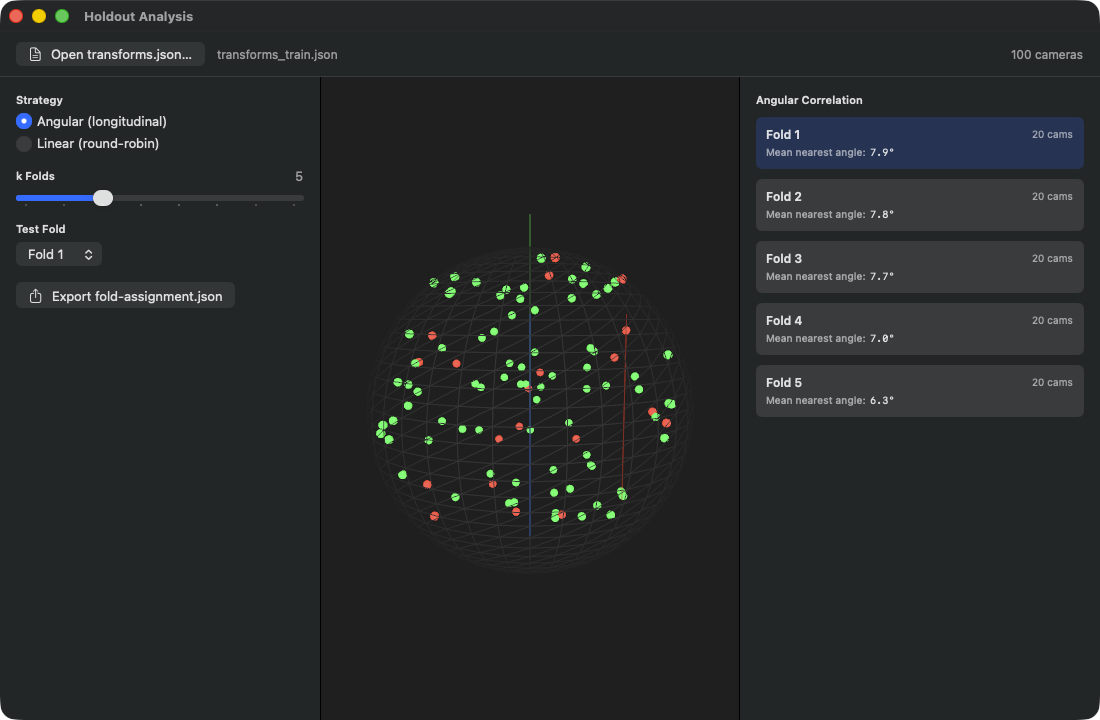
Header shows loaded file (transforms_train.json) and cam count ("100 cameras"). Left sidebar: strategy picker with two options — Angular (longitudinal) active (aligns folds along longitudinal/latitudinal sectors on the sphere so each test fold is geometrically dense) vs Linear (round-robin) (order-based, every k-th frame as the test set). k-folds slider is on 5, test-fold picker on Fold 1. Export button produces a fold-assignment.json for Nerfstudio/Instant-NGP. Middle panel: 3D globe projection of all 100 cameras — green points = Train, red points = current test fold (Fold 1 with 20 cameras). Right sidebar (Angular Correlation): per fold 20 cams + Mean Nearest Angle (Fold 1: 7.9°, Fold 2: 7.8°, Fold 3: 7.7°, Fold 4: 7.0°, Fold 5: 6.3°) — a smaller value means the cameras within this fold lie close together, so the Holdout split is spatially coherent.
What it is: A 3D visualizer for your camera arrangement with cross-validation logic. You load a transforms.json (the standard format from Nerfstudio / Instant-NGP for camera poses), the app reads all cameras, projects their view directions onto a unit sphere and shows them as small sphere markers on a virtual globe. Then it divides the cameras into k folds (per the selected strategy: angular or linear), marks the training portion green and the test portion red (Holdout), and computes per fold an Angular Correlation score that tells you how far away the test fold is from the training fold in view-angle space.
When you want to do Holdout evaluation — i.e. how well does your model generalize to unseen viewpoints? Default in training is "every-8th view as Holdout" (Mip-NeRF360 convention), but that is a very linear split. If your images are clustered in time for example (one side of the object first, then the other), then "every-8th" is not representative — a random sequence position ends up in the test, but all its neighbors are in training, which is too easy. With "angular" you stratify across the view-angle space instead: each fold contains cameras from all areas of the orbit so the test really probes generalization gaps.
Angular vs Linear: - Angular (default): divides the cameras by longitudinal angle (φ coordinate around the Y axis) into k equal sectors. Fold 0 contains cameras with φ ∈ [0°, 360/k°), Fold 1 the next ones, and so on. Advantage: each fold covers a portion of the orbit; the test fold is spatially compact but broadly distributed across the world dataset. Good for classic orbit recordings. - Linear (round-robin): Fold index = (image_index modulo k). That is the simple "every k-th" split. Works if the image order has NO spatial bias (e.g. randomly sorted drone shots). Works poorly if the images cluster in time.
In the 3D globe you immediately see: green points (training) and red points (test). If the red points all cluster in one corner, the Holdout is poor (no good generalization test). If they lie evenly between the green ones, it's good. The Angular Correlation score per fold (right sidebar, in degrees) additionally says: smaller value = the test is close to training (each test camera has a nearby training camera, easy test); larger value = the test is far from training (harder generalization).
You captured your truck scene with 251 images, export via menu item M33 (Export SfM transforms.json) a Nerfstudio file. Open the Holdout window (⇧⌘H), load the JSON via "Open transforms.json…", look at the globe. k=5 (default) gives you 5 folds. Click on "Fold 3" — check whether the red markers are reasonably even. If yes: "Export fold-assignment.json", put the exported file in the reports folder, and at the next training run with –benchmark (or the corresponding Inspector settings) exactly this fold assignment is used as the test Holdout — instead of the default "every-8th".
W23Button "Open transforms.json…"
ГДЕ
Toolbar top left..
ТЕХНИЧЕСКИ
Opens a file picker dialog restricted to JSON files. After confirmation the Holdout module loads the file. The loader parses both the Nerfstudio format (camera intrinsics plus list of frames with image path and transform matrix) and the Instant-NGP format (same structure). For each frame the view direction is extracted from the transform matrix (z-axis of the camera local basis) and stored. If parsing fails, an error message is shown in the status area.
Also via CLI: –holdout-file /path/to/transforms.json opens the window directly with the file loaded.
W24Picker "Strategy" (angular/linear)
ГДЕ
Left sidebar, at the top..
ТЕХНИЧЕСКИ
Radio picker with two options: Angular and Linear. Strategy change automatically triggers a recomputation of the folds. The view directions are a list of 3D unit vectors on the sphere; the angular strategy projects them onto the longitudinal angle φ and sorts, the linear strategy simply does a modulo split over the frame index.
W25Slider "k Folds"
ГДЕ
Left sidebar, in the middle..
ТЕХНИЧЕСКИ
Slider from 3 to 10, step size 1. On change, the fold computation is automatically restarted so that the folds list, the training/test indices and the per-fold score are immediately recomputed. The selected value is displayed as monospaced-digit text next to the label on the right.
Rule of thumb: k=5 is standard (gives you 20% test per fold, which is common for cross-validation). k=10 if you have a lot of data and need more folds for statistical significance. k=3 if you have little data.
W26Picker "Test Fold"
ГДЕ
Left sidebar, below the k slider..
ТЕХНИЧЕСКИ
Menu picker. Options are dynamically 0..<k, labels "Fold 1" through "Fold N" (so 1-indexed in the UI, 0-indexed internally). If the previously selected index is ≥ k (e.g. because you reduced k from 10 to 5), it is automatically reset to 0. The selected test fold is shown in red on the globe, all others in green.
W27Button "Export fold-assignment.json"
ГДЕ
Left sidebar, at the bottom..
ТЕХНИЧЕСКИ
Opens a save dialog with default filename fold-assignment.json. After confirmation the Holdout module encodes the current split into a JSON schema (per-frame fold assignment plus strategy meta block). This file can then be passed to the next training run with –benchmark, so the same Holdout is used for the final metric evaluation. Write errors are shown as error text; success in green text as "Saved to (filename)".
W28SCNView (3D Camera Globe)
ГДЕ
Center panel in the Holdout window..
ТЕХНИЧЕСКИ
SceneKit globe view. The scene consists of: a wireframe sphere (radius 1.0, 36 segments, dark gray), three colored axis stubs (red/green/blue for X/Y/Z, each 1.2 long), and per camera a small marker sphere (radius 0.03) at the corresponding view direction position on the unit sphere (slightly outside so it doesn't disappear INTO the wireframe sphere). The markers are NOT rebuilt on each fold change — rebuild is only needed when the frame list changes (i.e. a new JSON is loaded). Instead, per update an in-place update of the material colors runs: red for test indices, green for training, light gray if neither. So slider ticks stay performant even at N > 1000 cameras.
Camera control is enabled — you can rotate, zoom and pan the globe with the mouse. Lighting makes sure the markers don't look flat. Background is dark gray.
W29FoldCard (tap to select fold)
ГДЕ
Right sidebar, "Angular Correlation" section..
ТЕХНИЧЕСКИ
One card view per fold — rounded rectangle with 6 pt radius, padding 10, vertical layout with two rows (top "Fold N" + camera count, bottom "Mean nearest angle:" + value in degrees). Background color conditional: active fold = accent color semi-transparent, inactive = neutral standard material. Tapping selects the fold and the globe recolors live.
The "Mean nearest angle" score is the mean smallest angle per test camera to the nearest training camera (internally computed in radians, displayed in degrees in the UI).
BayesOpt Console (W30–W39)
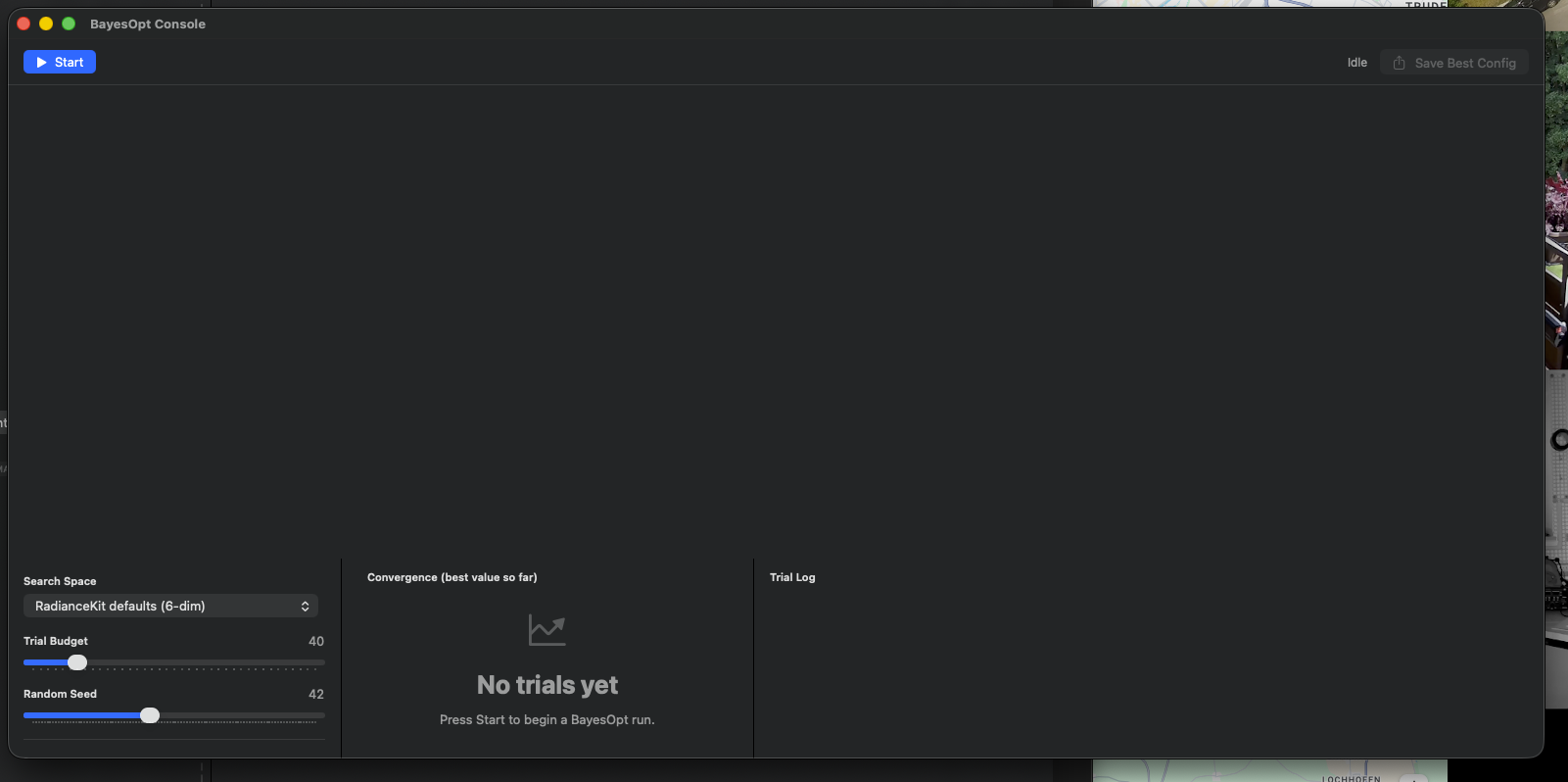
Empty state with search-space picker (RadianceKit defaults (6-dim)), trial budget slider (default 40), random seed (42) and three empty panels for convergence chart, trial log and search-space parameter list.
Empty state (after first open) — convergence chart and trial table fill up as soon as a run is started, see next shot.
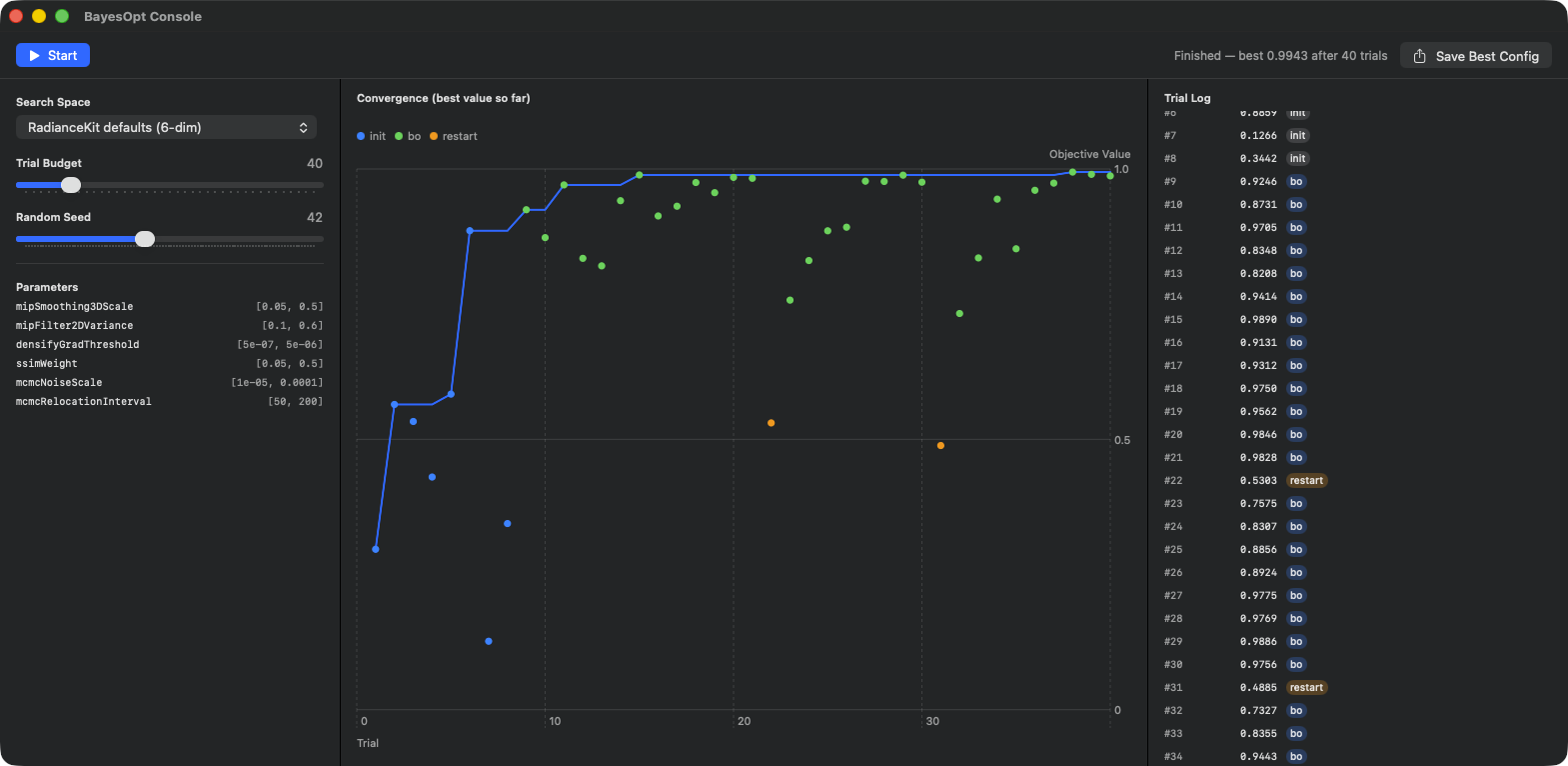
Status top right "Finished — best 0.9943 after 40 trials". Left sidebar: search-space picker on RadianceKit defaults (6-dim), trial budget 40, random seed 42. Parameter list shows the six hyperparameters to tune with their value ranges: mipSmoothing3DScale [0.05, 0.5], mipFilter2DVariance [0.1, 0.6], densifyGradThreshold [5e-07, 5e-06], ssimWeight [0.05, 0.5], mcmcNoiseScale [1e-05, 0.0001], mcmcRelocationInterval [50, 200]. Center: convergence chart (X = trial index 1–40, Y = objective value 0–1) — gray points = initial samples (LHS), blue points = BayesOpt acquisition, orange points = restart trials (#22 and #31). Best-value line rises steeply up to trial ~7, then only marginal improvement until trial 15, from there a flat plateau at 0.99+. Right sidebar: trial log #1–#34 with score + tag (init/bo/restart). Save Best Config button top right writes bayesopt-best.json.
What it is: A Bayesian-optimization console for hyperparameter search. Bayesian optimization is an automatic method that tries to find the optimum of an unknown function with as few experiments as possible — typically: "which combination of mcmcMaxGaussians, capMultiplier, ssimWeight and gradThreshold delivers the best PSNR for my scene class?" Instead of a grid of 6^4 = 1296 trials, Bayesian optimization tries about 40–100 informed trials and gets close to the optimum that way.
Important: The version currently shipped in the app does not run the optimization against real training runs (that would take days) but against a synthetic demo objective — a multi-modal landscape with hill-climbing character plus light noise. This is intentional: the window is meant to show you the behavior of the optimizer (convergence curve, sample points, best-so-far) and let you understand the search-space definitions. For real training-driven BayesOpt runs (as carried out in Phase Q7 for the scene-class presets), a separate offline CLI workflow is used; the window is the live UI variant.
Three use cases: 1. You want to understand how BayesOpt works — then start a demo run and observe the convergence chart. 2. You're planning a new scene class (such as "aquariums" or "antique furniture") for which the built-in 10 presets don't fit perfectly. Mentally define a search space, test it here with the "Bowl demo" or "Densify" preset, then export the best config as JSON and use it as a starting point for a real training run. 3. You want to inspect the default search spaces defined in the RKBayesOpt package (Mip subset, RadianceKit defaults) — they are listed in the parameter panel of the left sidebar.
- Convergence chart (middle column): Y = best objective function value achieved so far. X = trial index. Initially rises steeply (BayesOpt tries the initial samples randomly, some of them lucky), then flattens out increasingly because the near-optimum region is exhausted. If the line stays flat for 20+ trials, you can stop the run — additional trials won't add anything. The individual points in the chart are the individual trial values (so not "best so far"), colored by phase: gray = initial sample, blue = BayesOpt acquisition, orange = restart. - Trial table (right column): #1, #2, #3, … each with value and phase tag. The best trial so far is marked with a yellow star. From the table you can identify the best trial and inspect its parameter values later during export. - Search-space inspector (left sidebar): shows for the selected preset all parameter names and their search ranges [lo, hi]. If you're on the preset "RadianceKit defaults (6-dim)", you see e.g. "densifyGradThreshold [5e-7, 5e-6]" — so log-uniform between these two values.
Pick preset "RadianceKit defaults (6-dim)", trial budget 40, seed 42. Click "Start". Observe: the first 8 trials are gray (initial samples, LHS Latin hypercube), the following ones blue (BayesOpt-acquired). The convergence chart rises steeply up to trial ~15, after that it flattens out. At trial ~30–40 the best value stabilizes. Click "Save Best Config" — a bayesopt-best.json is saved with the preset name, trial index, value, and the decoded parameter values. You can then manually copy this JSON into your preset definition.
W30Button "Start"
ГДЕ
Toolbar on the left, in idle/finished state..
ТЕХНИЧЕСКИ
Resets the trial list, switches into running state, generates a new run ID (for stale detection on multiple Start clicks) and creates a fresh pause gate. Then a background task starts that runs the optimizer as an asynchronous stream. Initial-samples size is min(8, budget / 4 + 1) — so typically 8 Latin-hypercube samples at budget ≥ 28, fewer at small budget. Trial updates are received incrementally and appended to the list. Stale-run protection: if in the meantime a second Start click sets a new run ID, updates from the old run are discarded.
Primary action style for the prominent button look.
W31Button "Pause"
ГДЕ
Toolbar on the left, in running state..
ТЕХНИЧЕСКИ
Activates the pause gate and switches into paused state. The actual effect: the runner waits in a 50 ms polling loop before it evaluates the next objective function. This means a trial currently running is run to completion (it's synthetic and only takes microseconds), but no further trial is started. As soon as Resume runs, it continues where it left off.
W32Button "Stop"
ГДЕ
Toolbar on the left, in running and paused state..
ТЕХНИЧЕСКИ
Cancels the runner task, nulls the reference, releases the pause gate (if still paused) and switches into finished state (if trials exist) or idle state (if not). The already computed trials remain visible in the list — Stop does not delete them. Destructive button role shows the button in red because it cancels the run.
W33Button "Resume"
ГДЕ
Toolbar on the left, in paused state..
ТЕХНИЧЕСКИ
Releases the pause gate and switches back to running state. The runner task is already running (it's waiting in the polling loop); as soon as the loop notices that the pause has been lifted, it continues and starts the next trial.
W34Button "Save Best Config"
ГДЕ
Toolbar on the right, always visible (but disabled if no bestTrial exists)..
ТЕХНИЧЕСКИ
Opens a save dialog with default filename bayesopt-best.json, restricted to JSON. After confirmation a payload dictionary is built: preset name, trial index, value (objective score), parameters (dictionary of decoded parameter names → values). The decoding projects the normalized search-space coordinates in [0,1]^d back into the original value range (with log-uniform/linear/integer scales accordingly). JSON output is pretty-printed and with sorted keys. On write errors (in the current demo version) is silently ignored — no error UI because it's a demo path.
The button stays gray as long as no trial has run.
W35Picker "Search Space" preset
ГДЕ
Left sidebar, at the top..
ТЕХНИЧЕСКИ
Menu picker with four preset options: - "RadianceKit defaults (6-dim)" — the full standard search space with all Q7 hyperparameters. - "Mip subset (2-dim)" — only mipSmoothing3DScale [0.05, 0.5] log-uniform and mipFilter2DVariance [0.1, 0.6] linear. Useful when you want to tune Mip-Splatting for a scene class. - "densify-until + ssim-weight + grad-thresh" — three Densify-relevant parameters (densifyGradThreshold log-uniform, ssimWeight linear, densifyUntilIter integer). - "Bowl demo (1-dim)" — pedagogical single-parameter search space for "this is how BayesOpt works" demos.
While a run is active, the search space cannot be switched (would confuse the optimizer).
W36Slider "Trial Budget"
ГДЕ
Left sidebar, below the search-space picker..
ТЕХНИЧЕСКИ
Slider from 10 to 200, step size 5. Default 40. This means: BayesOpt may do a maximum of N trials. Of these the first few are initial samples (Latin hypercube), the rest are real BayesOpt trials. Rules of thumb for practice: a search space with d dimensions needs about 10d to 20d trials for a good optimum. At 6-dim defaults that's 60–120, at 2-dim Mip subset 20–40, at 1-dim Bowl demo 10–20.
During the run the slider is disabled.
W37Slider "Random Seed"
ГДЕ
Left sidebar, below the budget slider..
ТЕХНИЧЕСКИ
Slider from 1 to 100, step size 1. Default 42. The seed is passed both to the initial Latin-hypercube samples and to the noise component of the demo objective. Reproducibility: same seed + same search space + same budget yields exactly the same trial sequence. Useful for "do all your colleagues get the same run when they rebuild the demo?". Disabled during the run.
W38Chart (Convergence)
ГДЕ
Middle column of the window..
ТЕХНИЧЕСКИ
Swift Charts diagram with two layers: 1. a line for "best-value-so-far" per trial — a monotonically rising or constant curve in accent color. 2. one point per trial with the individual objective value, colored by phase. Symbol size 40. Three phase labels: "init" (gray), "bo" (blue), "restart" (orange).
A small legend shows the phase colors at the top left. If the trial list is empty (before the first start), an empty-state display with a chart icon and the hint "Press Start to begin a BayesOpt run." is displayed instead.
W39Table (Trial Log)
ГДЕ
Right column of the window..
ТЕХНИЧЕСКИ
Scroll area with lazily stacked trial rows. One horizontal stack per row: trial number (3-digit monospaced, on the left), value (monospaced, right-aligned, 70 pt wide), phase tag (capsule, filled with phase color at 25% opacity), optionally a yellow star if this trial is currently the best. An auto-scroll mechanism automatically jumps to the end as soon as a new trial is added — so you can follow the live progression at the bottom of the screen without scrolling yourself.
Main Window: Loss Curve and Gaussian Count (I39–I41, cross-reference)
Three of the Inspector displays in the main window deserve their own explanation because they are constantly visible during a running training and there are important rules of thumb for when the curve looks healthy. The displays are in the Inspector under the "Loss Chart" section (see Chapter 2 — Inspector) and complement the Holdout analysis from the auxiliary window above.
When is the loss curve healthy? A healthy loss curve shows three phases: (1) Warmup — the first 200–500 iterations the loss falls steeply from high (typically 0.15–0.25 for L1+SSIM combined depending on the scene) to about half. If the loss does NOT fall in this phase, the input is usually wrong (broken images, bad SfM poses, too few initial Gaussians). (2) Densification — between ~500 and densifyUntilIteration (classic 15K, MCMC up to 20K or 25K) the loss continues to fall, often with small jumps downward when densify operations insert new Gaussians and the optimizer exploits them. The Gaussian count rises in this phase. (3) Refinement — after that the loss runs into a tail that flattens out. Typical end values: Tanks-&-Temples Truck with P4 Quality lands at L1 ≈ 0.023, Horse with Full Classic V546 at L1 ≈ 0.0230, outdoor Mip-NeRF360 scenes often worse (0.04–0.07).
What does a plateau mean? A plateau (loss curve runs horizontally over several thousand iterations) has two interpretations: (a) the model has converged, more training won't add anything — the good case. (b) the model is stuck (local minimum, bad gradient information, a cap at the buffer limit) — the bad case. Both look identical in the chart. Distinction: look at the Gaussian count. If it's also flat AND close to the MCMC cap (e.g. 150K of 150K at .fullMCMC), you are at the limit — either raise the cap or accept the plateau. If the Gaussian count is still growing but the loss isn't falling, it's stuck.
When to abort vs continue training? Rule of thumb: 10K iterations long no improvement of the min loss → abort, further iterations are wasted. Before that: you can append an extension via Cmd+T (Training menu → Continue Training → +5K iterations), if you see marginal improvement. Watch out: with MCMC the plateau is often real — the cap is the natural limit.
Gaussian count plateau is NOT a "done" signal. It only means that MCMC has reached the cap or that Classic Densification is exhausted. The real "done" question is answered only by the Holdout analysis — PSNR/SSIM/LPIPS on an independent test set, evaluated in the Holdout window (W23–W29) or via the –benchmark flag.
PSNR/Holdout is the truth, loss is only a proxy. Loss is a relative metric: it falls as your model fits the training views. A low loss does not automatically mean a good model — if the model has memorized the training images (overfitting), the loss would be small, but PSNR on unseen views (Holdout) would be bad. Therefore: for final quality assessment always look at Holdout metrics, not end-loss alone.
Rule-of-Thumb Box
- User Guide and Keyboard Shortcuts are static help — for keyword questions fast, for depth use this manual at hand. - Open Manage Storage as soon as the disk falls below 10% free space. Logs and imports staging are the usual culprits. - Pareto Dashboard only useful after at least three or four training reports. X-axis = costs (Time / Gs), Y-axis = quality (PSNR / SSIM). The Pareto front shows the efficient combinations. - Use Holdout Analysis before publishing PSNR benchmarks with others — it assures you that your test set is really representative. - BayesOpt Console is primarily a learning and inspection tool for search-space definitions. For real training-driven hyperparameter tuning use the offline CLI workflow. - Loss plateau and Gaussian-count plateau are to be interpreted separately. Cap limit is not a "done" signal. Real quality is measured only by Holdout PSNR. - 10K iterations without min-loss improvement → stop training.